
Table of Contents
- Directory Management Overview
- Add Guardians Manually
- Import a Guardian Directory
- Update Guardian Records
- Remove Guardians Not Included in an Import
- Parent Rostering with ClassLink
- Invite Guardians
- Customize Invitation Emails
- Send Invitation Emails
- Maintain the Guardian Directory
- Best Practices
Audience: Administrators
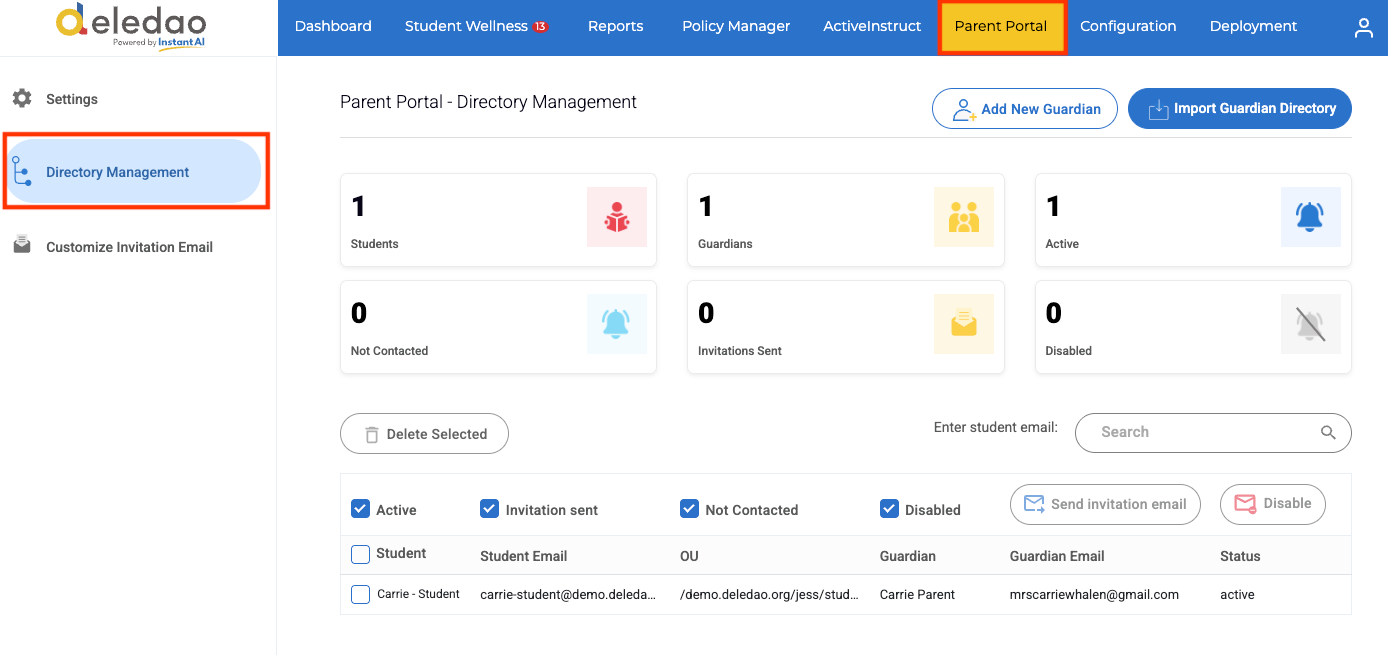
The Guardian Directory Management page allows administrators to manage student-to-guardian relationships, import guardian data, monitor invitation status, and send invitations to the Deledao Parent Portal. Administrators can also customize invitation emails and update guardian records throughout the school year.
Directory Management Overview
In the Deledao Admin Console > Parent Portal > Directory Management section, administrators can manage the Parent Portal relationship between students and their guardians.
Administrators can:
- Import or update guardian records
- Search for students, guardians, or Organizational Units (OUs)
- View guardian contact information
- Send Parent Portal invitations
- Monitor invitation status
Invitation statuses include:
- Unsubscribed – Guardian has not been invited or has not accepted an invitation.
- Invitation Sent – An invitation email has been sent and is awaiting acceptance.
- Subscribed – The guardian has accepted the invitation and activated their Parent Portal account.
Add Guardians Manually
Administrators can manually create student-guardian relationships.
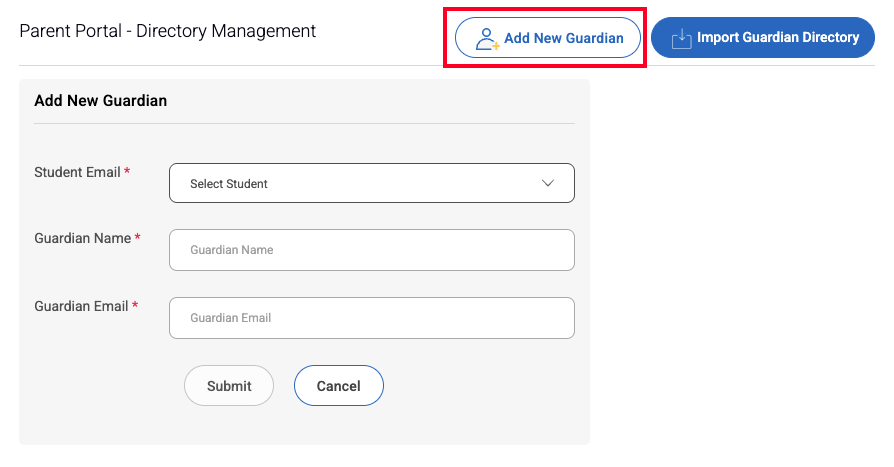
To add a guardian:
- Navigate to Parent Portal > Directory Management.
- Click Add.
- Enter:
- Student Email
- Guardian Name
- Guardian Email
- Click Submit.
Newly created guardian records will initially display an Unsubscribed status until the guardian accepts a Parent Portal invitation.
Import a Guardian Directory
For large deployments, guardian information can be imported using a CSV file generated from your Student Information System (SIS).
Required CSV Format
The first row of the CSV file must contain:
StudentEmail,ParentEmail,ParentName
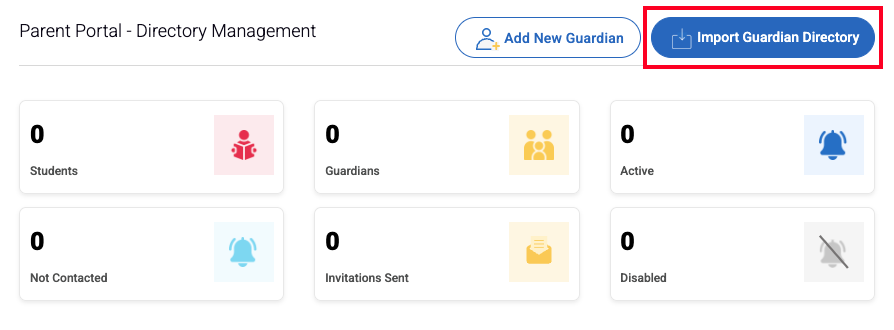
Import Process
- Navigate to Parent Portal > Directory Management.
- Select Import Guardian Directory.
- Upload the CSV file.
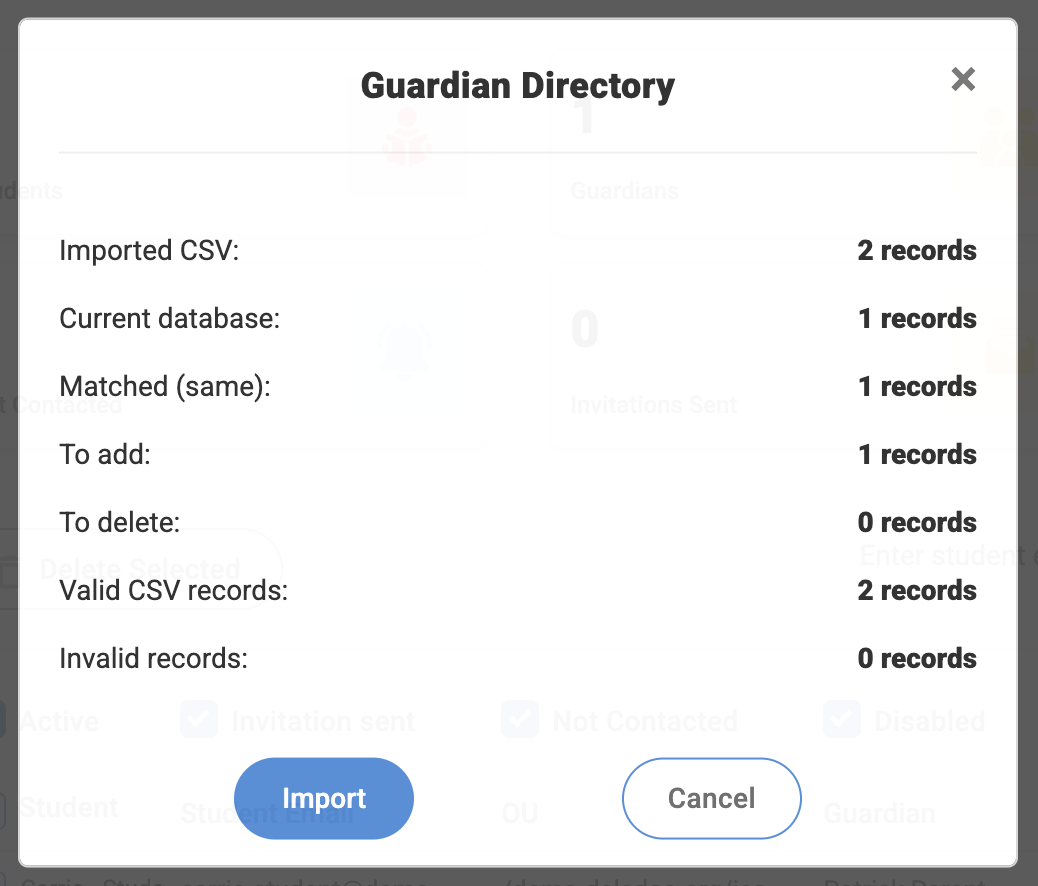
- Review the import confirmation screen.
- Confirm the import.
Before completing the import, a summary window displays statistics about the incoming records to help verify the data before processing.
Update Guardian Records
Guardian records can be updated at any time by importing a new CSV file.
If a student email already exists in the system:
- The existing record will be updated.
- Any modified guardian information will automatically replace the existing information.
This makes annual guardian updates simple and efficient.
New School Year Updates
Many districts upload a new guardian file at the beginning of each school year.
When importing an updated file:
- Existing students will have their guardian information updated.
- New students will be added.
- Removed students can be deleted automatically if configured.
Remove Guardians Not Included in an Import
Administrators can automatically remove outdated records during an import.
To enable this option, navigate to Parent Portal > Settings > Configuration and Enable:
- Remove Users Not Present in Import File
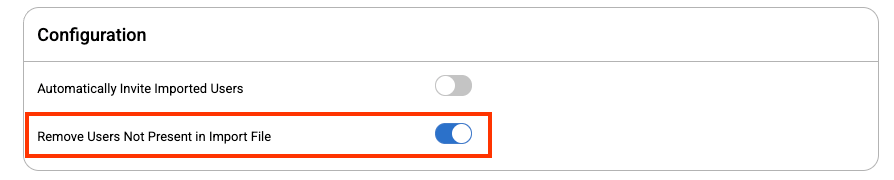
When enabled:
- Any existing records not included in the imported file will be removed.
- This is commonly used during annual roster updates.
Important: Review your import file carefully before enabling this option, as records not included in the file will be deleted.
Parent Rostering with ClassLink
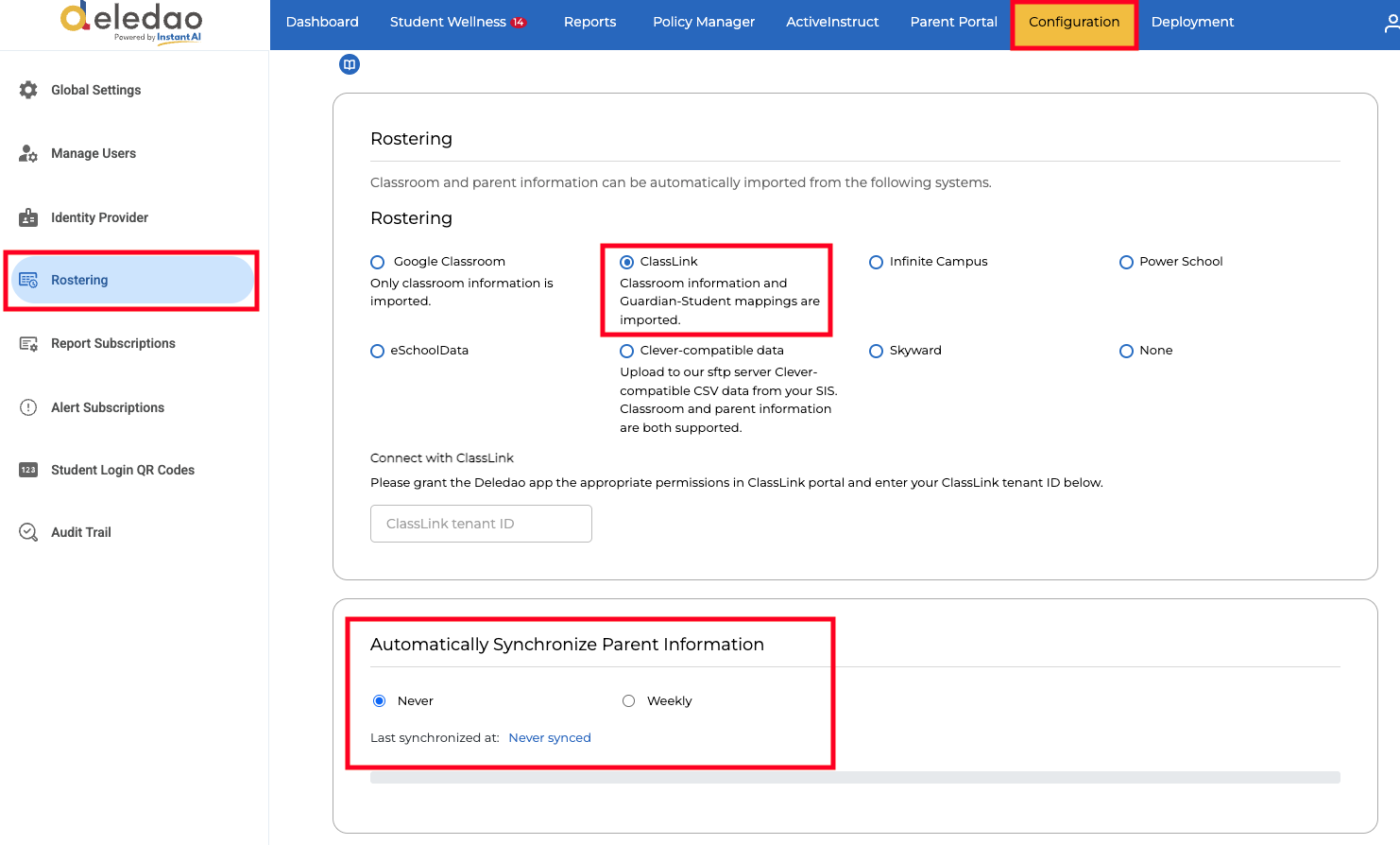
Organizations using ClassLink Rostering for ActiveInstruct classroom management or student unblock requests can also synchronize guardian data.
Guardian data may be synced:
- Manually or Automatically on a weekly schedule
- For multiple ClassLink guardians per student
If your organization does not plan to use the Parent Portal, guardian data synchronization is not required.
How ClassLink Updates Existing Records
During synchronization, Deledao prevents duplicate guardian records.
When the system detects an existing student email:
- The student information is compared to the incoming record.
- Guardian information is reviewed.
- If differences are found, the existing record is updated rather than creating a duplicate.
Duplicate Guardian Prevention
If a student-guardian relationship already exists through ClassLink synchronization and an administrator attempts to manually import the exact same relationship through a CSV file, that line of the import will be rejected.
The system will display Guardian already exists.
This prevents duplicate records from being created.
Removing Former Students
Students who are no longer rostered through ClassLink must be manually removed from Parent Portal > Directory Management.
Invite Guardians
Before sending invitations, consider notifying guardians that they will receive an email from Deledao.
Best practices include:
- Sending a district communication a few days before invitations are sent
- Asking guardians to add noreply@deledao.com to their safe-sender list
- Advising guardians to check spam or junk folders if they do not receive the invitation
- Providing Parent Portal setup instructions if available
Customize Invitation Emails
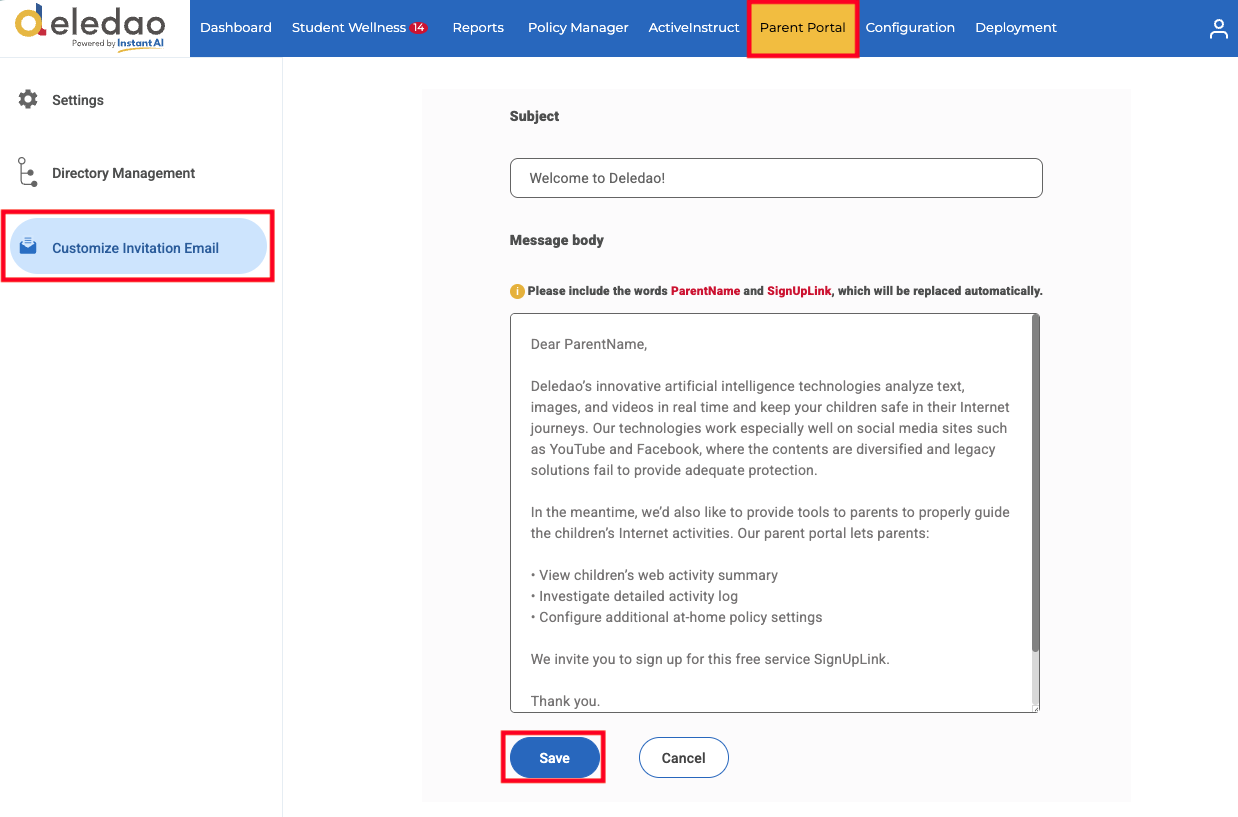
Administrators can customize the Parent Portal invitation email before sending invitations.
Common customizations include:
- District contact information
- Technology support information
- Additional instructions for parents
- Welcome messages
Required Template Variables
When editing the email template, do not remove the following placeholders:
- ParentName
- SignUpLink
When emails are sent:
- ParentName is automatically replaced with the guardian's name.
- SignUpLink is automatically replaced with the guardian's personalized registration link.
Important: Removing these placeholders may prevent invitation emails from functioning correctly.
Send Invitation Emails
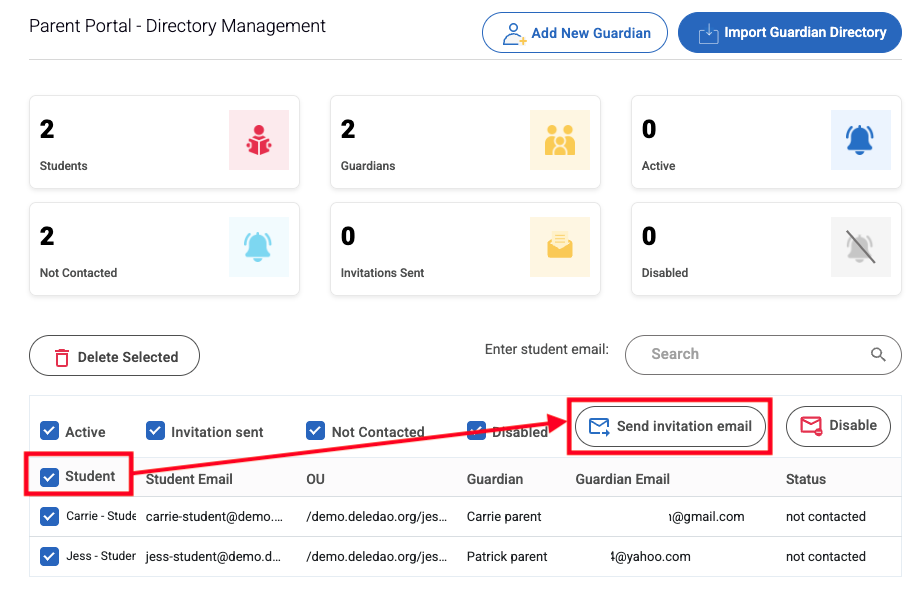
To invite guardians:
- Navigate to Parent Portal > Directory Management.
- Select the checkbox next to one or more guardians.
- Click Send Invitation Email.
After the invitation is sent:
- Status changes to Invitation Sent.
- Once the guardian completes registration, the status changes to Subscribed.
Maintain the Guardian Directory
Keeping guardian records up to date ensures parents can successfully access the Parent Portal and receive accurate student information.
Recommended Maintenance Tasks
- Import updated guardian data at the beginning of each school year.
- Review invitation statuses periodically.
- Remove outdated records when students leave the district.
- Verify guardian email addresses before sending invitations.
- Monitor synchronization results if using ClassLink rostering.
Best Practices
- Import guardian data from your SIS whenever possible.
- Review import statistics before confirming uploads.
- Send a parent communication before distributing Parent Portal invitations.
- Keep the required ParentName and SignUpLink variables in customized email templates.
- Use the Remove Users Not Present in Import File option carefully during annual roster updates.
- Periodically review invitation statuses to identify guardians who have not yet activated their Parent Portal accounts.
By maintaining accurate guardian records and invitation workflows, districts can ensure a smooth Parent Portal onboarding experience for families.
© Deledao Education