
Table of Contents
- What is ActivePulse™?
- Understanding Wellness Alert Levels
- Configure Wellness Alert Settings
- Alert Delivery Settings
- Apply Wellness Detection
- Alert Investigation
- View Wellness Alerts
- Review Wellness History
- Best Practices
Audience: Administrators
What is ActivePulse™?
ActivePulse continuously analyzes student online activity and identifies content that may indicate:
- Self-harm
- Suicide ideation
- Violence
- Threats of violence
- Cyberbullying
- Harassment
- Emotional distress
- Other student wellness concerns
When concerning activity is detected, ActivePulse generates a wellness alert and assigns a risk level based on the severity of the content.
Important: ActivePulse is designed to assist districts in identifying potentially concerning behavior. It should be used as part of a broader student wellness and intervention strategy.
Understanding Wellness Alert Levels
Each wellness alert is assigned a risk level. Within each alert recipient, the Risk Level can be designated to determine which alerts that individual will receive.
Important Note: If a website is added to the Allowed List in the user's Policy Manager Rule, Wellness alerts won't be generated for that website.
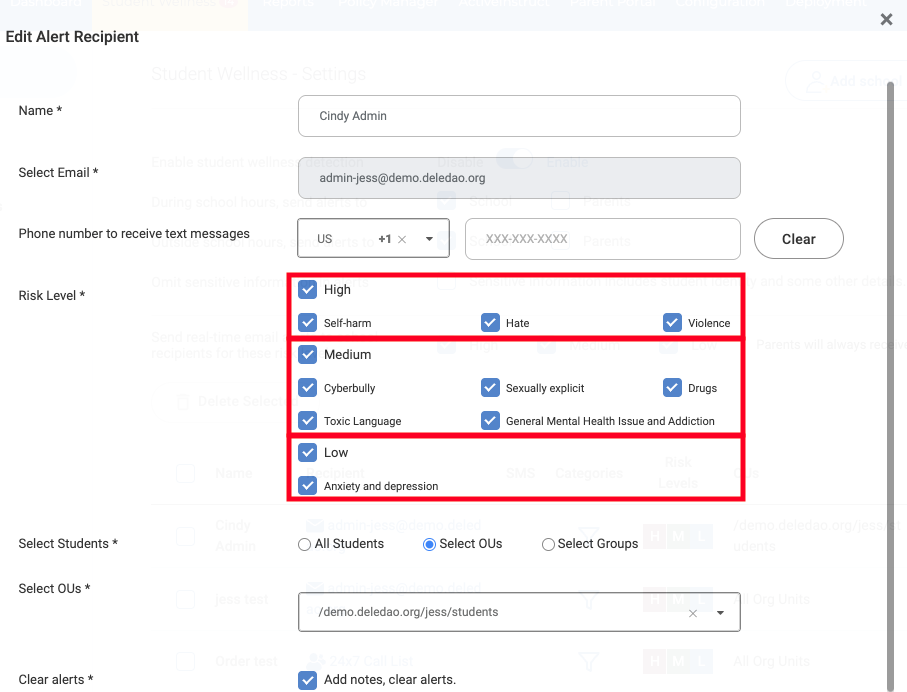
High Risk
High Risk alerts indicate content that may require immediate attention and should be reviewed as quickly as possible.
- Self-harm
- Hate
- Violence
Medium Risk
Medium Risk alerts indicate concerning activity that may warrant follow-up by counselors, administrators, or other support staff.
- Cyberbully
- Sexually explicit
- Drugs
- Toxic Language
- General Mental Health Issue and Addiction
Low Risk
Low Risk alerts serve as an early warning indicator and can often help staff identify trends before they become more serious.
- Anxiety and Depression
Configure Wellness Alert Settings
To access Wellness settings, navigate to the Deledao Admin Console > Student Wellness > Settings
- Alert recipients
- Notification preferences
- Escalation procedures
- Reporting workflows
The specific individuals who receive alerts are configured separately through Alert Recipients and Escalation Procedures.
Alert Delivery Settings
Administrators can configure when they would like to receive Student Wellness alerts, either during school hours or outside school hours. If the Parent Portal is also configured, notifications can also be sent to parents either during our outside school hours.
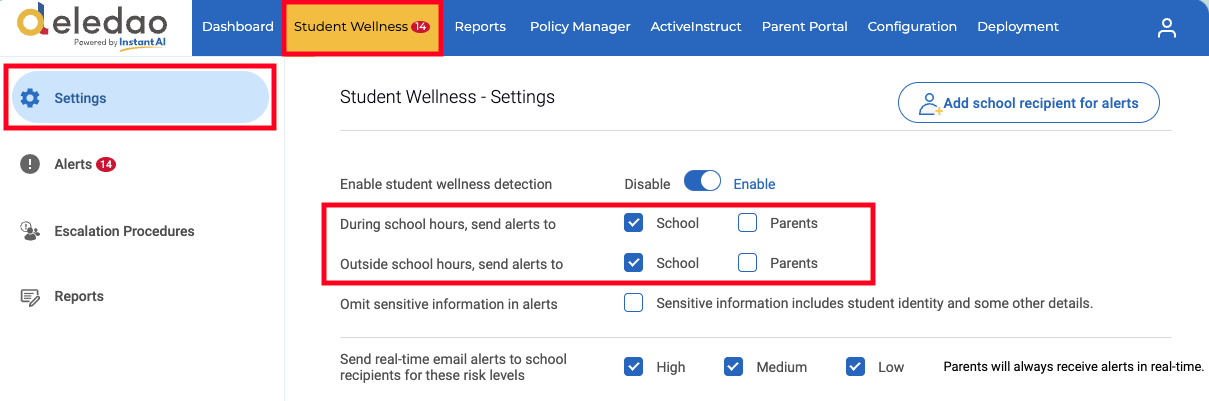
To review what are set for your school hours, navigate to Configuration > Global Settings.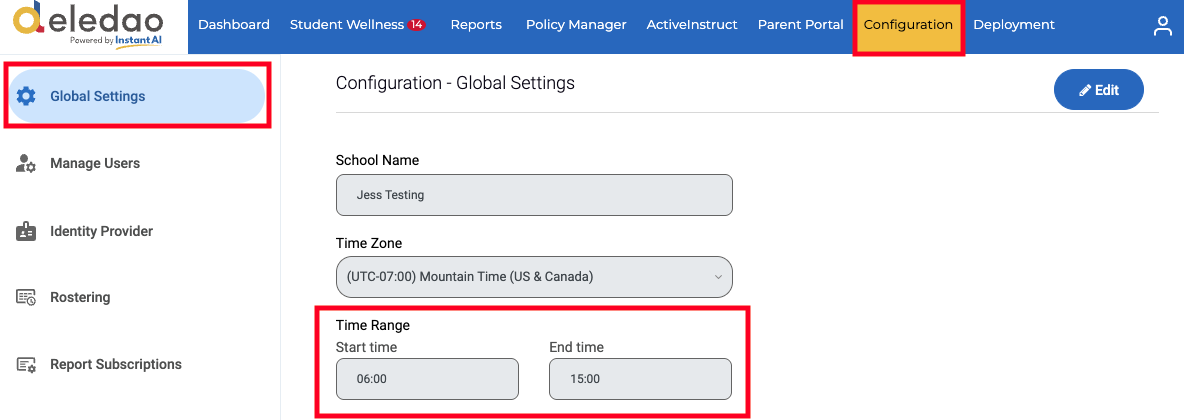
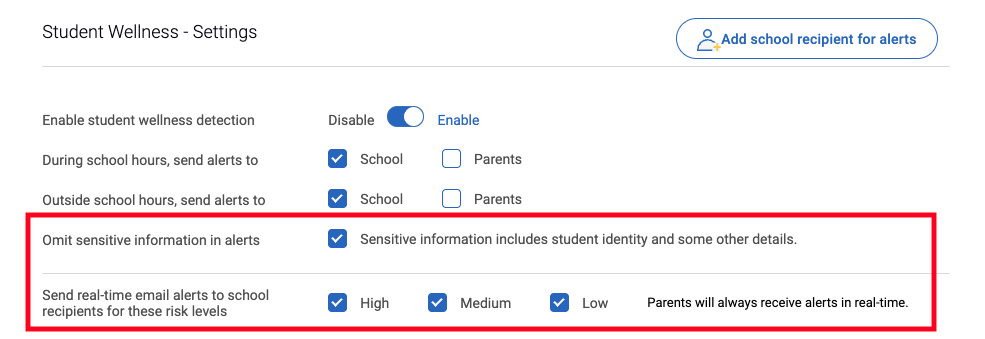
Some alert recipients may not want personal student information, such as name and email address to show in the notification email that is sent. Check Omit sensitive information in alerts to have this information left out of the notification email. This will require the recipient to review the alert for the information.
By default, alert notifications will be delivered once per day in a daily digest format. To receive alert notifications in real time, check the Send real-time alerts to school recipients for these risk levels for the levels you would like to get real-time alerts.
Apply Wellness Detection
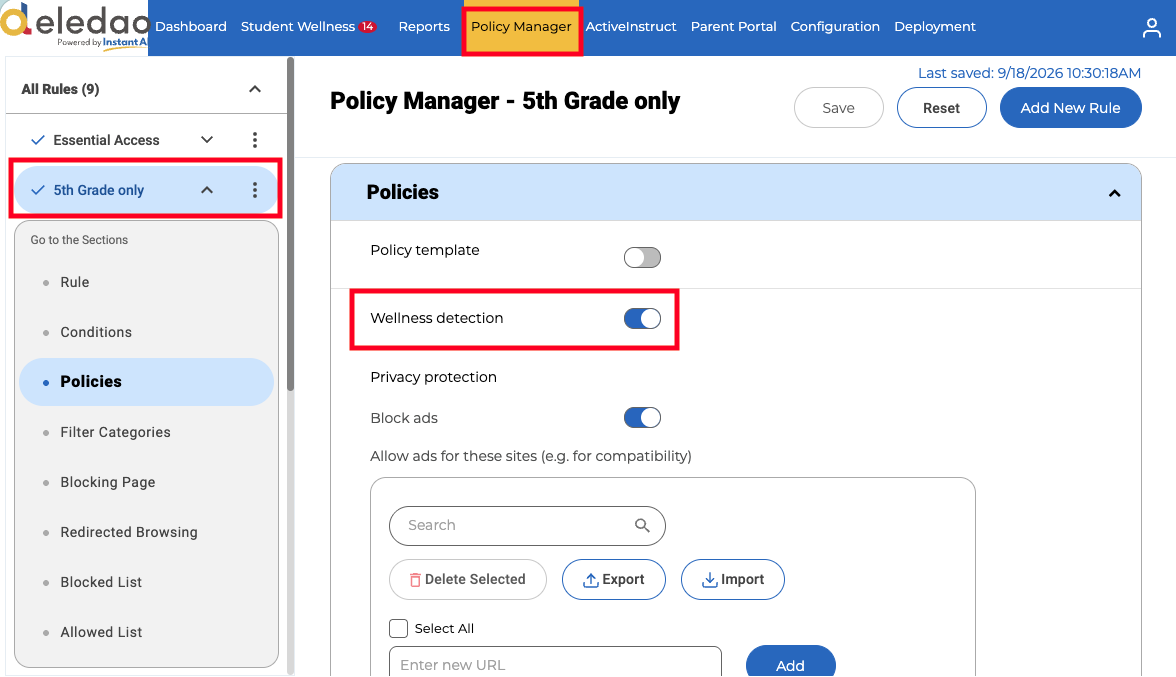
Wellness Detection is applied within Policy Manager.
To configure:
- Navigate to Policy Manager.
- Edit a Policy Rule.
- Locate Wellness detection.
- Enable or disable Wellness detection for the users assigned to the rule.
Best Practice
Most districts:
- Enable Wellness detection for students.
- Disable
- wellness detection for teachers and staff.
Alert Investigation
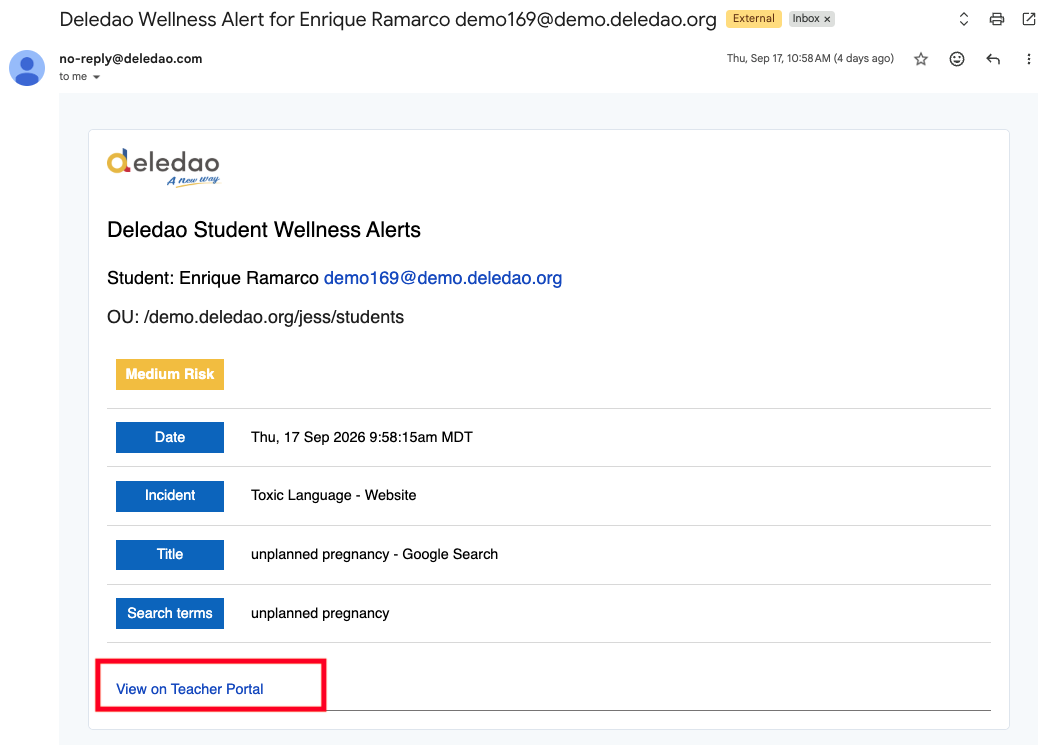
Alert Recipients will automatically have access to the Teacher Portal to investigate Wellness alerts. The link to access will be found in the email notification that is triggered by the alert.
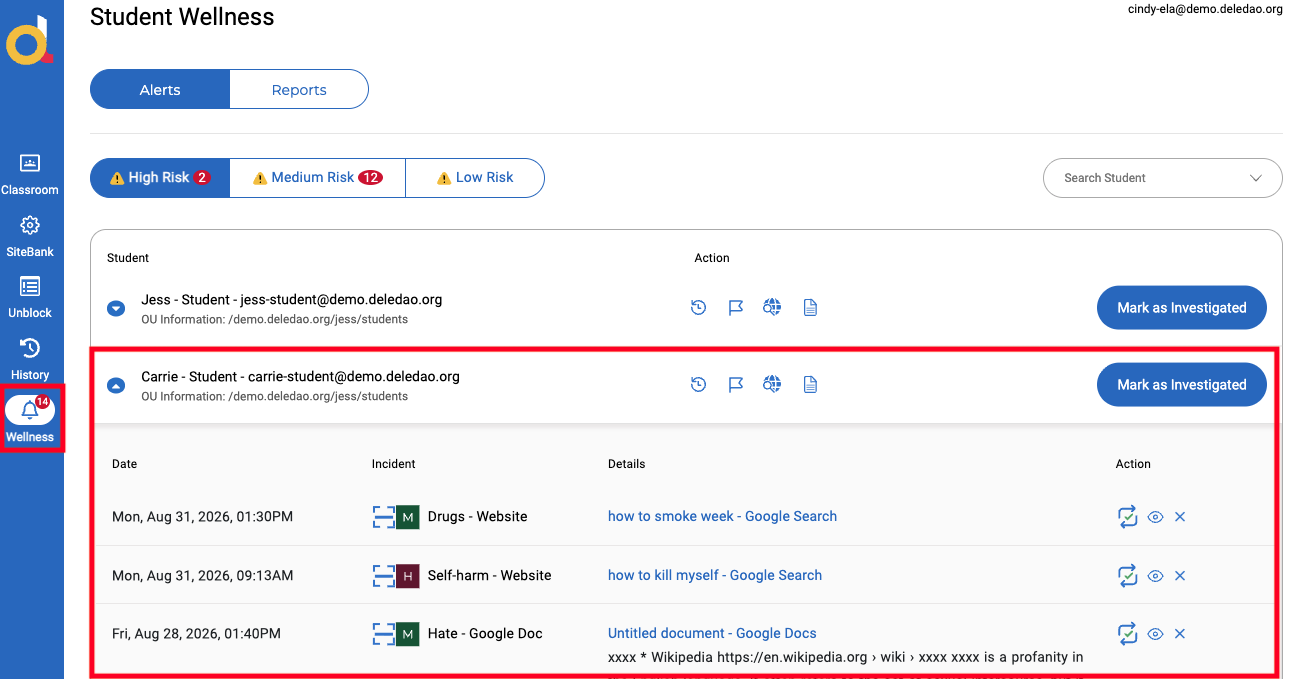
The recipient can then login to their Teacher Portal with their Identity Provider login credentials and click on the Student Wellness tab on the left to investigate alert details.
To allow Alert Recipients to also access the alert from the Deledao Admin Console, go to Configuration > User Management > Add New User. Select the Role access for this individual and make sure to select Allow Wellness Management.
View Wellness Alerts
To review generated alerts navigate to Deledao Admin Console > Student Wellness > Alerts
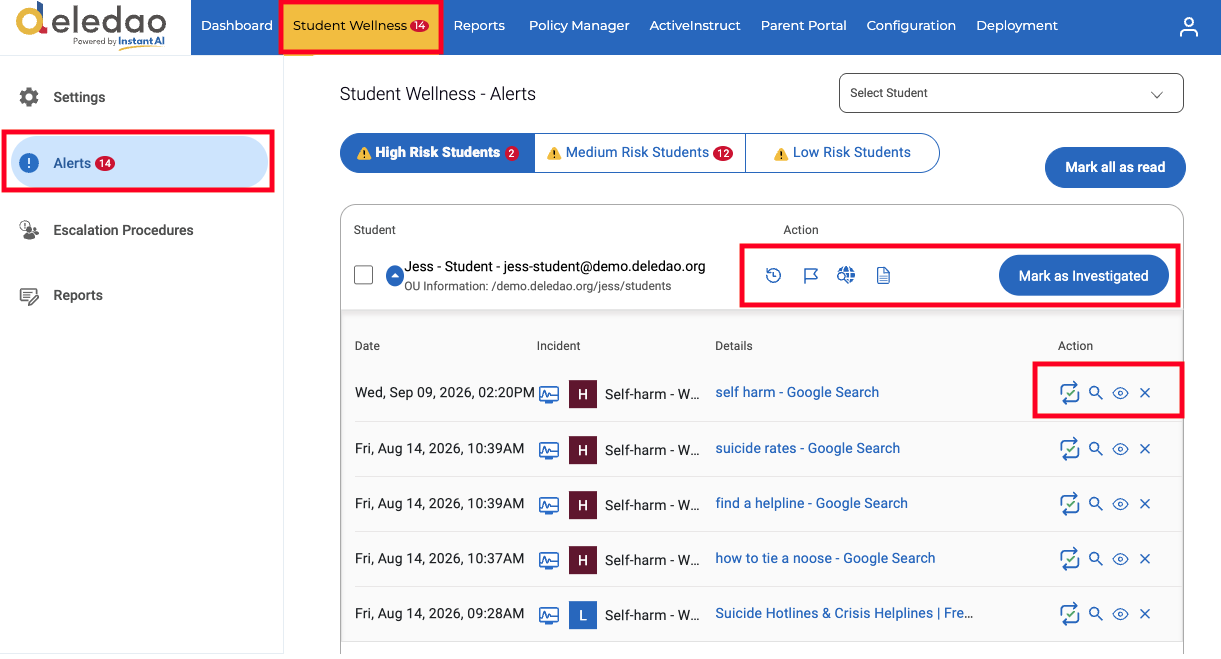
Student Alert Actions
- History (clock icon) - A quick click view of all historical alerts for this particular student that have been marked as Investigated.
- Flag Student (flag icon) - Flag this student as High Risk so that any future new wellness incidents will also be marked as High Risk.
- Spotlight (globe with magnifying glass icon) - Provides a quick visual overview of the recent web searches to assist in the assessment of the student's wellness. The red phrases indicate blocked activities.
- Generate Report (piece of paper icon) - Generates a .pdf report that can be used to share with others or for a historical documentation of the alert that can be stored in an alternate location.
- Mark as Investigated (button) - Marks this set of alerts as having been investigated and these alerts will no longer appear in the Alerts view. All alerts move to the Reports section from the Student Wellness main menu.
Individual Alert Actions
- Mark as Investigated (checkmark with looping arrows icon) - Marks this single alert as having been investigated and these alerts will no longer appear in the Alerts view. All alerts move to the Reports section from the Student Wellness main menu.
- Investigate Activities (magnifying glass icon) - Quick click shortcut to the Reports section in the Deledao Admin Console main menu to display the activity of this student prior to and after the triggered alert.
- View Screenshot (eye icon) - Displays a screenshot of what that student saw on the screen at the time of the triggered alert.
- Mark as Irrelevant ('x' icon) - Notates that this alert was not of significance, whether due to being legitimate class research or there was no need for an alert. Trains the AI to better recognize legitimate alerts and clears the alert from the Alerts view.
Review Wellness History
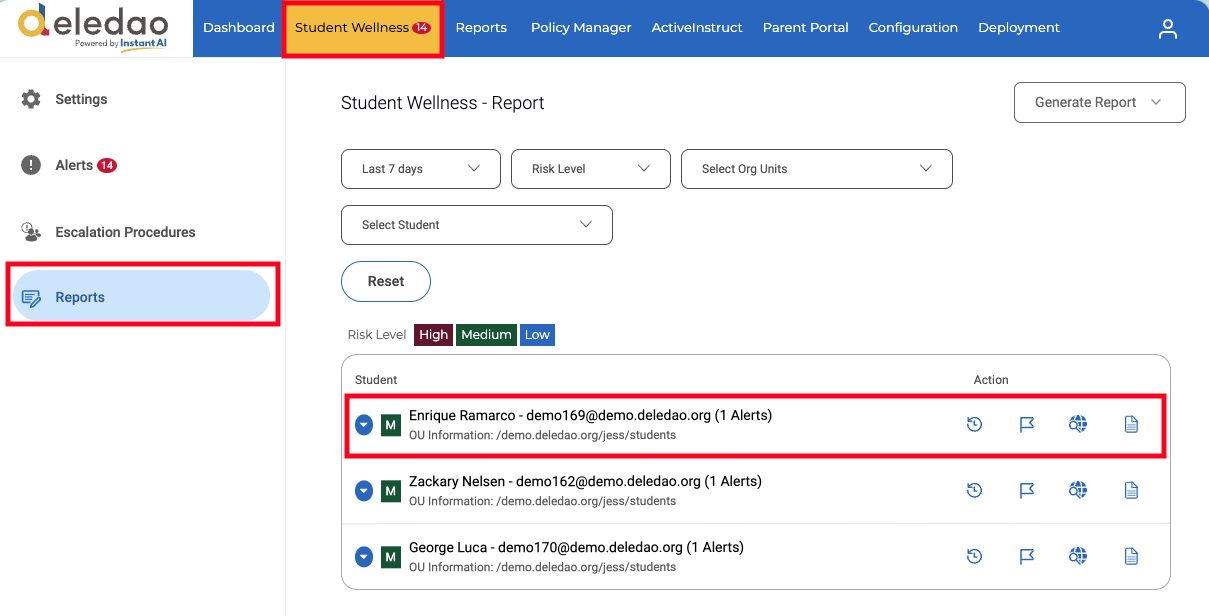
The Wellness Reports section allows staff to:
- Search for specific students alert history
- Filter alerts by risk level
- Review alert history
- Investigate wellness trends
This information can help identify both immediate concerns and long-term behavioral patterns.
Best Practices
- Enable wellness detection for student policies only.
- Review alert recipients regularly.
- Ensure counselors and administrators understand notification procedures.
- Regularly review Medium and High Risk alerts.
- Establish clear internal intervention procedures.
© Deledao Education