
Table of Contents
- Creating a Policy Rule
- Wellness Detection
- Privacy Protection
- Content Safety
- YouTube Controls
- Moderate vs. Strict Mode
- Google, Yahoo, Bing safe mode
- Blocked and Allowed Search Keywords
- Black Out Foul Words on Webpages
- Real Time Analysis
- Google Workspace
- Filter Categories
- Learn About a Category Before Blocking It
- Category-Level Filtering
- Streaming Media & Download
- Redirected Browsing
- Add URL's to the Blocked List or Allowed List
- Recommended Configuration
- Important Considerations
Audience: Administrators
The Policy Manager is the central location for configuring content filtering within Deledao. Policies determine which websites, categories, keywords, and content types users can access while allowing districts to customize filtering based on grade level, organizational unit (OU), instructional needs, and local requirements.
This article explains how to configure filtering rules, understand category recommendations, and use Deledao's content safety features to create a safe and productive learning environment. See related article Policy Manager: Best Practices for additional information.
Creating a Policy Rule
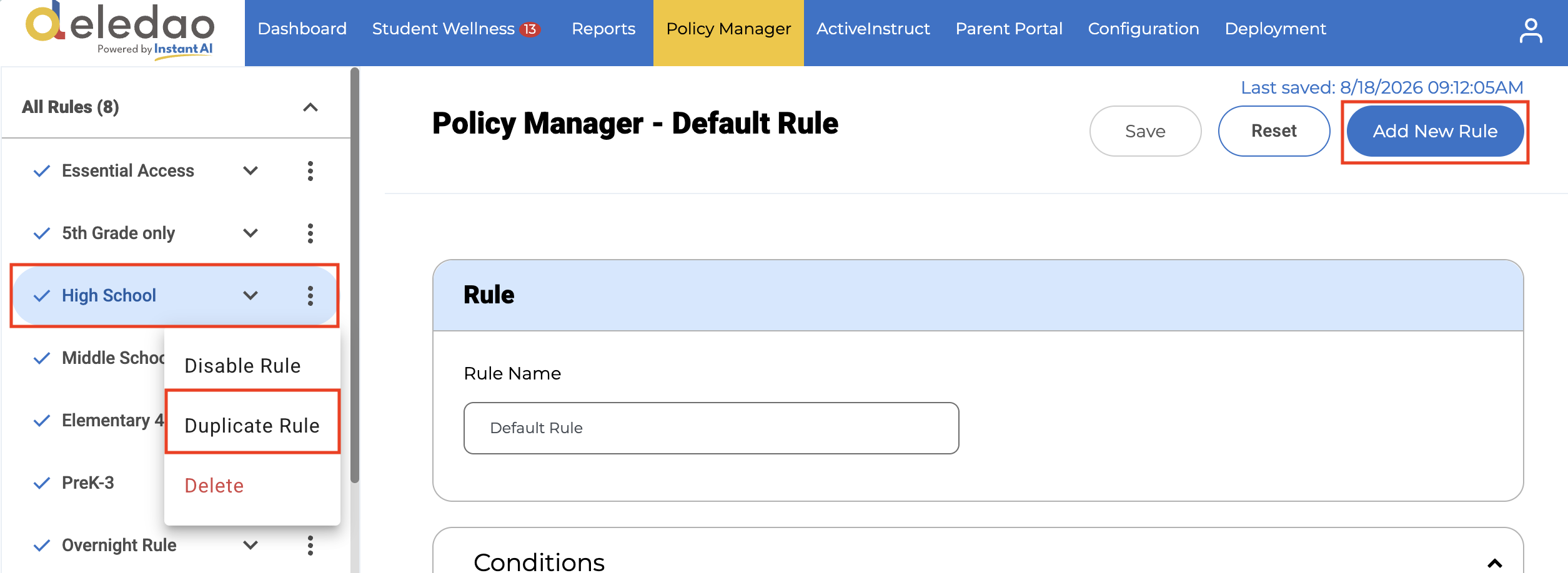
When logging into the Deledao Admin Console for the first time, the only rule that will be listed is the Default Rule. To create a new rule to apply conditions, such as Location, Organizational Unit or Group, or User, click Add New Rule in the upper right corner.
If there are other rules created that you would like to use as a base for a new rule, click the three dots on that existing rule and then Duplicate Rule.
Give the rule a name.
Conditions
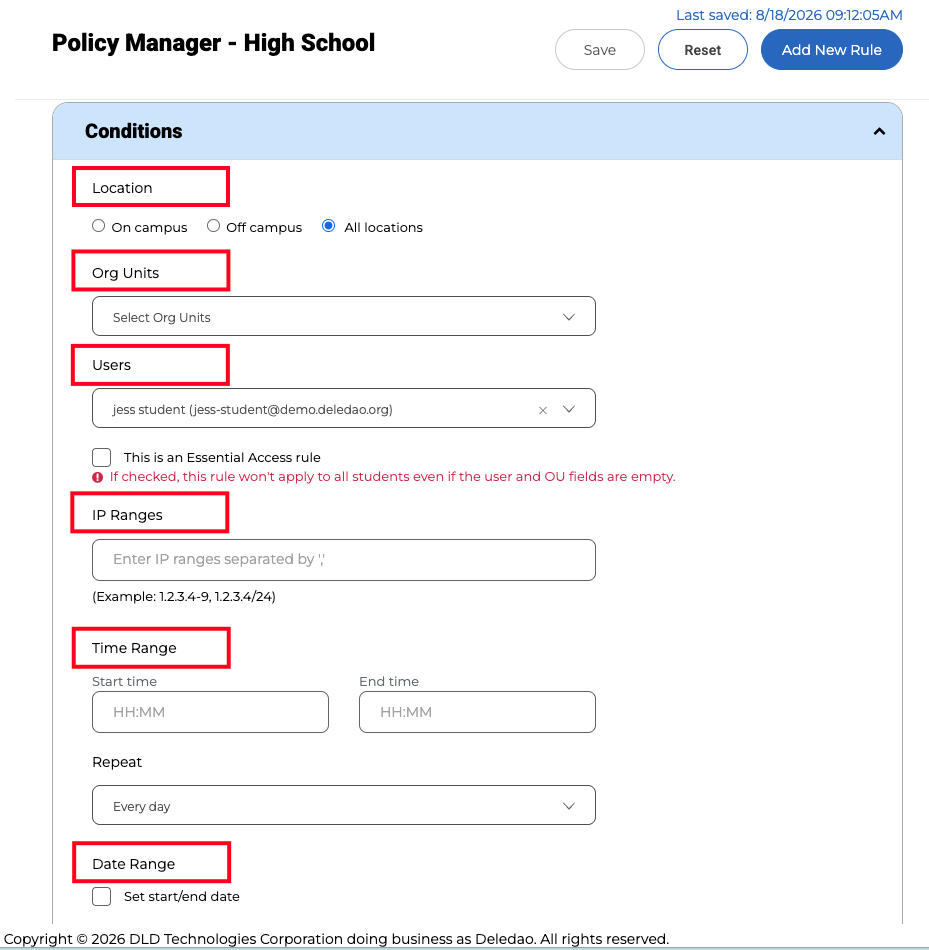
After entering a Rule Name, choose your Conditions for that rule.
Location
- On Campus - Users who fall under the public facing IP address at the school.
- At home - Any location outside of the school's public facing IP addresses.
- All locations - The policy would be applied to the user no matter the location.
Org Unit
Policies can be assigned to organizational units.
Groups
Policies can be assigned to Groups if Enforce policies based on Google Workspace groups and OUs instead of OUs option is enabled on the Configuration > Identity Provider page.
Users
Policies can be assigned to individual users.
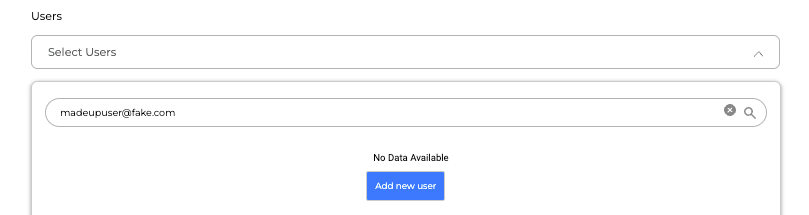
For Cloud proxy solution users who share devices, a made-up email can be used to set up policy rules, if such email ID is being used in their cloud proxy PAC URL.
IP Ranges
Policies can be assigned to specific IP addresses. For example, if an E-Sports team uses a computer lab, those internal IP's can be listed to allow for certain websites on that lab only.
Time Range
A time range can be added so the policy will only be applied during certain times of the day.
Repeat
Policies can be repeated every day or certain days of the week.
Date Range
Set a date range of when the policy would be applied.
Wellness Detection
With ActivePulse™ subscription, wellness detection can be enabled or disabled per policy rule. Best practice is to disable this for any adult users, such as teachers and staff, but to enable it for any student users that you would like to get wellness alerts for. See the Student Wellness knowledge base section for more information.
Privacy Protection
Block Ads
Website ads will be blocked unless added specifically to the list of sites allowed.
Restrict Logins
When enabled, users will not be able to login to any login sites other than those listed.
- Restrict Logins to Allowed Sites: Blocks login activity unless it occurs on explicitly approved websites.
- Enhance Student Privacy: Prevents students from signing into sites that may share data with third-party entities.
- Improve Security Controls: Reduces the risk of unauthorized data exposure through unmonitored sign-ins.
- Support Policy Compliance: Helps enforce school or district-level privacy and security policies.
Block third-party tracking
Blocks Google search tracking unless added specifically to the list of sites allowed.
Content Safety
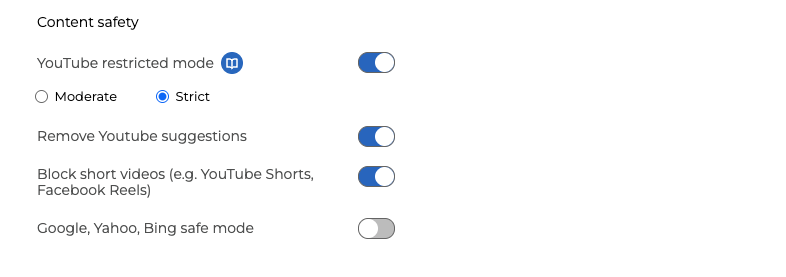
Content Safety features provide additional protection to help limit exposure to inappropriate language, images, videos, and other content that may not be fully addressed through category-based filtering alone.
YouTube Controls
Deledao provides multiple levels of YouTube protection.
Google Restricted Mode Takes Precedence
If YouTube Restricted Mode is enabled in your Google Admin Console, Google's setting will take precedence over Deledao's standard YouTube Restricted Mode settings.
Recommended: Enable Deledao Strict Mode
The exception is Strict Mode in Deledao. Even when Google Restricted Mode is enabled, Deledao Strict Mode blocks YouTube thumbnails.
Because of this additional protection, Deledao recommends enabling Strict Mode regardless of whether YouTube Restricted Mode is already configured in Google Workspace.
Moderate vs. Strict Mode
If YouTube Restricted Mode is not enabled within Google Admin Console, administrators can choose between two protection levels.
Moderate Mode
- Blocks age-restricted adult content
- Blocks videos with mature metadata flags from YouTube community
- Allows video previews/thumbnails
- Allows comments on videos
- Allows live streams
- Allows annotations, cards
- Filters search suggestions but allows some non-age-restricted results
Strict Mode
- Blocks any age-restricted content (set as 18+ by uploader)
- Blocks videos flagged as containing mature content by YouTube community
- Disables video previews/thumbnails that could contain mature imagery
- Disables comments on videos to avoid mature language
- Blocks all live streams (as they can't be pre-screened)
- Blocks annotations, cards that could link to mature content
- Heavily filters and limits search suggestions
- Blocks videos even if not age-restricted if deemed potentially mature
Most K-12 districts choose Strict Mode because of the additional safeguards surrounding comments and live content.
Google, Yahoo, Bing safe mode
Important Note: Disable if Google Safe Search is enabled in your Google Admin Console. If both Google safe Search is enabled in the Google Admin Console AND in the policy rule, this will create a conflict, causing the browser to redirect in an endless loop.
However, if you would like to enable Safe mode for all three search engines, disable in Google Admin Console and enable here instead.
Blocked and Allowed Search Keywords
Although Real time text analysis will assist greatly in blocking or allowing search keywords, there may be time when specific keywords need to specifically added to the block or allow search keywords list.
- Separate keywords by commas. If not, the rule can't be saved and report error "There are errors on the form. Please fix them before saving." Recommendation: Please use only half-width commas (,) between keywords, and do not include any spaces or line breaks before or after the commas.
- The list can contain a maximum of 100K characters
- Fuzzy match is used by default for blocked keywords. For exact match, place “keywords” in quotes (e.g. “fortnite” only blocks “fortnite” while fortnite blocks fortnite / fort nite / f o r t n i t e /fortnit*).
- Fuzzy match is NOT used for allowed keywords. If a word is placed in quotes, only exact searches are allowed. Otherwise, searches containing those words are allowed (e.g. “drugs” would allow “drugs” search only while drugs would allow “buy drugs”).
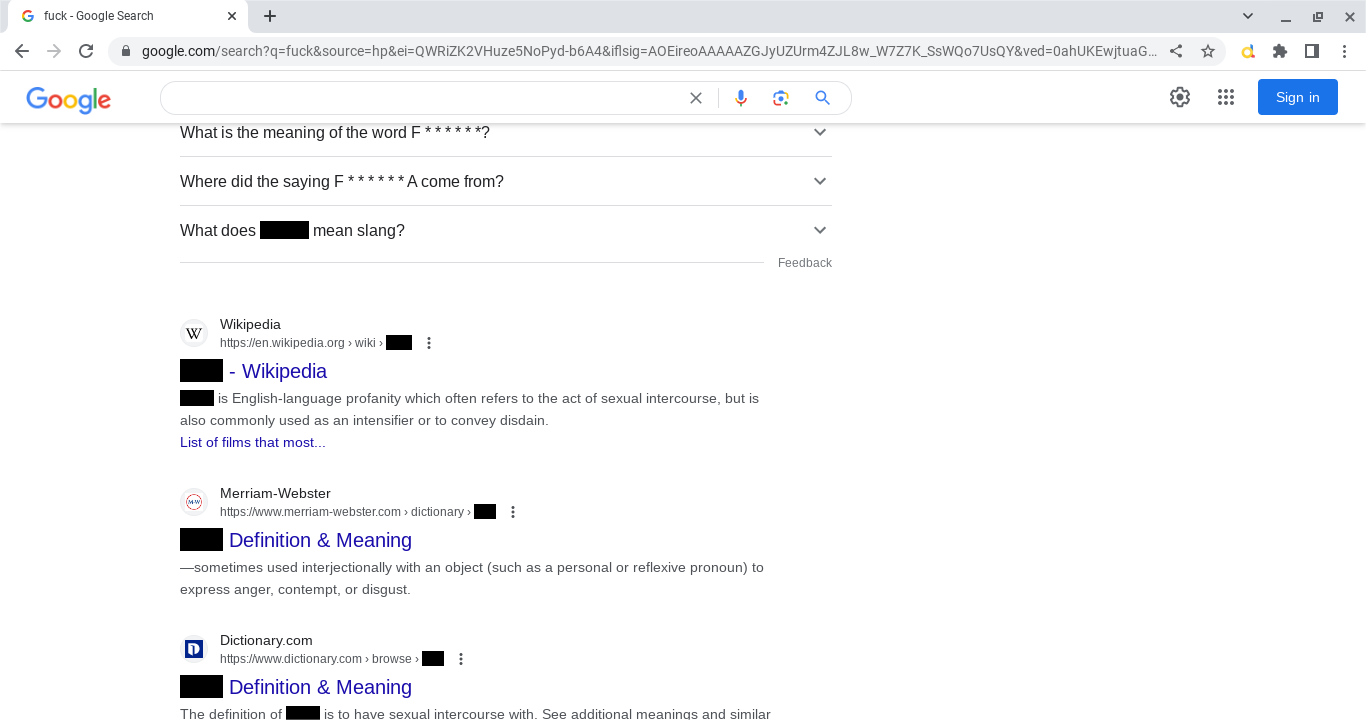
Black Out Foul Words on Webpages
When enabled, Deledao identifies inappropriate language on supported webpages and removes it from view. After this has been enabled, click Add default list to quickly add our provided list of words to the list. Other words can be added as needed.
How It Works
This feature does more than place a visual black bar over the word. The underlying text is actually redacted.
For example:
- Users cannot view the original word on the webpage.
- If a user copies and pastes the content into Google Docs or another application, the black redaction bar is pasted instead of the original word.
This helps prevent users from bypassing the protection through copy-and-paste actions.
Real Time Analysis
Deledao analyzes text, images, and video in real time to identify potentially inappropriate visual content. AI filtering works together with category filtering and real-time image analysis to reduce exposure to inappropriate visual material that may appear on otherwise acceptable websites.
Administrators can adjust the sensitivity of each, based on user age, grade level, and district requirements.
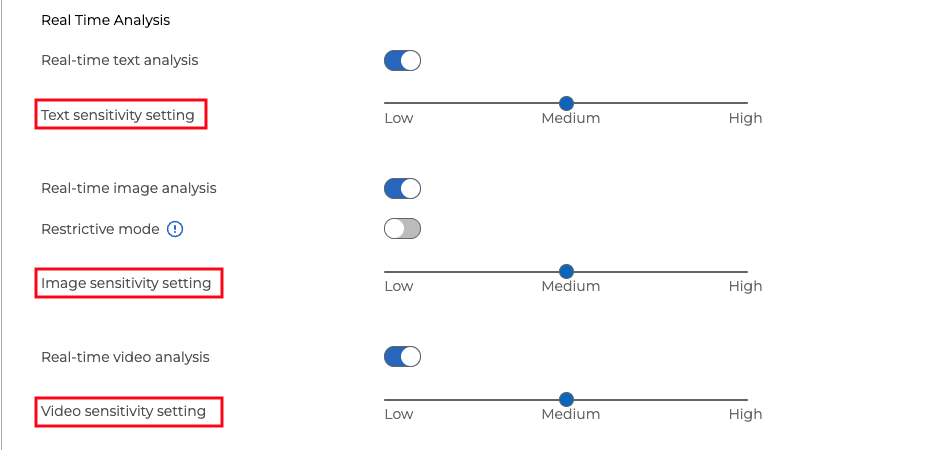
Image Restricted Mode
By default:
- An image is displayed.
- Deledao analyzes the image.
- If the image is deemed inappropriate, it is blurred.
This process occurs automatically and typically happens very quickly.
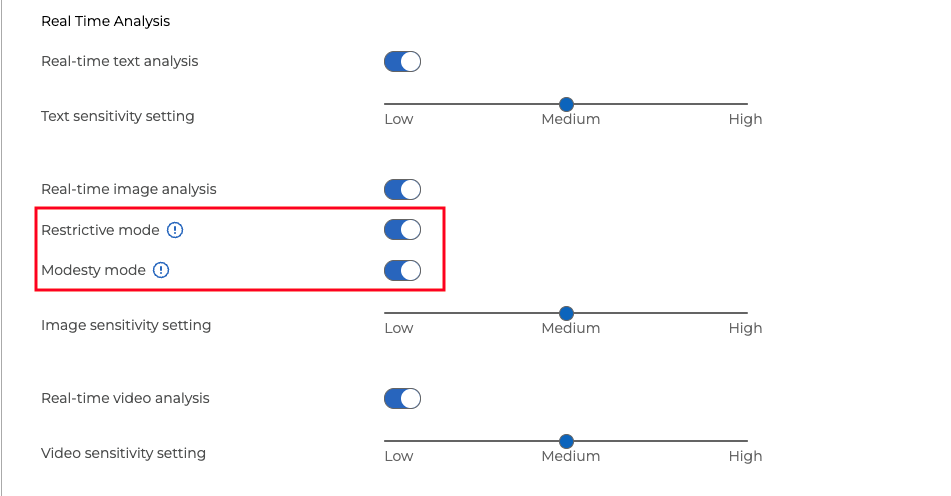
Restrictive Mode
Restrictive Mode provides a higher level of image protection.
When enabled:
- All images are blurred immediately.
- Deledao analyzes the image content.
- Appropriate images are automatically unblurred.
- Inappropriate images remain blurred.
This setting is particularly useful for younger students or districts requiring stricter controls.
Google Workspace
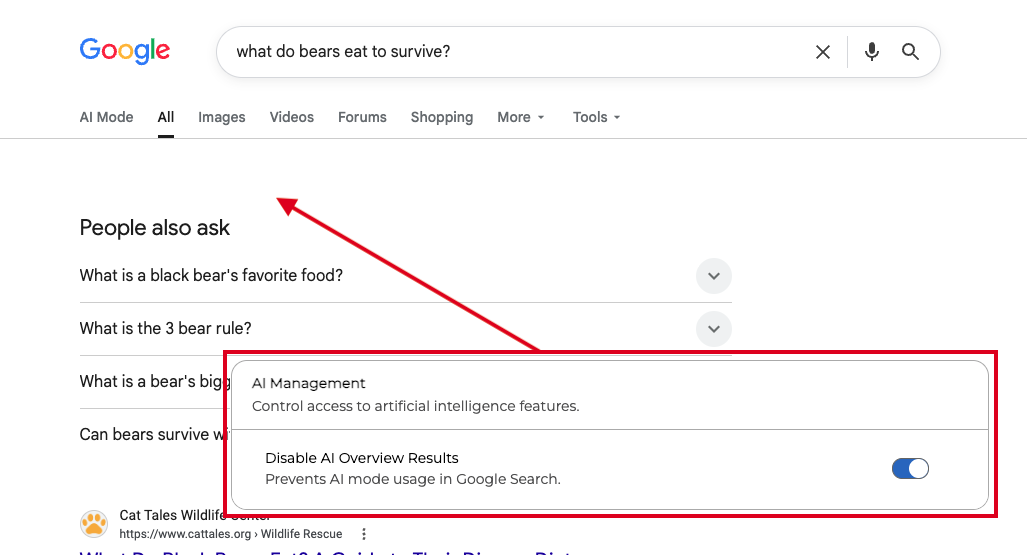
AI Management
Default Google behavior is to display AI Overview with a Google search.
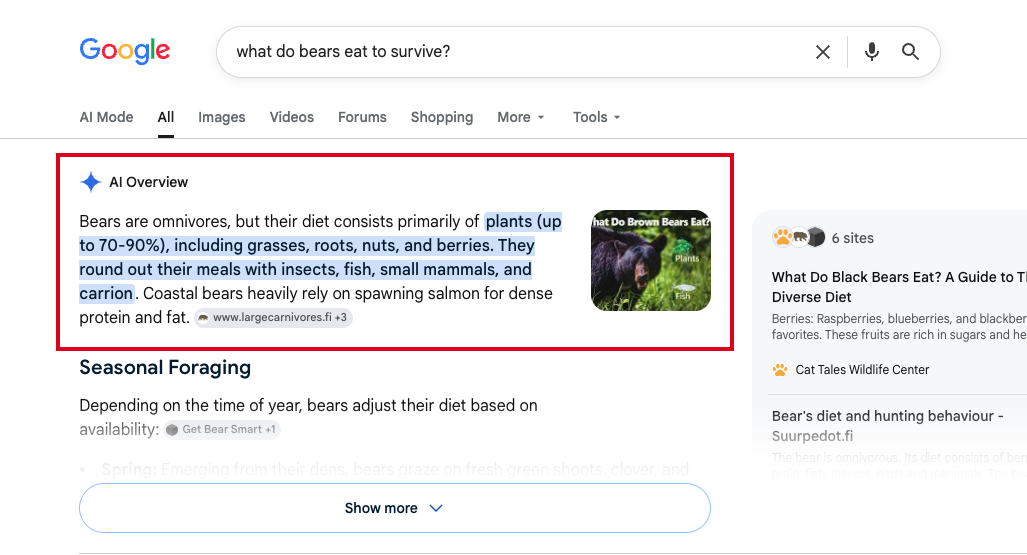
Toggle ON Disable AI Overview Results to remove the AI search results in a Google search.
Content Moderation
Block Game-Related Content
By default, Deledao Real-time AI analyzes content in Google Docs, Sheets, and Slides and if it recognizes the content as game-related, it will block them.
For example, if students use a Google Doc to chat with each other to discuss a game such as Minecraft or share links to gaming websites, Deledao will block the content and classify it as Games.
However, this behavior can sometimes affect legitimate educational activities. For instance, a teacher may assign students to write about their holiday break. If a student describes video games they played during that time, the document content could be blocked because it matches the Games category.
If you want users to be able to view and create game-related content within Google Docs, Sheets, and Slides, disable (toggle off) the Google Docs, Google Sheets, and Google Slides settings.
Remove Inappropriate Emojis
Enable this setting to automatically remove emojis that may be used inappropriately when students are using Gmail, Google Chat, Google Hangouts, or Google Docs.
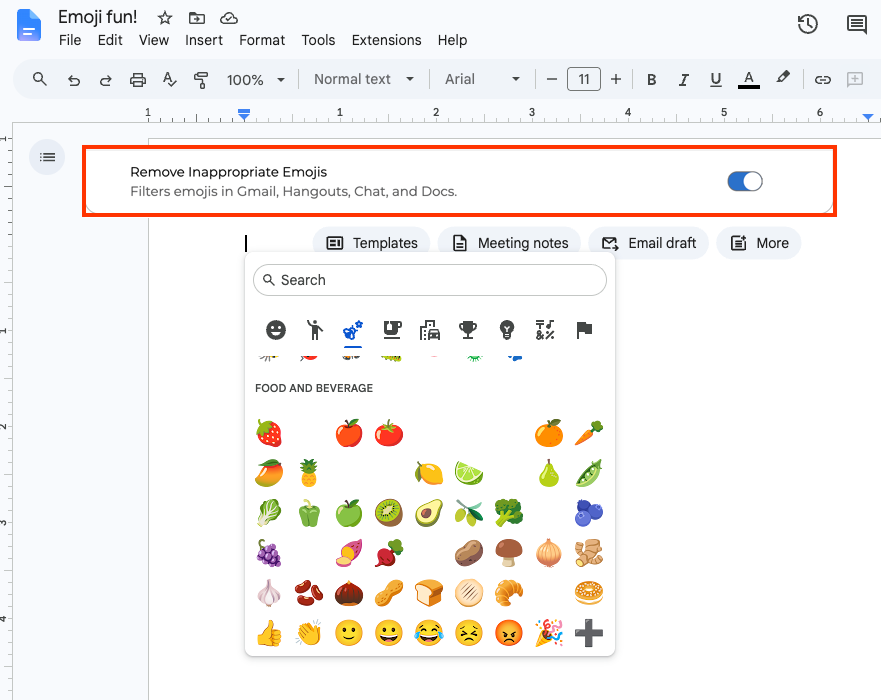
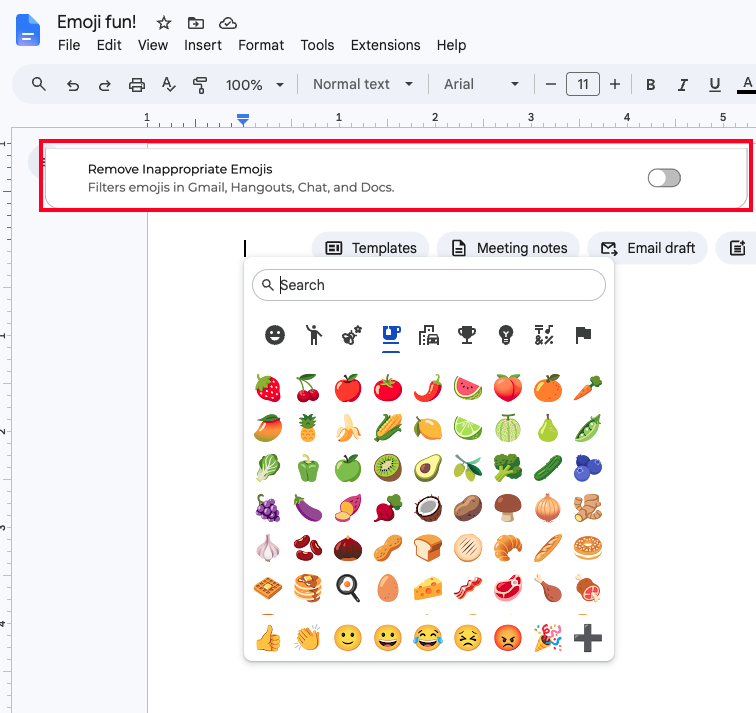
For example, some emojis, including certain fruit emojis, are commonly used as slang or substitutes for inappropriate body parts or content. When this setting is enabled, those emojis are removed from the emoji selection menu, preventing students from using them in messages and documents.
When this setting is not enabled, the student will see all emoji choices.
Filter Categories
Deledao organizes filtering categories into three primary groups to simplify policy management and help administrators make informed filtering decisions.
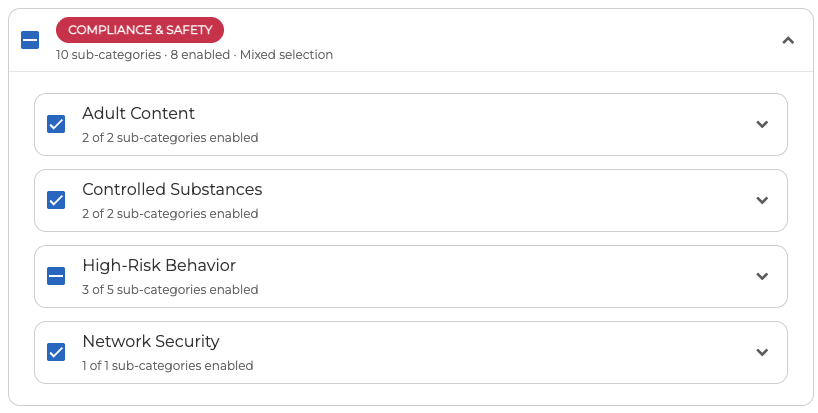
Compliance & Safety
This group contains categories commonly associated with student safety, legal compliance, and regulatory requirements.
These categories are commonly reviewed first when building a filtering policy for students.
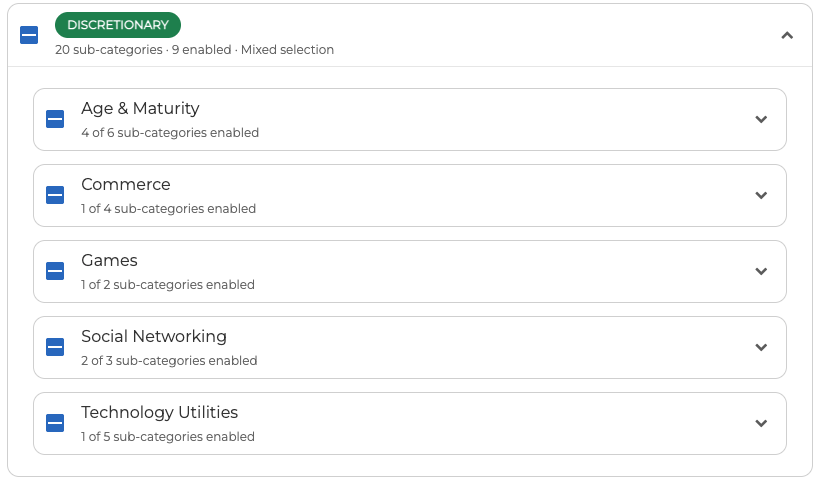
Discretionary
This group contains categories that districts may choose to allow or block based on age level, educational goals, and local policies.
Because educational needs vary significantly between organizations, these categories often require district-specific review.
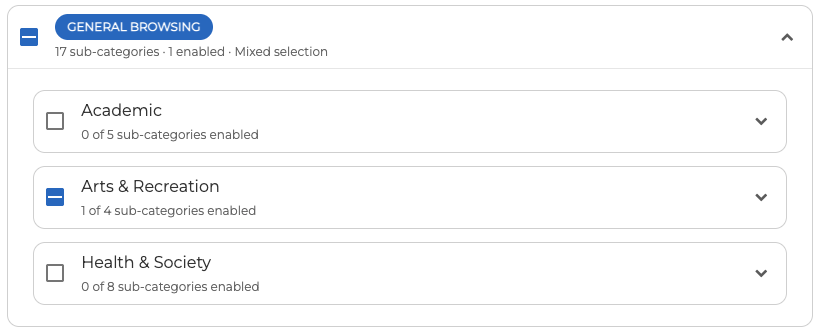
General Browsing
This group contains categories related to everyday internet usage and general web browsing activity.
These categories help administrators manage access to common online content while maintaining appropriate educational access.
Learn About a Category Before Blocking It
Every category and sub-category includes a blue Information (ℹ) icon.
Selecting the Information icon opens a panel on the right side of the screen with detailed information about that category.
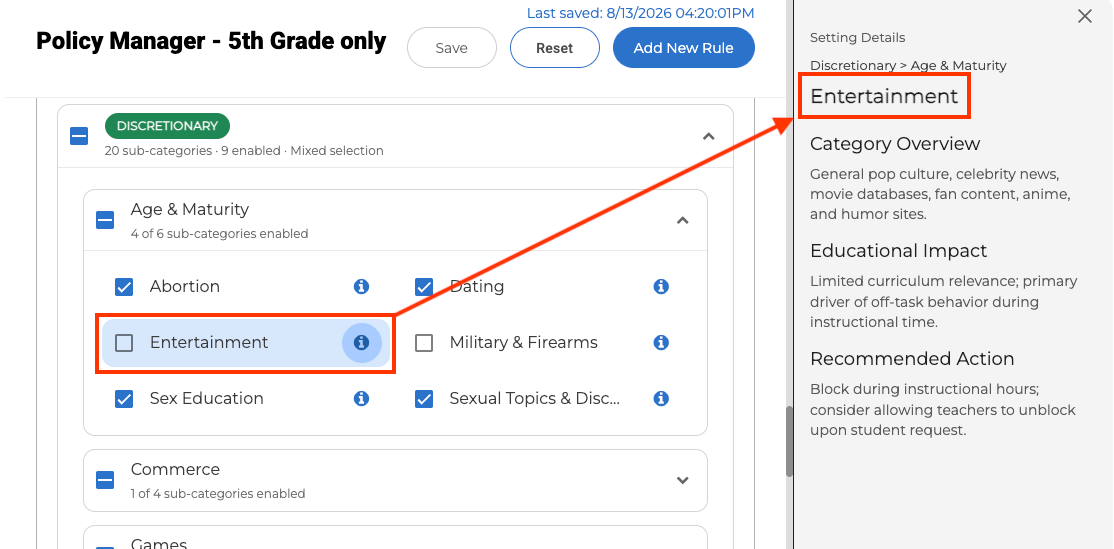
The panel contains:
Category Overview
A description of the types of websites and content commonly included in the category.
Educational Impact
Explains how allowing or blocking the category may affect:
- Student learning
- Research activities
- Classroom instruction
- Productivity
- Collaboration
This helps administrators understand the instructional implications of their filtering decisions.
Recommended Action
Provides Deledao's recommendation for whether the category is typically:
- Allowed
- Monitored
- Blocked
within a K-12 environment.
Important: These recommendations are intended as guidance only. Every school and district has unique educational goals, age groups, acceptable-use policies, and local compliance requirements. The final decision to allow or block a category should always be based on your organization's needs.
Category-Level Filtering
To block a category:
- Locate the desired category or sub-category.
- Review the category information if needed.
- Select the checkbox next to the category.
- Save the policy.
To allow a category, leave the checkbox unchecked.
Streaming Media & Download
Recommended Best Practice
Deledao's recommended approach is to block the Streaming Media & Downloads (Discretionary > Social Networking) category.
This category includes:
- YouTube
- Video streaming services
- Streaming platforms
- Download services
Blocking this category provides a strong baseline level of protection.
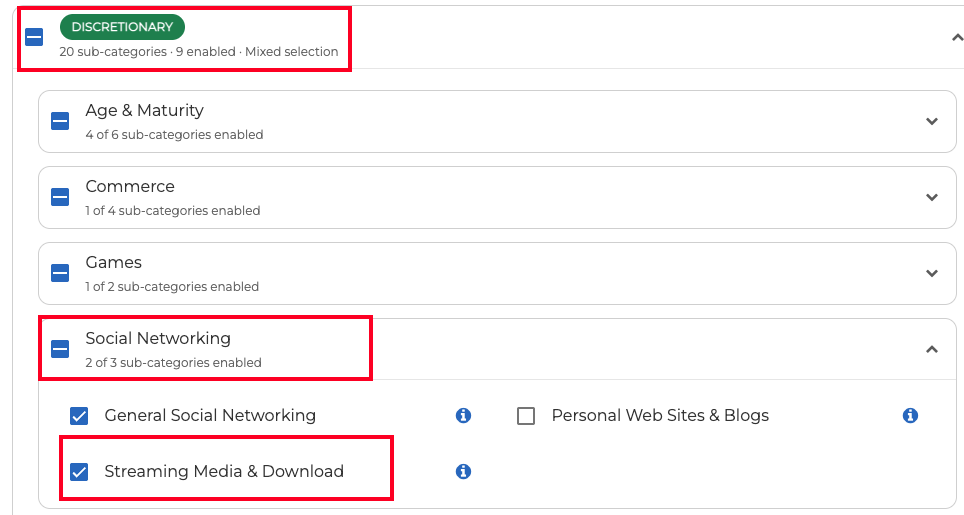
Granular YouTube Control
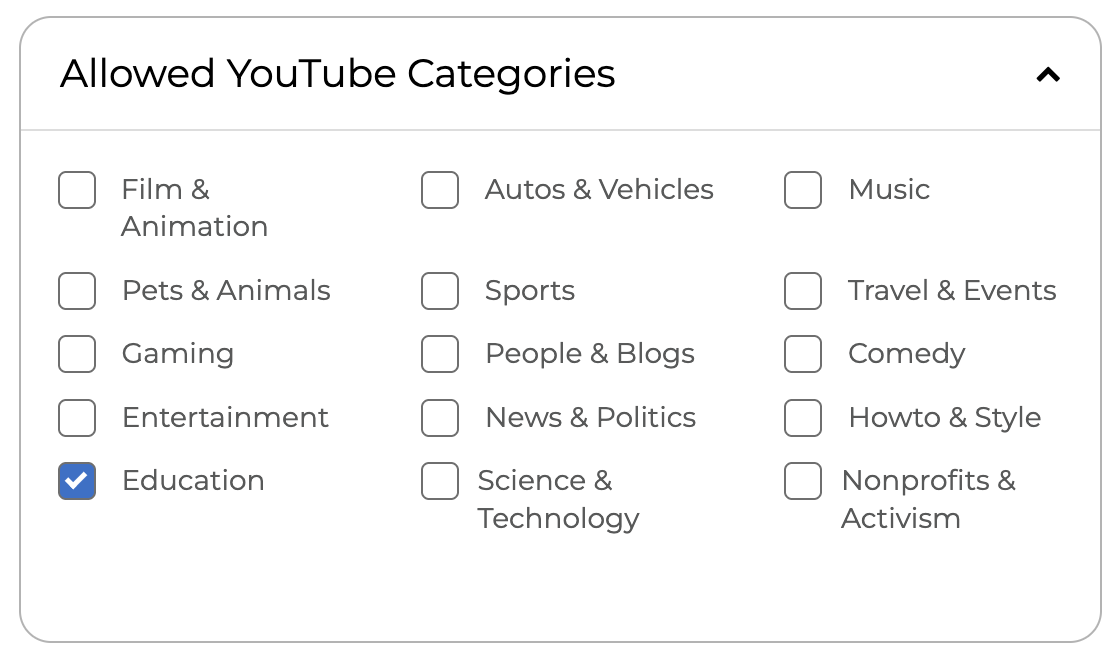
After blocking Streaming Media & Download, administrators can use the more granular YouTube controls available within Policy Manager. Select any YouTube categories you would like to Allow.
This allows districts to:
- Permit educational YouTube content
- Restrict non-educational content
- Manage YouTube access based on creator categorization
This approach provides significantly more flexibility than simply allowing all YouTube traffic.
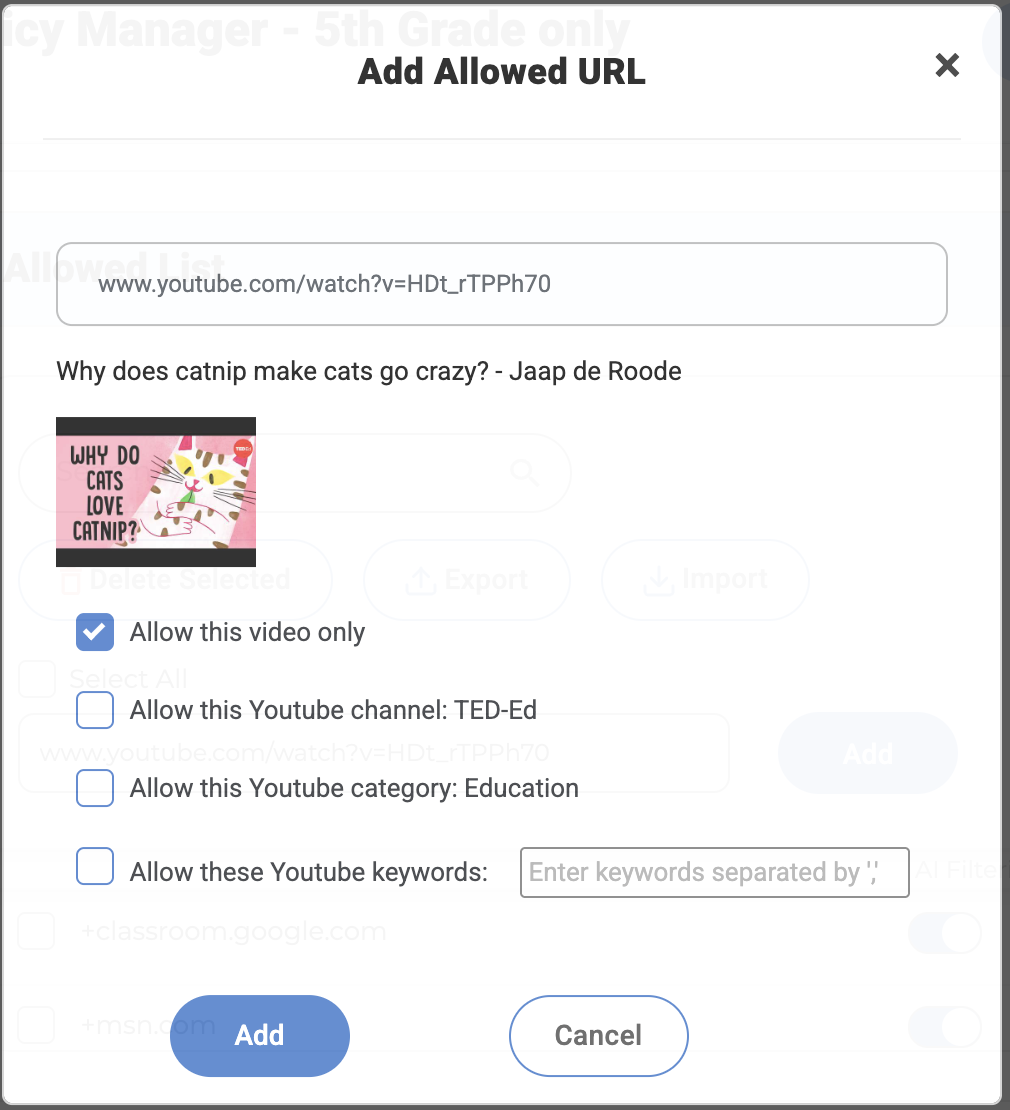
In addition to Allowing YouTube Categories, any YouTube video can be pasted into the Enter new URL bar in the Allowed List. This presents the administrator with several choices.
Redirected Browsing
Deledao Discover is being sunset and replaced by Redirected Browsing.
Additional information, configuration instructions, and best-practice recommendations will be added soon.
Add URL's to the Blocked List or Allowed List
Our blocked and allowed lists offer you great flexibility in adding exceptions to your policy. In addition to host and domain names, URLs are also accepted. Below are some examples.
- The wildcard * is usually not necessary as we automatically match the webpages hosted under the hostname or URL. For instance, "www.example.com" would match every webpage on www.example.com. However, it won't match videos.example.com.
- "example.com" would match every webpage in the example.com domain, including www.example.com and videos.example.com.
- "example.com/foo" would match every sub-webpage of example.com/foo (e.g. example.com/foo/bar), including itself.
- "*" can be used in hostnames. Each * would match exactly a component in the hostname between the dots. For instance, "*.example.com" would match foo.example.com, but not foo.bar.example.com.
- By default, AI analysis will be enabled for search engine, social networks and streaming media sites in the allowed list.

- Click Save in the upper right-hand side to apply any changes made to a rule.
Save and Apply Changes
After making any modifications to a policy:
- Review the selected categories and settings.
- Click Save.
- Allow policy changes to propagate throughout the environment.
Changes are typically applied automatically after saving.
Recommended Configuration
Most districts begin with the following approach:
- Review categories using the Information (ℹ) panel before making decisions.
- Enable YouTube Strict Mode.
- Block Streaming Media & Downloads and use YouTube-specific controls for granular access.
- Enable Black Out Foul Words on Webpages.
- Use Restrictive Image Analysis Mode for elementary and middle school students.
- Regularly review category recommendations while aligning decisions with local policies.
Important Considerations
Filtering requirements vary significantly between districts, schools, grade levels, and instructional programs.
While Deledao provides category descriptions, educational impact information, and recommended actions, these recommendations should be used as guidance only.
The final decision to allow or block content should always be based on:
- Student age
- Instructional requirements
- District policies
- State regulations
- Local compliance requirements
By combining category filtering, content safety controls, and granular YouTube management, administrators can create filtering policies that support both student safety and educational access.
© Deledao Education