
Table of Contents
- When a Student Encounters a Blocked Website
- Review and Approve Unblock Requests
- Unblock Scope
- Proactive Unblock with Share Links
- Best Practices
Audience: Teachers
This article explains how students request access to blocked websites, how teachers can approve or deny requests, and how to use the Proactive Unblock feature during live classes.
When a Student Encounters a Blocked Website
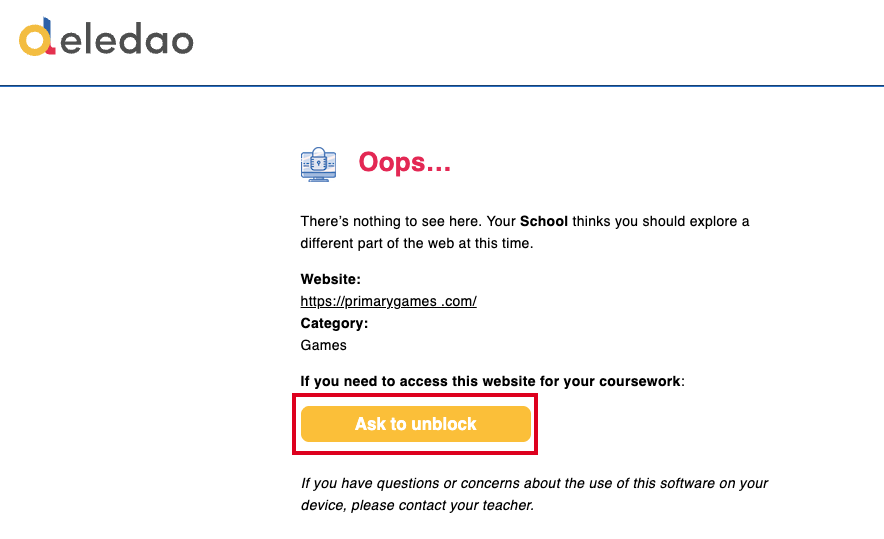
When a student attempts to access a blocked website, they can select Send Unblock Request and submit a request to a teacher who is mapped or rostered to them. Students can also include a reason for the request.
During a Live Class
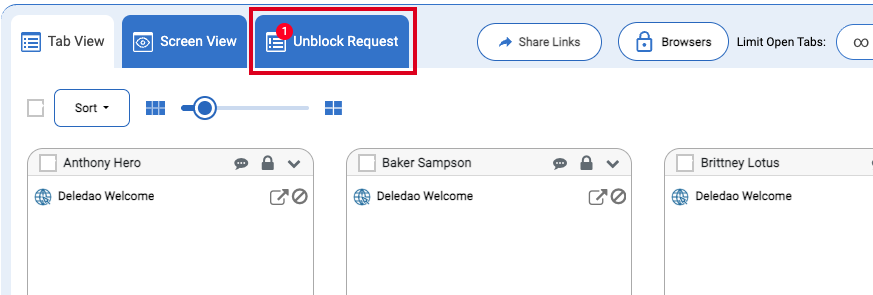
If the student is participating in an active classroom session, the unblock request is sent directly to the teacher through the Unblock Request tab within the Live class.
Outside of a Live Class
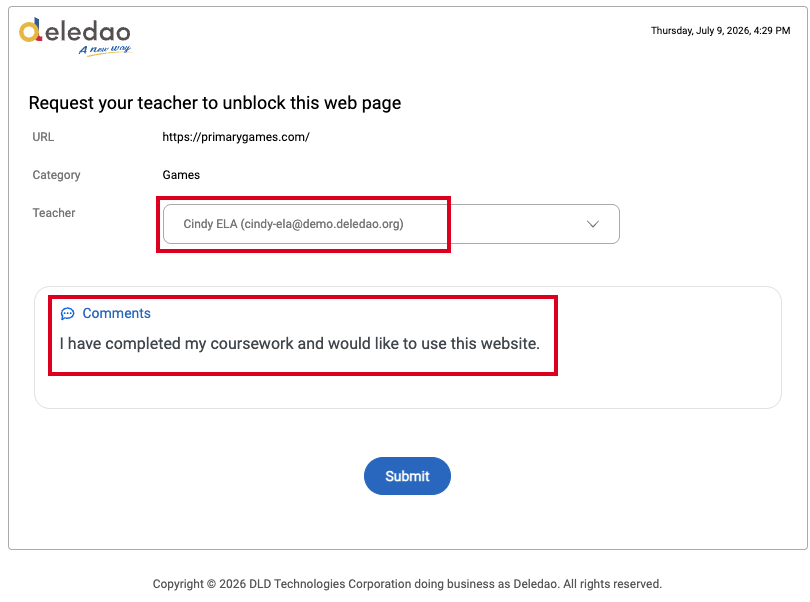
Students can select a teacher (if multiple teachers are available) and submit a request with a reason for access. The request will be delivered to the teacher for review.
Review and Approve Unblock Requests
During a Live Class
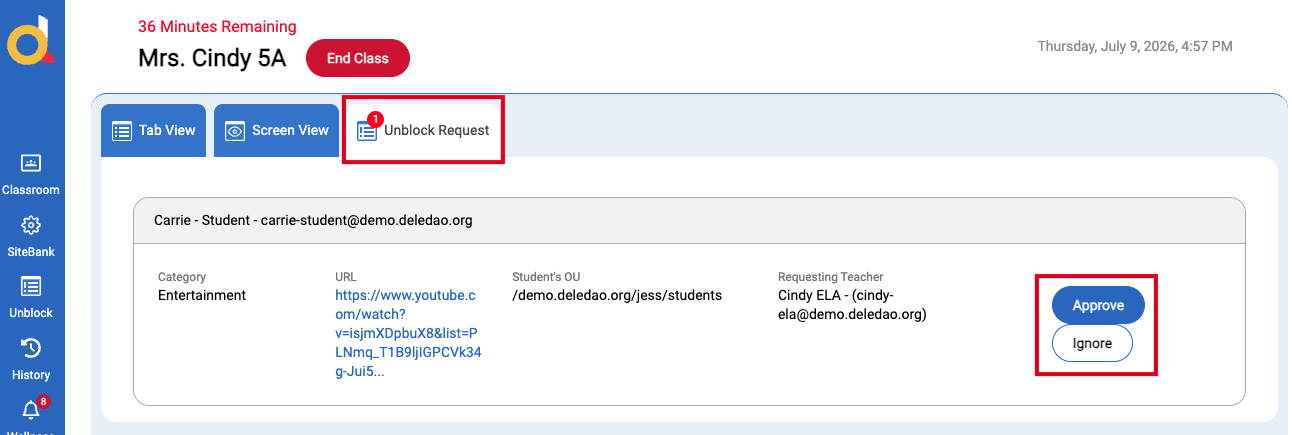
Student unblock requests appear directly in the Unblock Request tab within the Live class. From there, teachers can review the request and decide whether to allow access.
Outside of a Live Class
The teacher selected by the student will receive an email to notify them that a student has requested a website to be unblocked. They can click the here button in that email or they can go directly to the Teacher Portal to review the request.
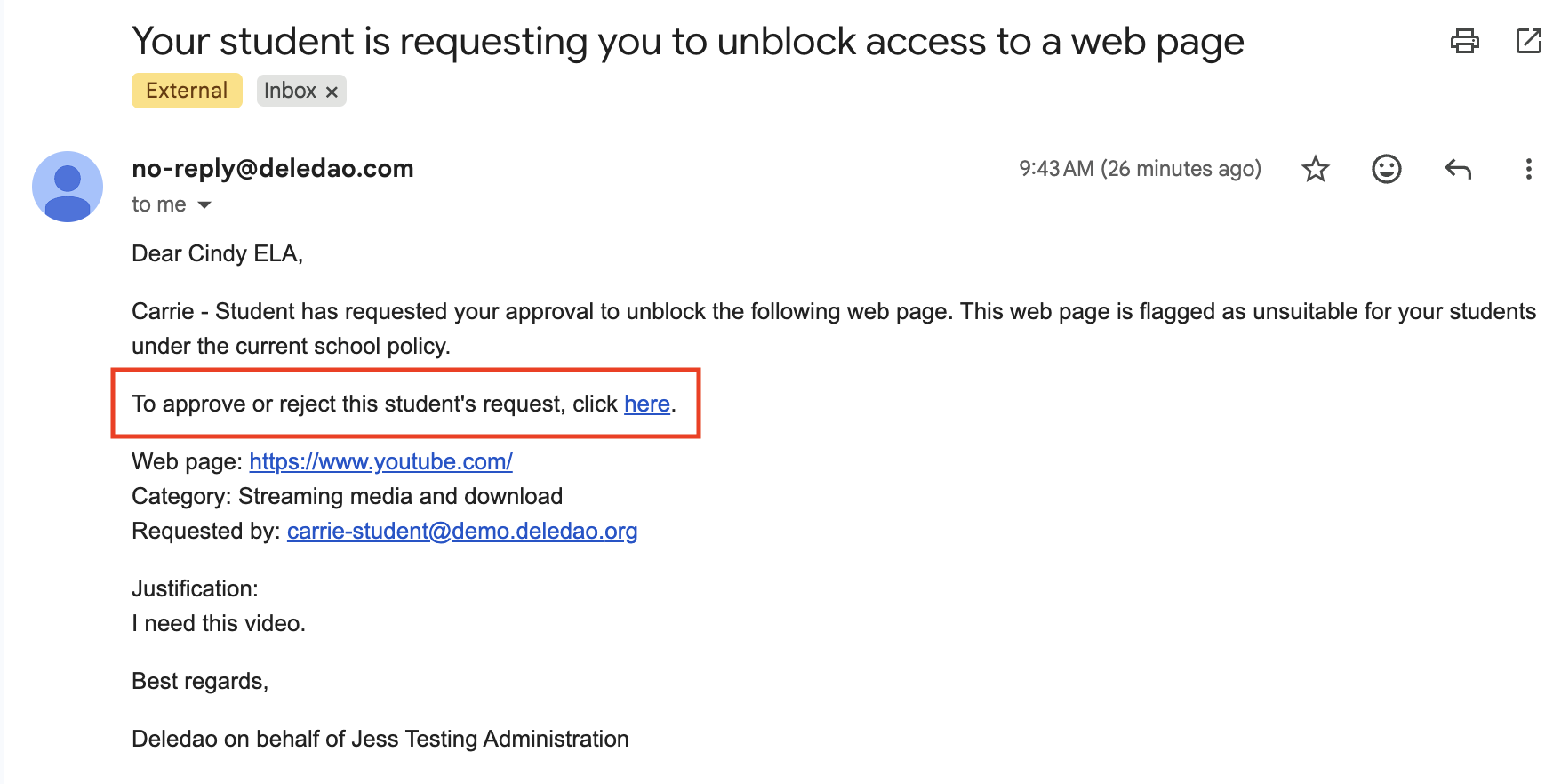
Open the Teacher Portal and navigate to the Unblock Requests tab to review pending requests.
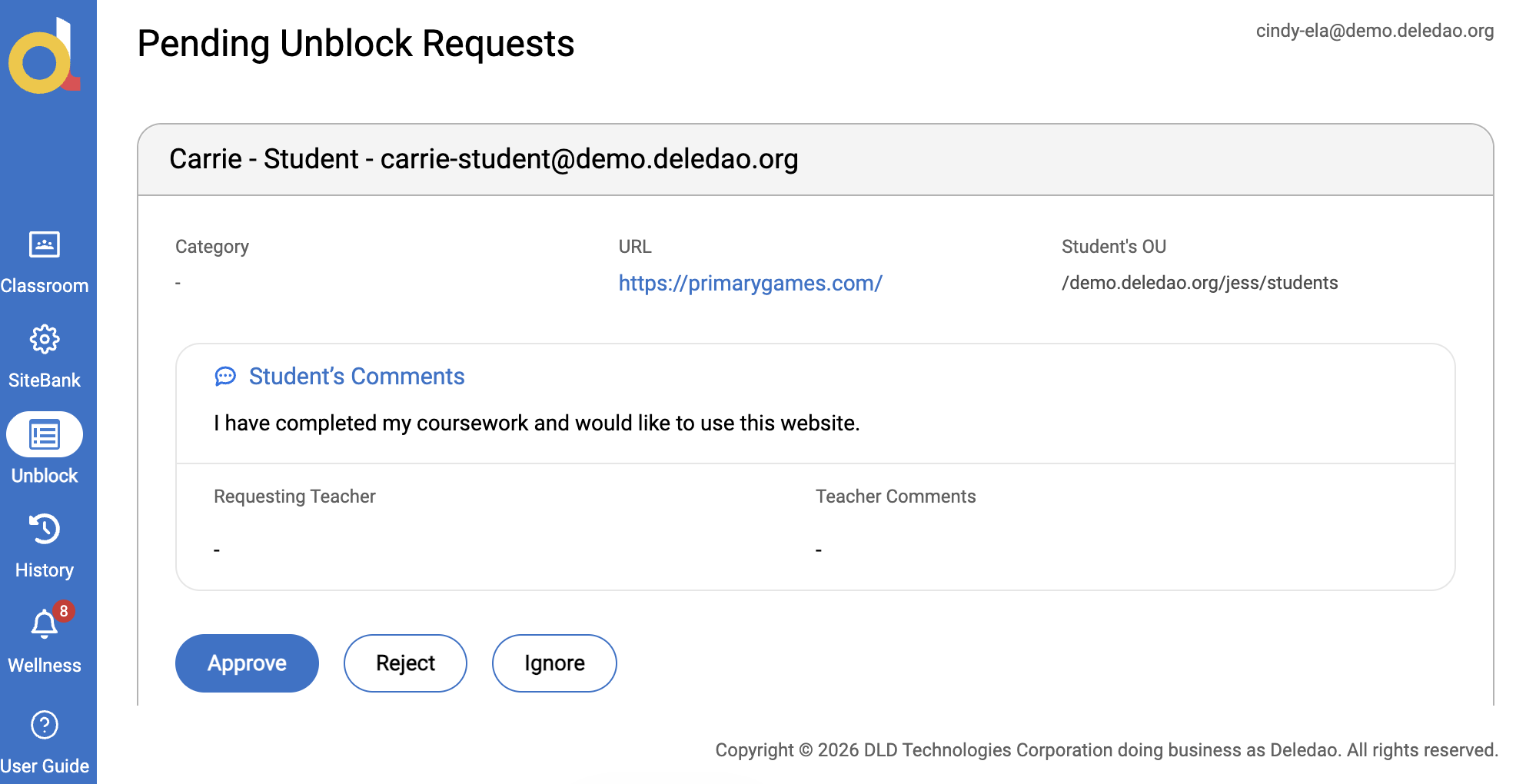
Depending on the permissions configured by your administrator, you may be able to:
- Approve or deny the request
- Unblock the specific URL only
- Unblock the entire website
- Apply access to an individual student, your entire class, or their Organizational Unit (OU)
- Set an expiration date for the unblock request
Note: The options available to you are determined by the settings configured in the Deledao Admin Console.
Unblock Scope
During a Live Class
Any unblock approved through a classroom request is NOT limited to the current class session. Approved requests remain active until they expire or are removed by an administrator. Teachers may be able to:
- Unblock only the requested page
- Unblock the entire website (if permitted)
- Grant access for the duration of the class only by setting the Time to Expiration to the number of minutes left in the class period.
Outside of a Live Class
The scope and duration of access depend on your organization's configuration. Approved requests remain active until they expire or are removed by an administrator.
Proactive Unblock with Share Links
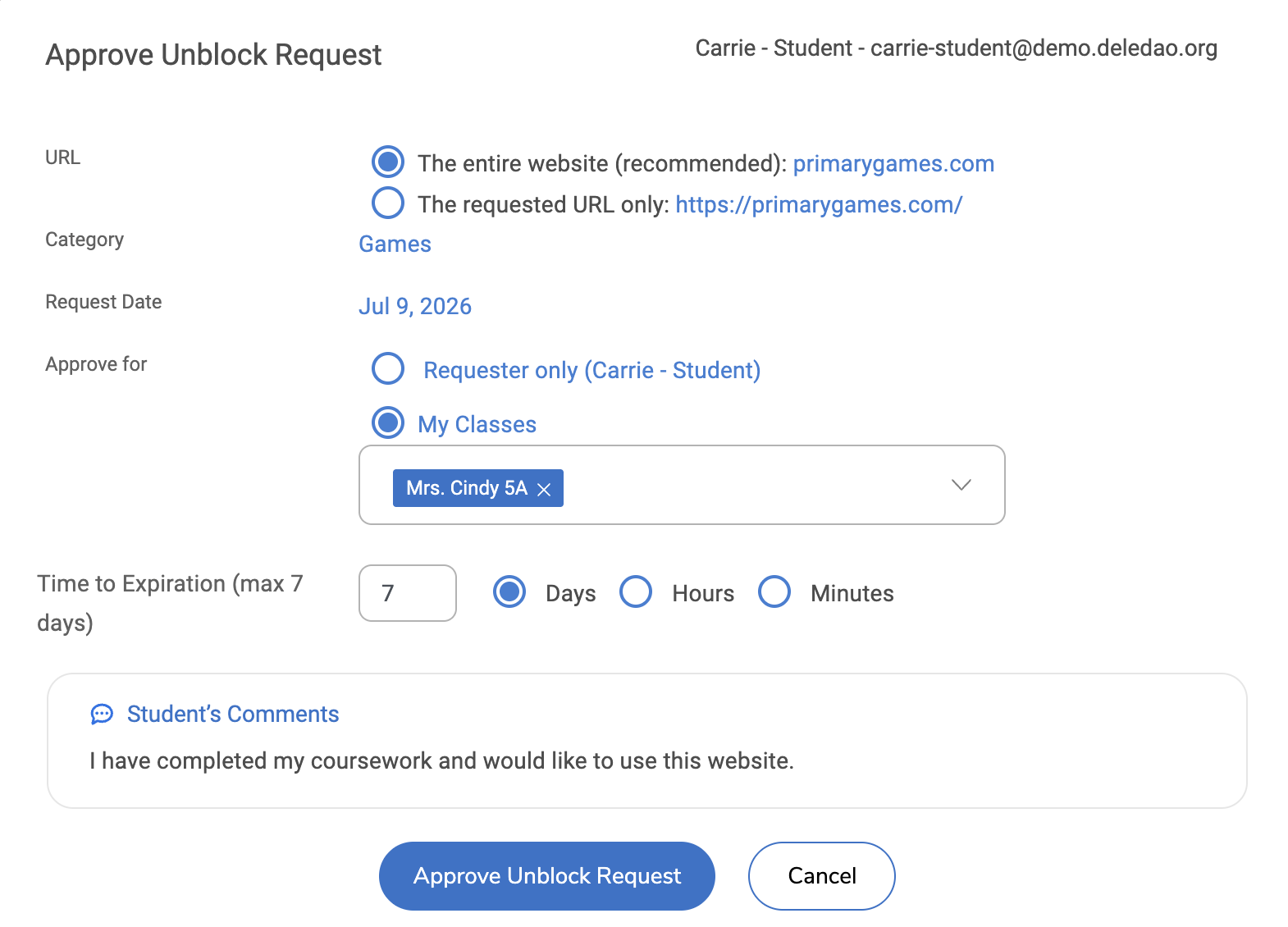
If your administrator has enabled Proactive Unblock, teachers can grant students temporary access to blocked websites during a live class without requiring students to submit an unblock request.
How It Works
- Start a live class in ActiveInstruct.
- Click Share Links.
- Share the website you want students to access.
- Students will be able to open the shared website during the active class session, even if it would normally be blocked.
This makes it easy to quickly provide access to instructional resources without interrupting class time.
Note
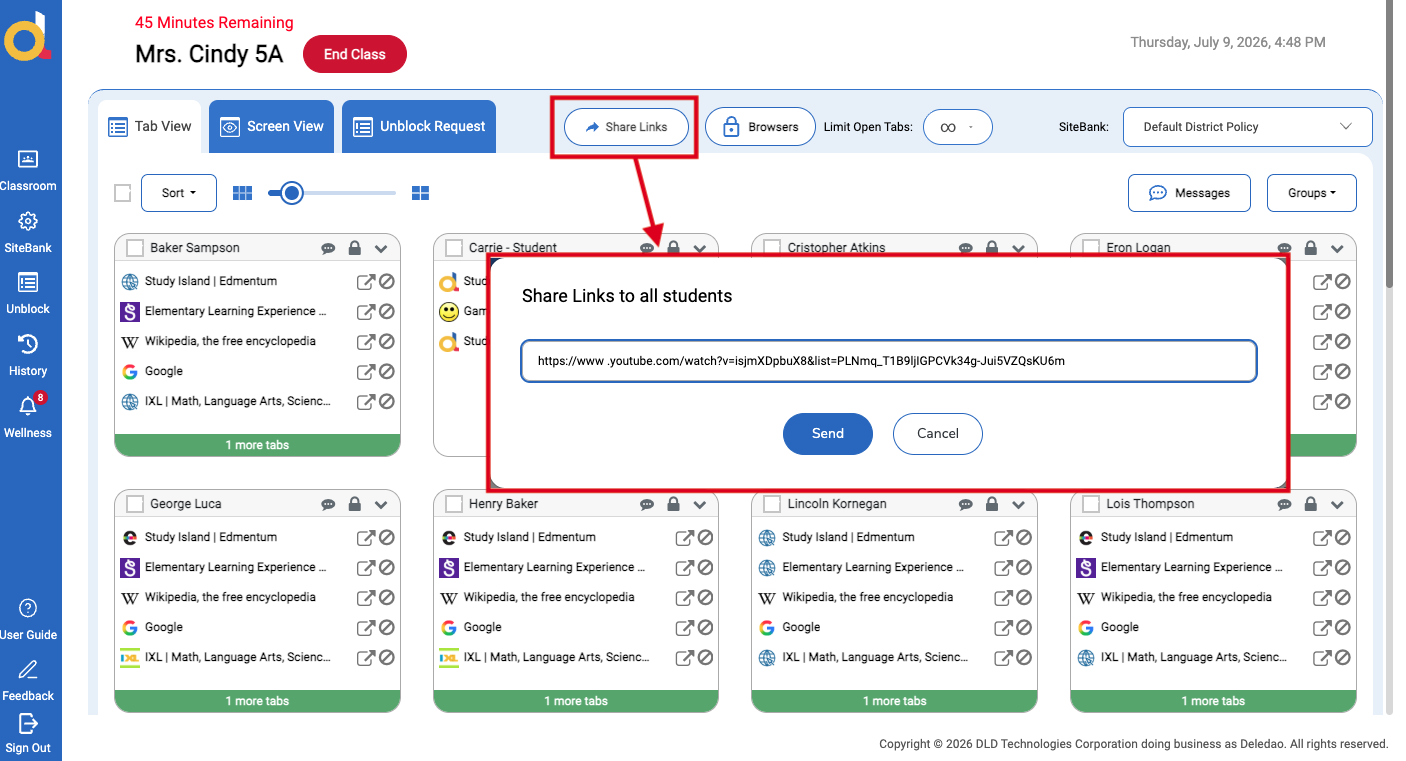
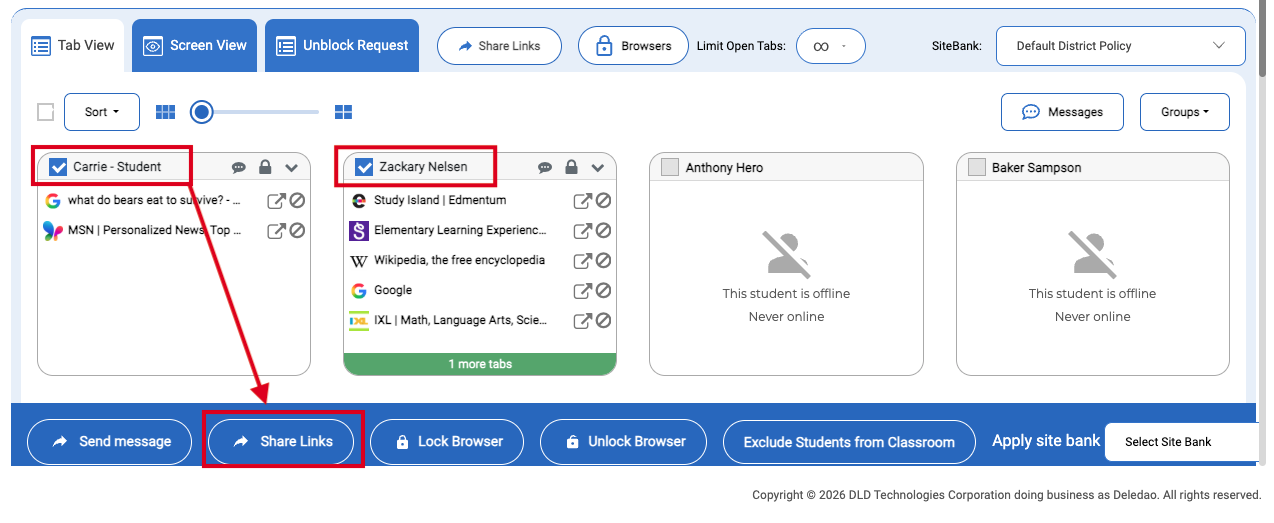
Teachers can also select multiple students and click Share Links at the bottom bar to have the same Proactive Unblock functionality as the whole class Share Links option.
Important
Even when Proactive Unblock is enabled, administrator restrictions still apply. Teachers may not be able to unblock:
- Websites that have been explicitly added to a policy's Blocked List
- Categories that administrators have set to require a 2nd approval
Proactive Unblock extends classroom flexibility while continuing to enforce district and school safety policies.
Best Practices
- Review the student's reason before approving access.
- Use URL-only access when access to an entire website is not necessary.
- Set the shortest expiration period that meets the instructional need.
- Use Share Links and Proactive Unblock for resources needed only during a live lesson.
- Contact your administrator if you need broader unblock permissions than are currently available.
Approved unblock requests may also be visible to administrators in the Admin Console for review and auditing.
© Deledao Education