
Table of Contents
- Table of Contents
- Getting Started
- Parent Portal Features
- Understanding Parent Rules vs. School Rules
- At-Home Policy Settings
- Blocked Search Keywords
- Block Additional Categories
- Downtime Settings
- Block Websites at Home
- Allow Websites at Home
- Frequently Asked Questions
- Need Additional Help?
Audience: Parents and Guardians
The Deledao Parent Portal allows parents and guardians to view their student's online activity on school-issued devices and, if enabled by the school, manage additional at-home internet filtering settings. Through the Parent Portal, families can monitor activity, receive reports, review wellness alerts, and help establish healthy technology habits at home.
Important: Available features are determined by your school or district. Some options described in this article may not be available if they have not been enabled by your school.
Getting Started
Accept Your Parent Portal Invitation
Parents and guardians will receive an invitation email from:
The email contains a unique registration link that allows you to create your Parent Portal account.

To get started:
- Open the invitation email.
- Click the registration link.
- Follow the prompts to create your account.
- Sign in to begin using the Parent Portal.
Access the Parent Portal Later
Once your account is activated, you can access your student's information through:
We recommend bookmarking this page for easy access.
Forgot Your Password?
If you forget your password:
- Click Forgot Password on the sign-in page.
- Enter your email address.
- Follow the instructions sent to your inbox.
Parent Portal Features
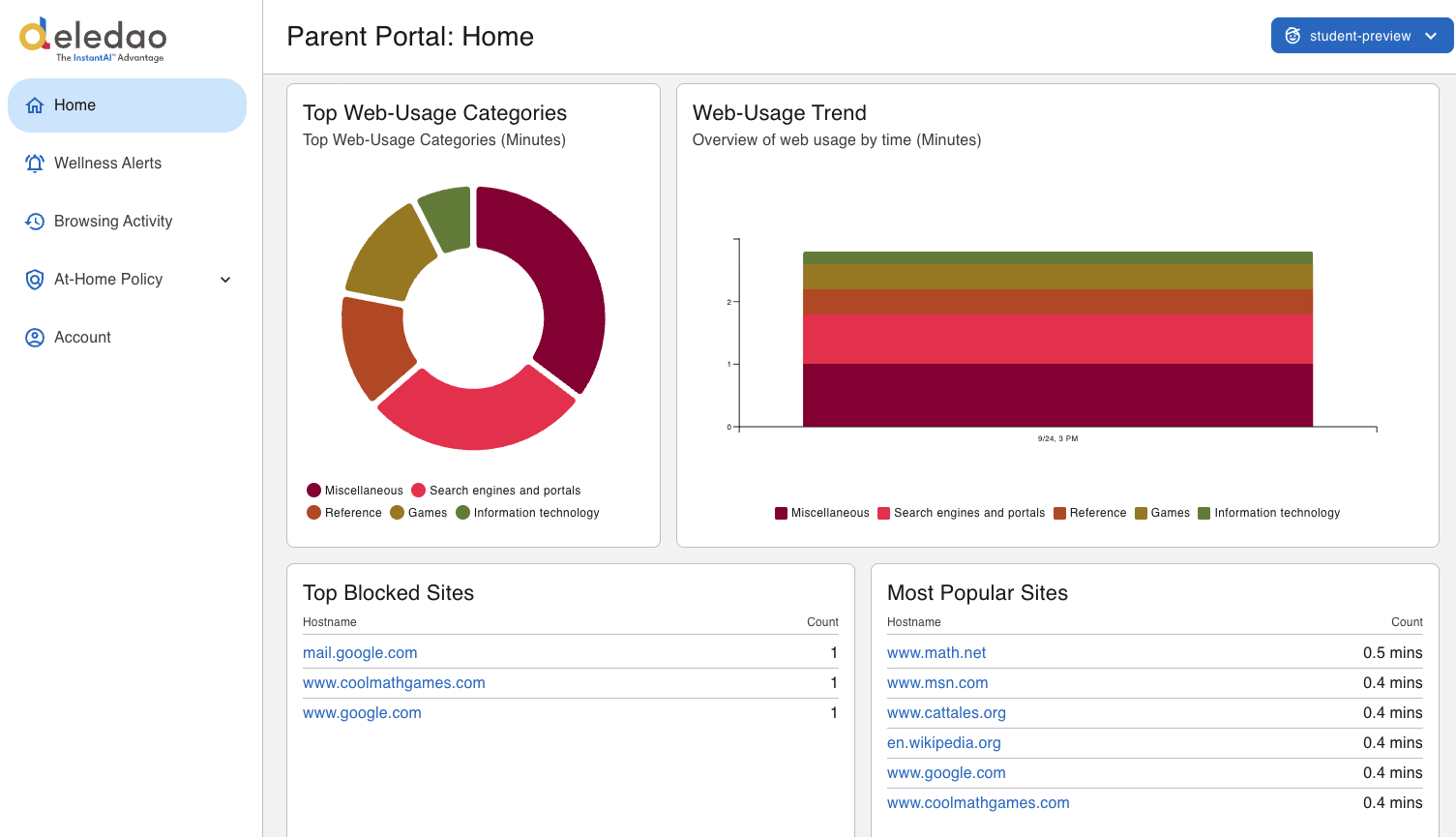
Home
Home provides a quick overview of your student's internet activity and filtering events. It is designed to give parents a high-level view of recent online activity and policy violations.
Wellness Alerts
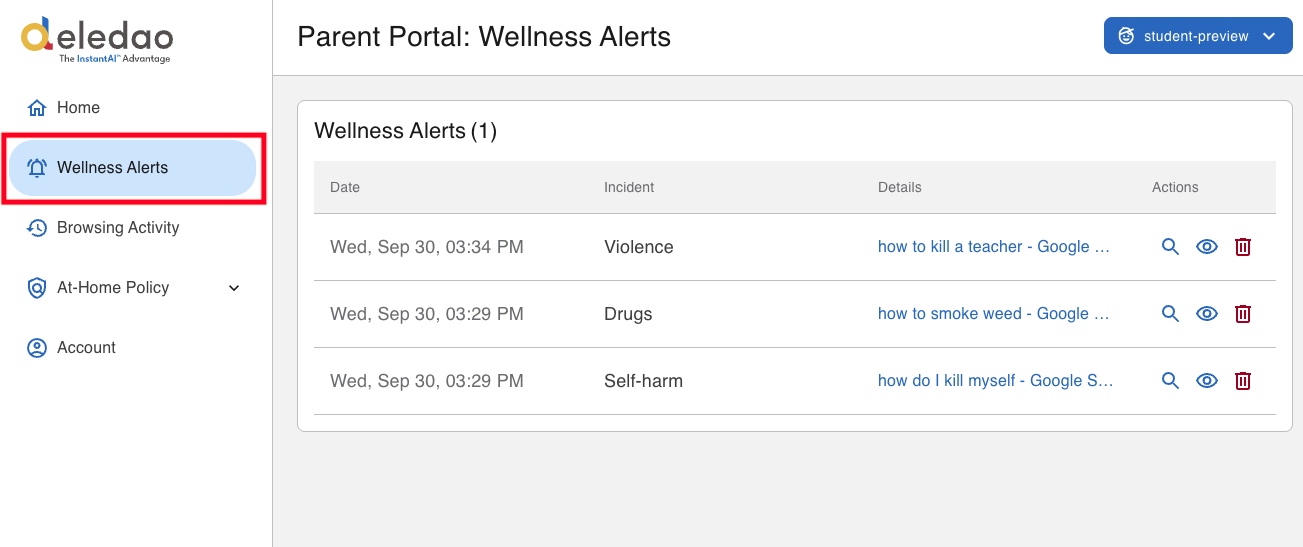
The Wellness section provides information about student wellness alerts if your school has enabled wellness monitoring.
You can:
- Review wellness alerts
- View alert details
- Open screenshots associated with alerts by selecting the eye icon
Browsing Activity
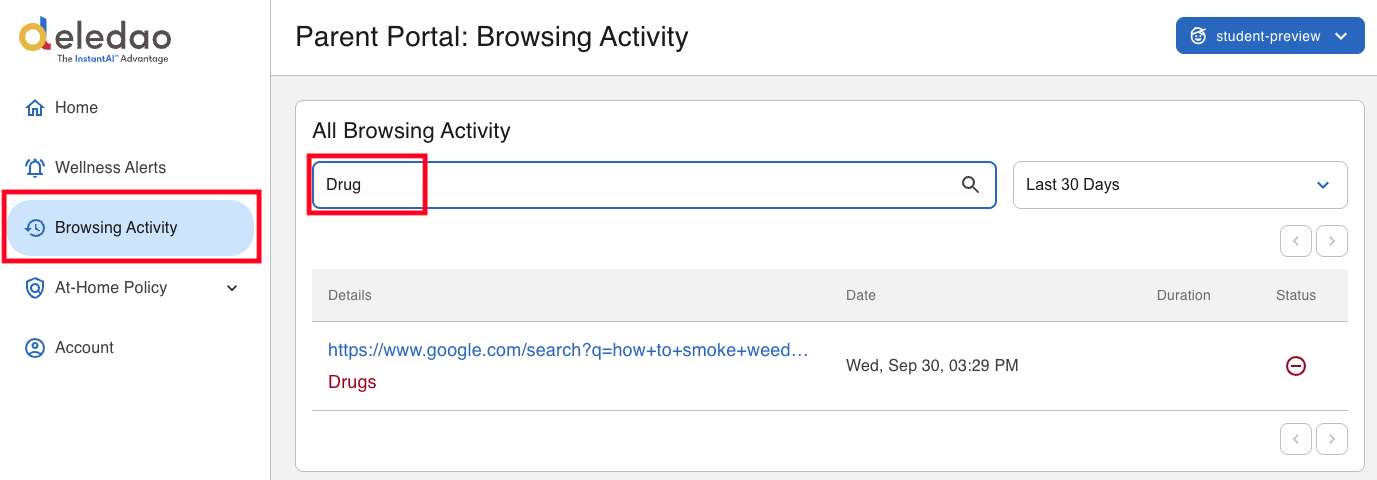
The Browsing Activity section provides detailed information about your student's browsing activity.
Search and Filter Activity
You can search for:
- Website names
- Categories
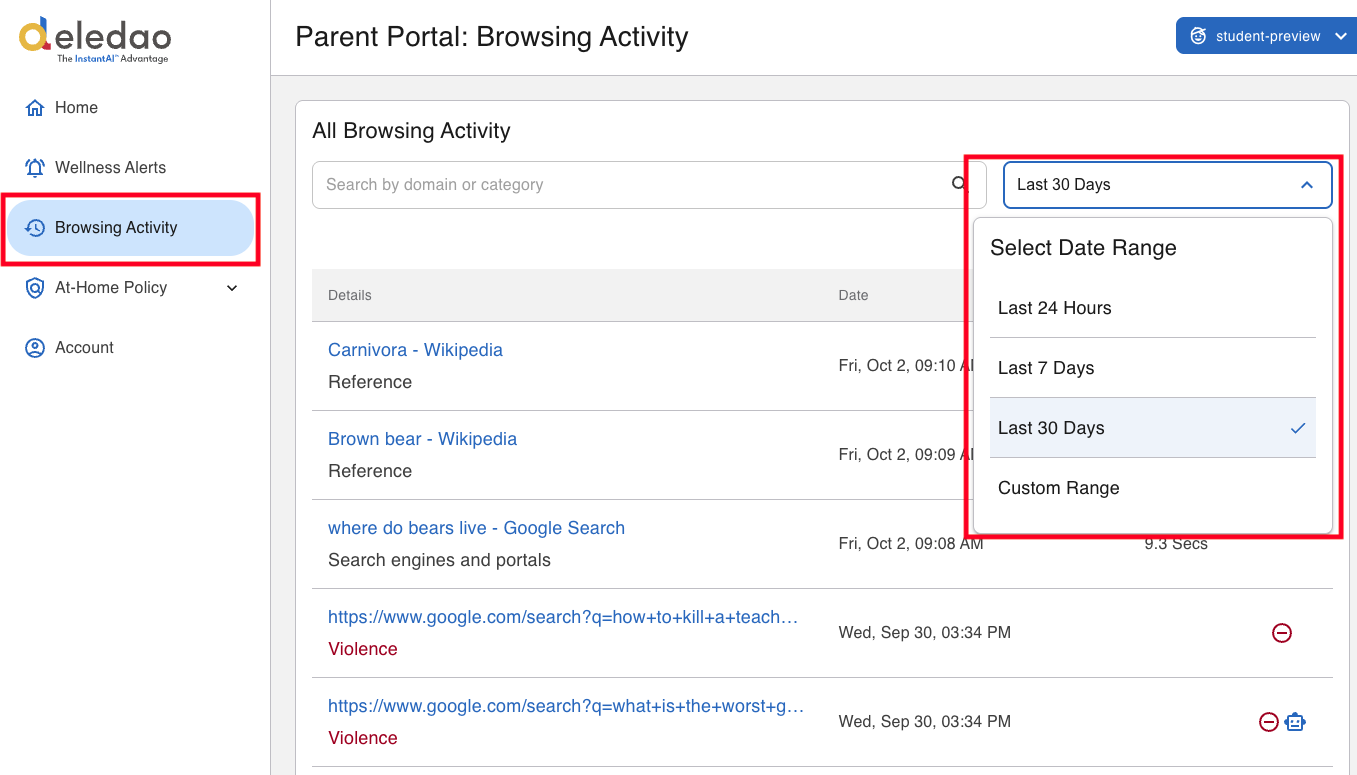
Date Range:
- Last 24 Hours
- Last 7 Days
- Last 30 Days
- Custom Range
Understanding Parent Rules vs. School Rules
When both school policies and parent settings exist, Deledao determines which rules apply based on location and time.
School Rules Apply When:
Student Is On Campus - If the device is connected at school, the school's filtering policies always apply.
Remote Learning Override Is Enabled - Override Parent Rules During Remote Learning Sessions, school policies will take precedence during designated school hours.
Classes Are Allowed Outside School Hours - If the school has enabled Override Parent Rules During Remote Learning Sessions and Allow Classes Outside School Hours then school rules will also apply whenever a class session is active.
Parent Rules Apply When:
- For most off-campus situations outside of active school instructional periods, parent-configured rules apply.
Important: Parents can never remove or override restrictions that have been permanently enforced by their school or district. School policies always serve as the foundation for filtering.
At-Home Policy Settings
If your school has enabled parent controls, you may be able to configure additional filtering settings for school-issued devices when they are used at home.
Important Notes
- School policies always take precedence.
- Features available to you depend on your district's settings. If Settings, Allowed Websites, and Blocked Websites menu options are not displayed, then these have not been enabled by your district.
- You cannot modify policies that apply while the device is on campus.
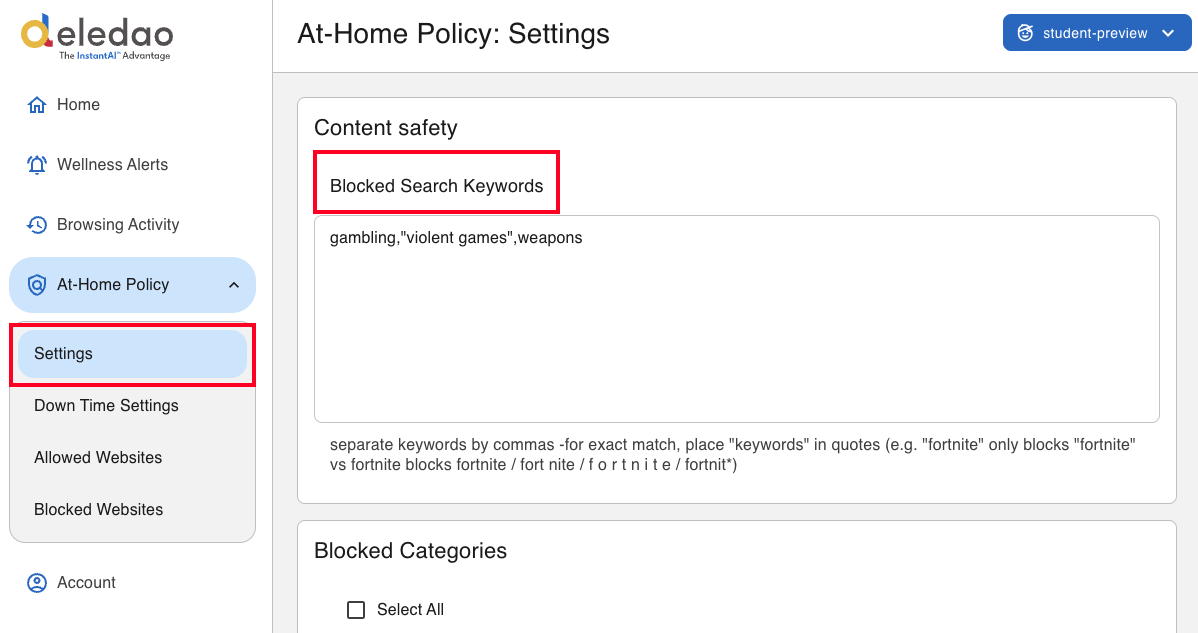
Blocked Search Keywords
Blocked Search Keywords help prevent students from searching for terms that are not appropriate or permitted. When a student tries to search for a blocked keyword or phrase, the search is prevented.
When adding blocked keywords:
- Separate multiple keywords or phrases with commas.
- Enter a keyword without quotation marks to block searches containing that keyword.
- Place quotation marks around a word or phrase when you want to block an exact match.
Block Additional Categories
Parents may have the ability to block or allow additional categories when students are at home.
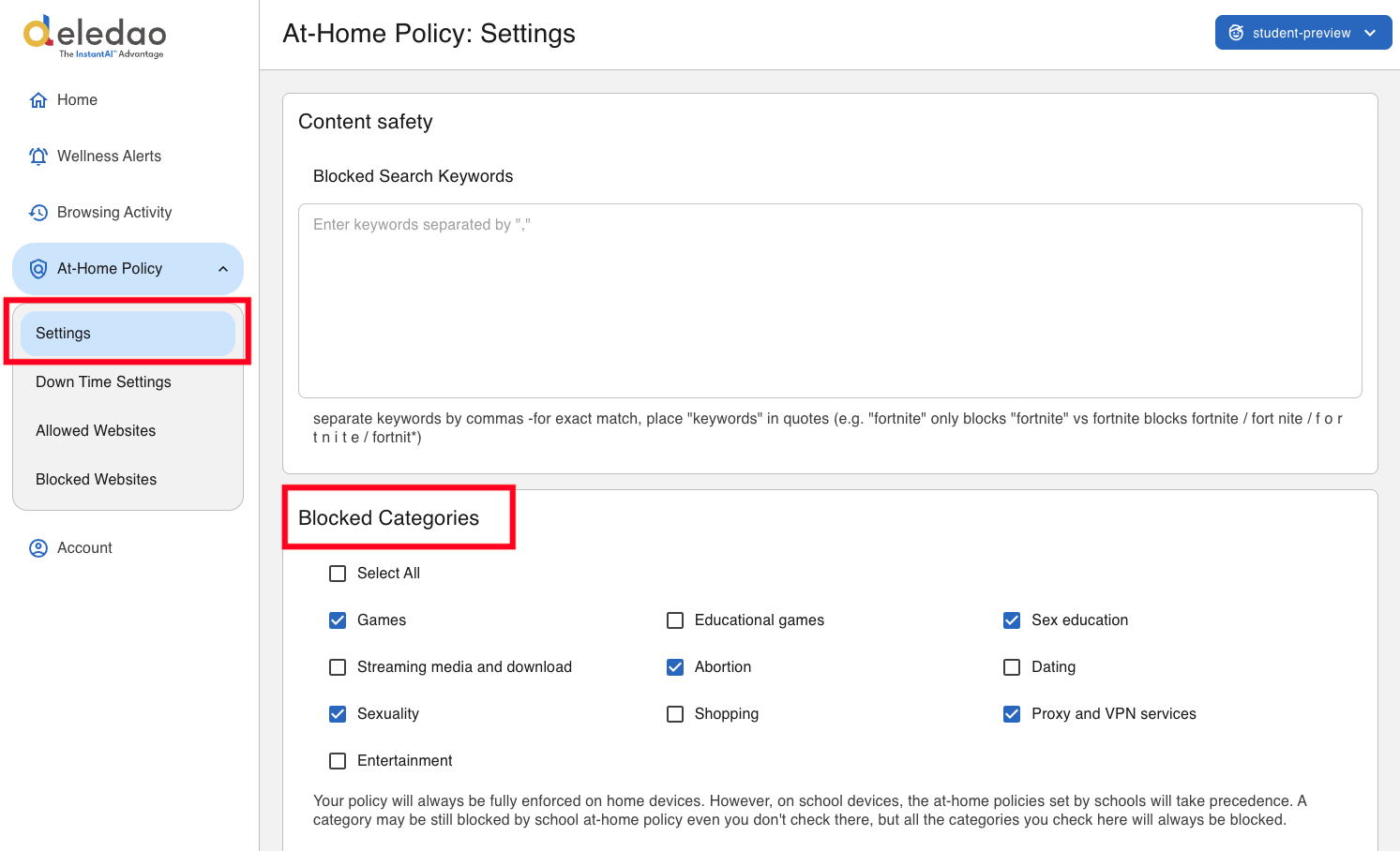
Examples include:
- Games
- Social Media
- Entertainment
- Streaming Content
This allows families to customize device usage according to household expectations.
Downtime Settings
The Downtime feature helps families establish healthy device usage habits.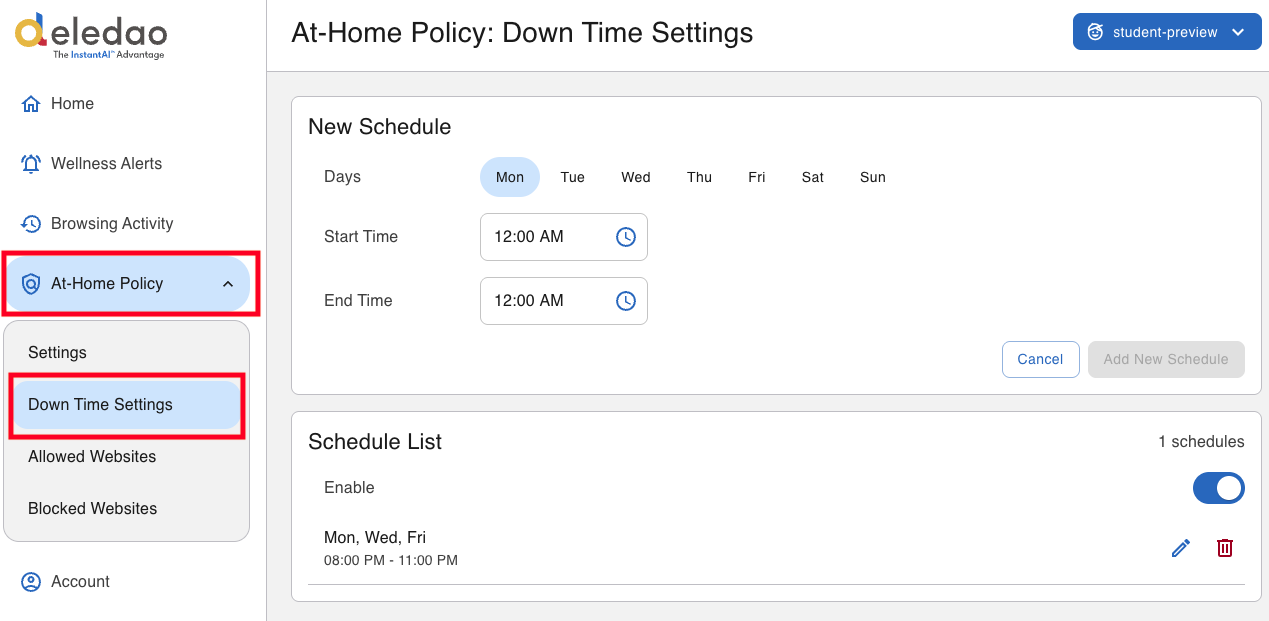
Study Time
Parents can schedule periods where internet activity is limited to educational use.
Examples:
- Homework time
- Study sessions
- Remote learning periods
Internet-Free Time
Parents can also create periods when internet access is restricted.
Common examples include:
- Bedtime
- Family meals
- Device-free time
Block Websites at Home
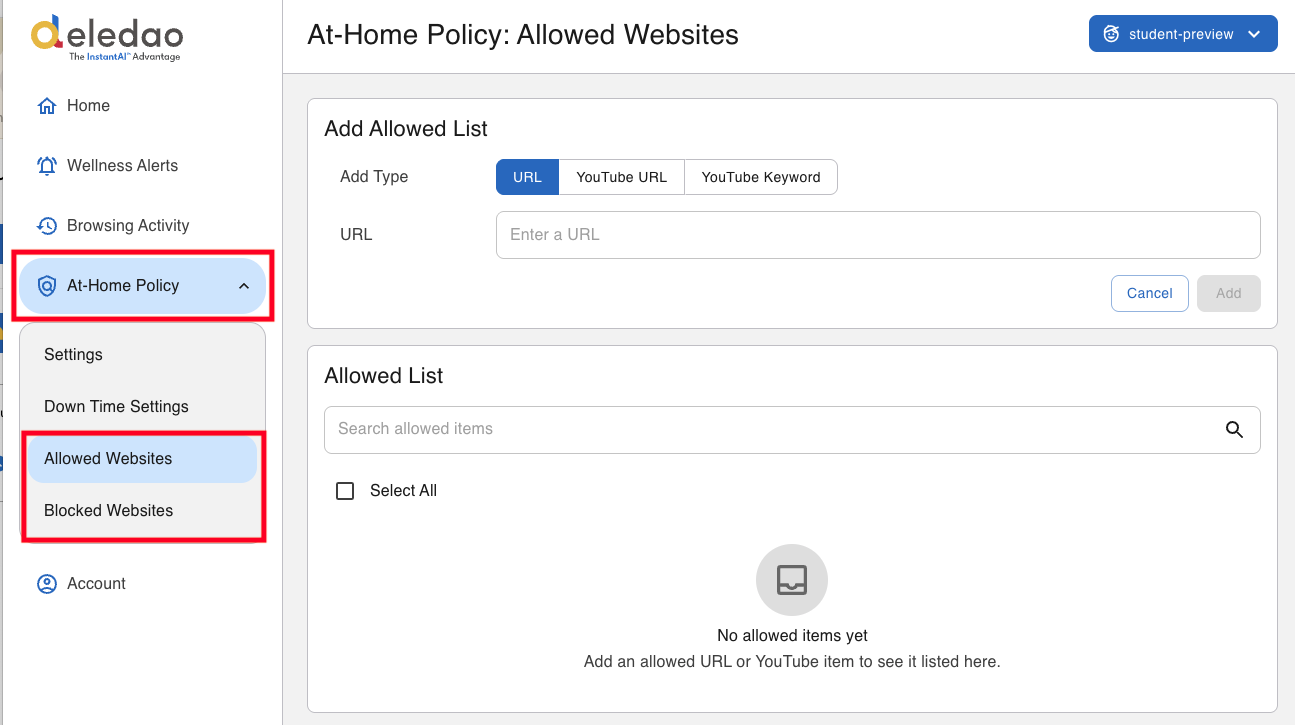
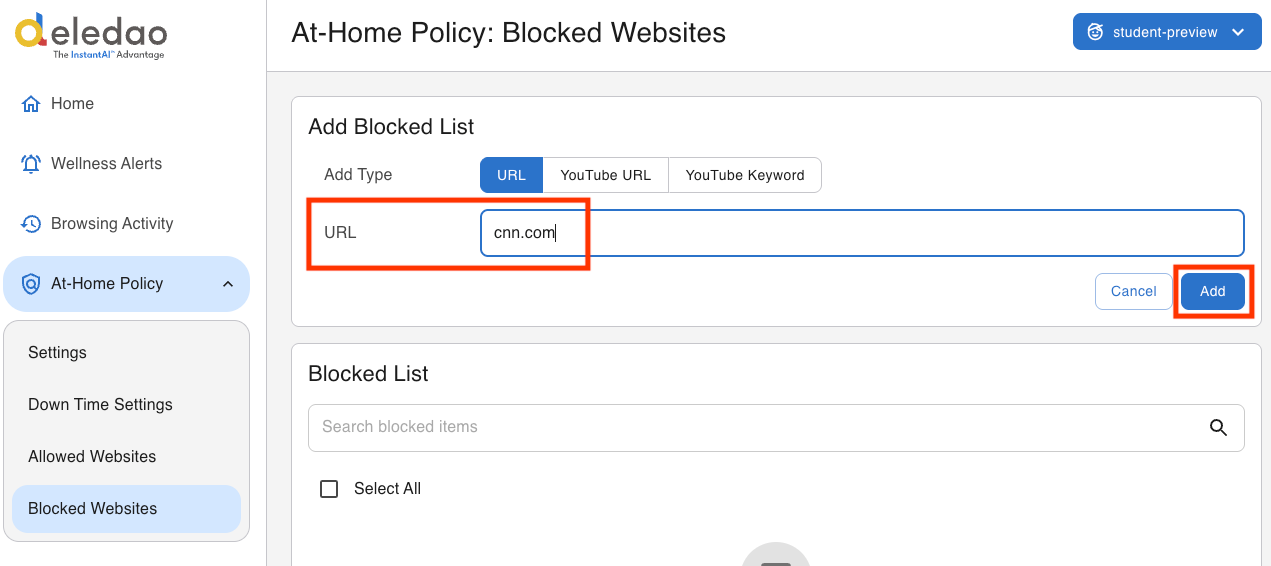
The Blocked Website List allows parents to block specific websites or webpages on school-issued devices when used at home.
Block an Entire Website
Entering cnn.com blocks the entire website and all pages within that domain.
Block a Specific Section of a Website
Entering example.com/subpage blocks that section and any subpages beneath it.
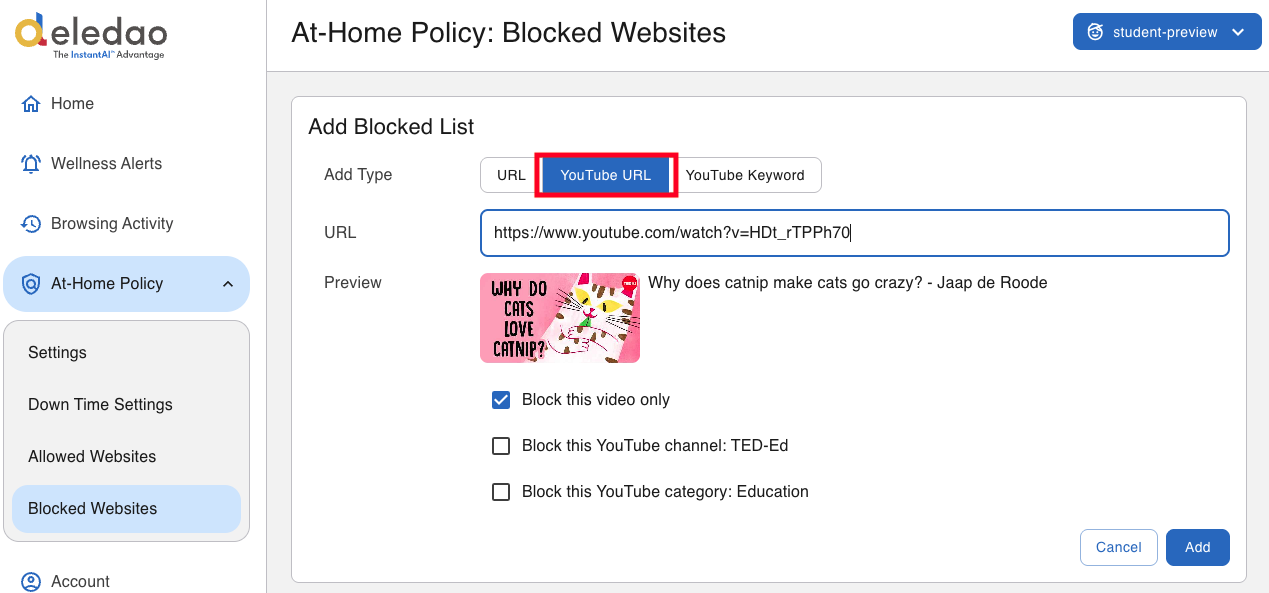
Block YouTube Content
When a YouTube video URL is entered, you may be able to block:
- An individual video
- A channel
- Categories associated with the content
- Keywords appearing in the video's metadata
Allow Websites at Home
The Allowed Website List works similarly to the Blocked Website List but creates exceptions for websites that should always be accessible.
Important
If a website appears on both the Allowed List and the Blocked List:
- The Allowed List takes precedence.
- The website will be allowed.
Frequently Asked Questions
Can I change my school's filtering policies?
- No. School and district policies always take precedence over parent settings.
Why don't I see all of the features described in this article?
- Schools can choose which Parent Portal features to enable. Your district may not make every feature available.
Will my settings apply while my child is at school?
- No. School policies control device behavior while students are on campus and during any school-managed instructional periods.
I never received my invitation email. What should I do?
- Check your spam or junk folder for an email from: noreply@deledao.com
- If you still cannot locate the invitation, contact your school's technology department.
Need Additional Help?
If you have questions about Parent Portal access, available features, or school-specific settings, please contact your school's technology department. Parent Portal permissions and available functionality are determined by your school or district.
© Deledao Education