
Table of Contents
- Parent Portal Overview
- Access Parent Portal Settings
- Guardian Filtering Controls
- Activity Visibility Settings
- Remote Learning Settings
- Recommended Configuration
- Important Considerations
Audience: Administrators
The Parent Portal is designed to increase family engagement by giving guardians visibility into their student's web activity and, if permitted by the district, limited control over filtering settings when school-managed devices are used at home.
Before inviting guardians to the Parent Portal, administrators should review and configure the available settings to determine what level of access and control guardians will have.
Parent Portal Overview
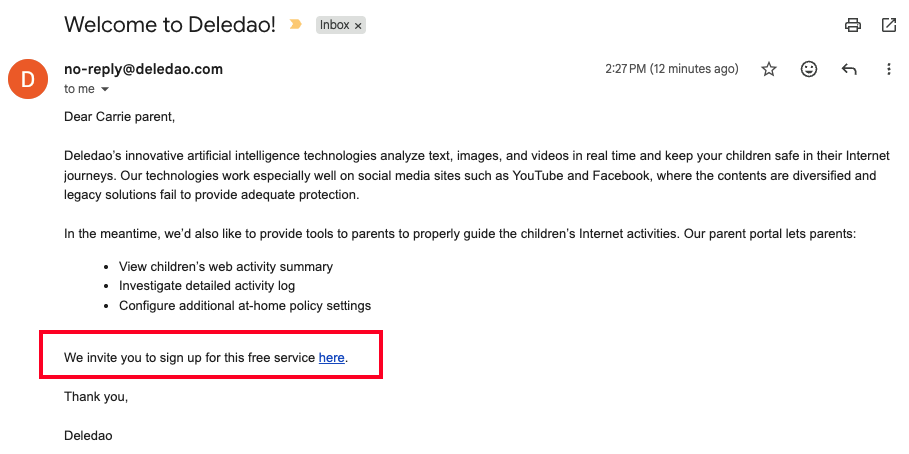
Once an invitation is sent to a guardian, they can:
- Create a Parent Portal account.
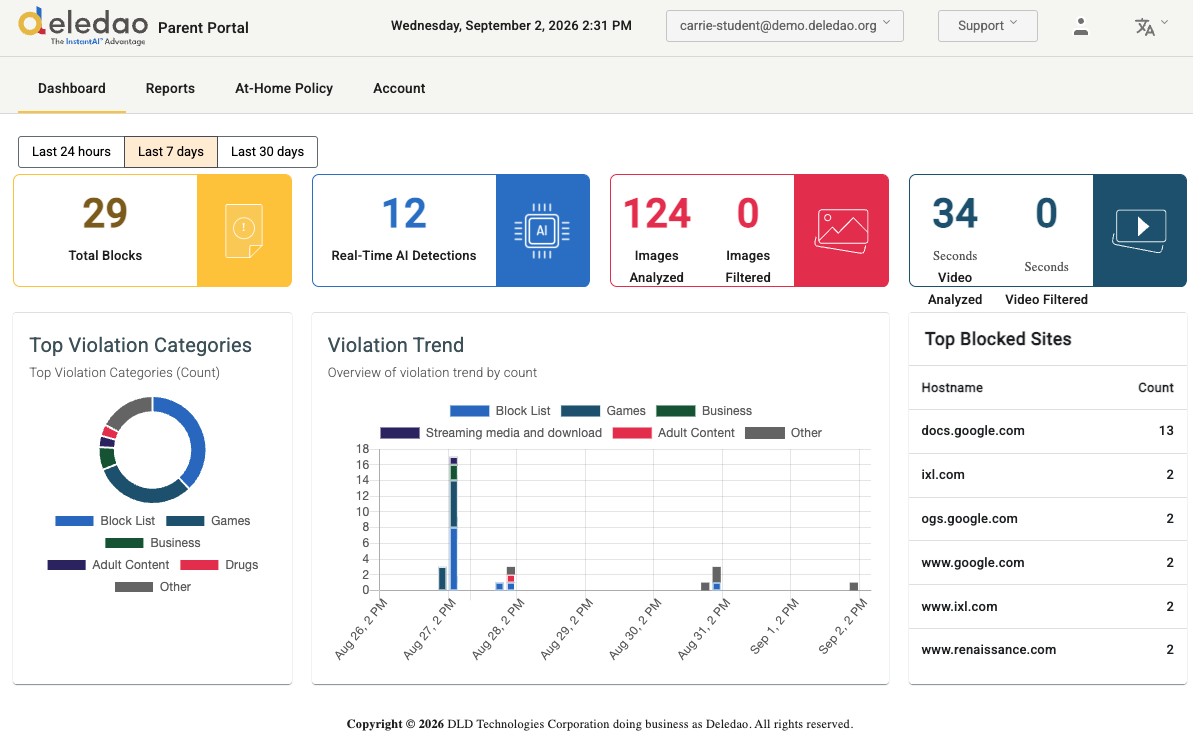
- View their student's web activity.
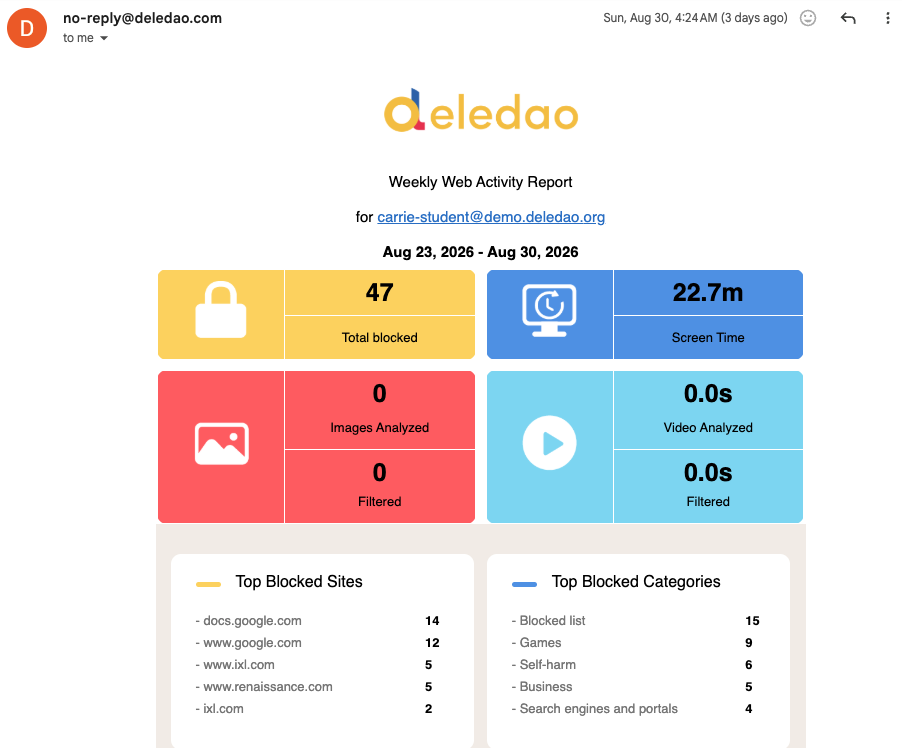
- Receive scheduled reports of allowed and blocked browsing activity.
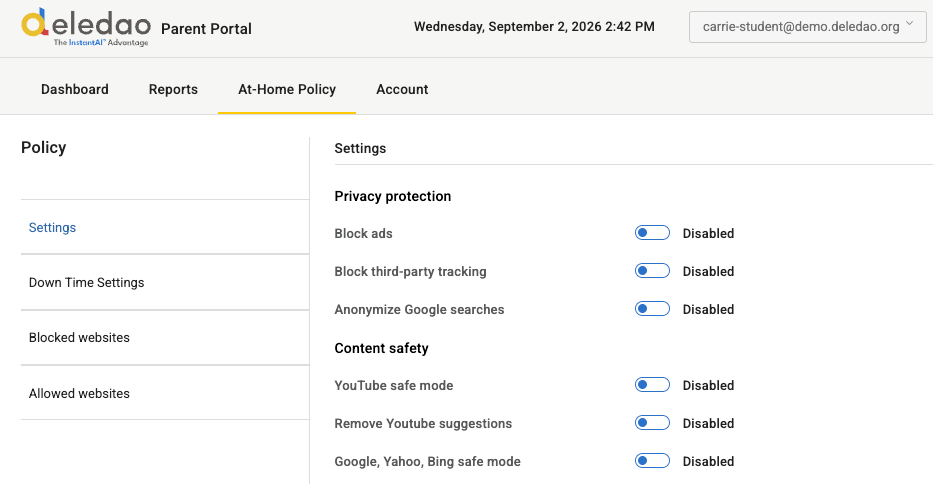
- Manage additional filtering options when students are using school devices off campus (if permitted by the district).
Depending on the settings configured by the administrator, guardians may be able to:
- Block additional website categories.
- Block additional websites.
- Allow specific websites.
- Create device downtime schedules.
Access Parent Portal Settings
To configure guardian permissions:
- Sign in to the Deledao Admin Console.
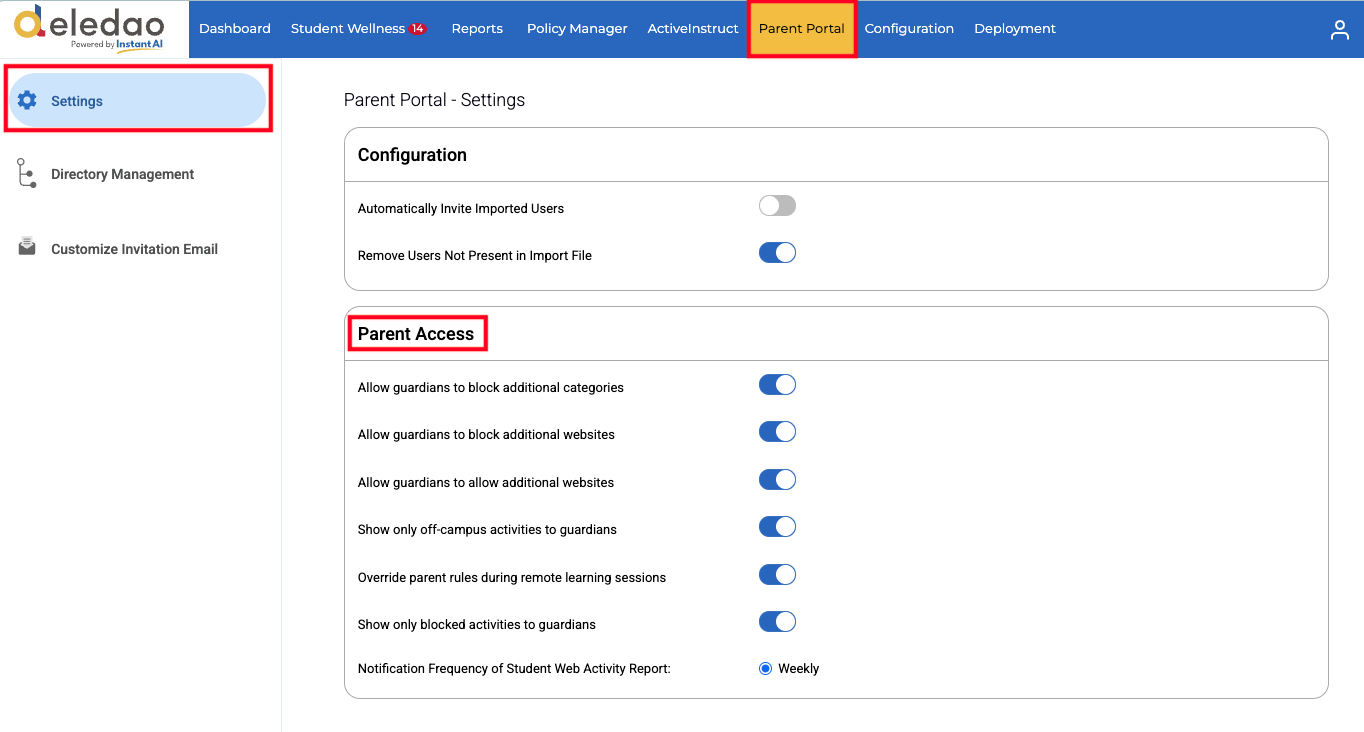
- Navigate to Parent Portal > Settings.
- Review and configure the available options under Parent Access.
The settings on this page determine how much control guardians have over school-managed devices when those devices are used outside of school.
Guardian Filtering Controls
Allow Guardians to Block Additional Categories
When enabled, guardians can block additional filtering categories for their student.
Important considerations:
- Parent-selected category blocks are added on top of existing district policies.
- Categories already blocked by the school remain blocked.
- Guardians cannot remove or override district-imposed category restrictions.
Example
If the district allows Social Networking but a guardian wants to restrict access at home, the guardian can block that category for their student.
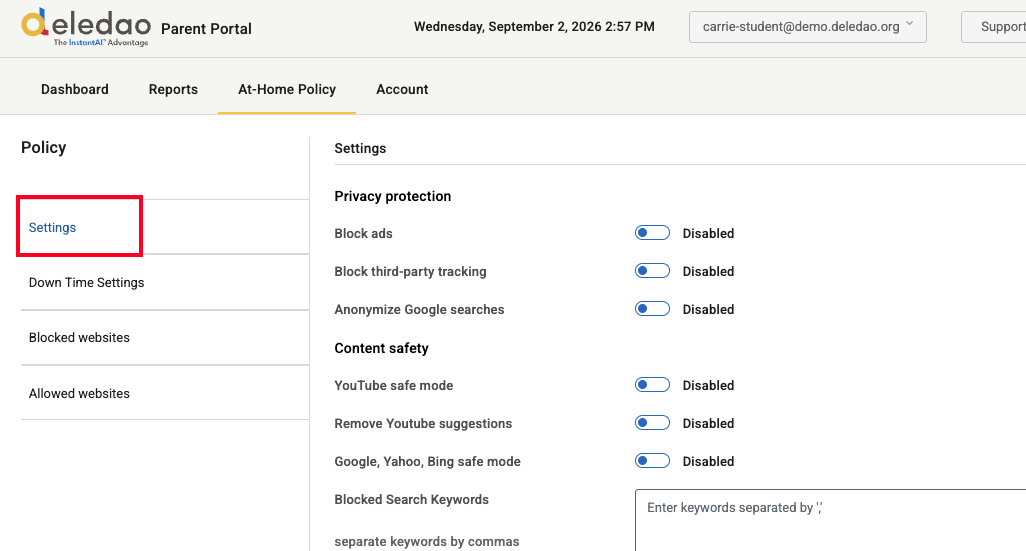
- Disabled: Settings are not available for guardians to configure.
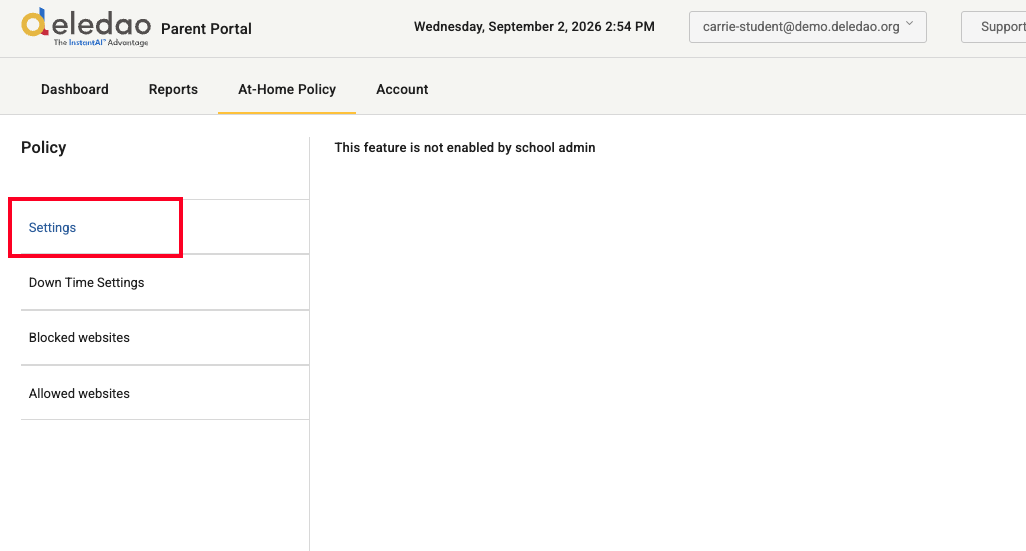
- Enabled: Additional settings available for guardians to configure.
Allow Guardians to Block Additional Websites
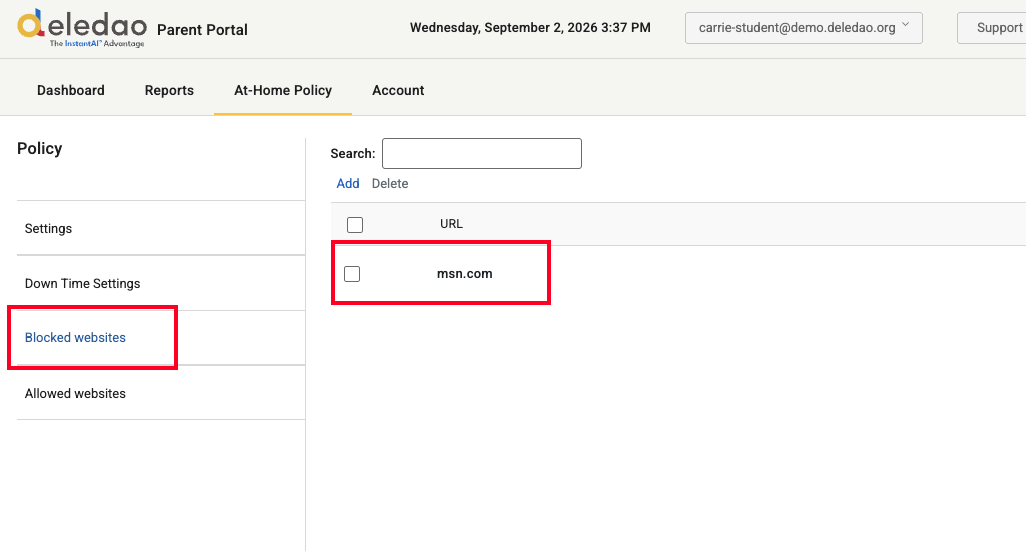
When enabled, guardians can add websites to a personal blocked list for their student.
Important considerations:
- Parent-managed website blocks supplement district filtering policies.
- District-level blocked websites remain enforced at all times.
Example
A guardian may choose to block a specific gaming or entertainment website while the student is at home.
Allow Guardians to Allow Additional Websites
When enabled, guardians can allow access to specific websites that may otherwise be restricted.
Recommendation: Deledao does not generally recommend enabling this option. Allowing guardians to override filtering decisions may create inconsistencies with district filtering policies.
If enabled, guardians can create exceptions for their student through the Parent Portal.
Activity Visibility Settings
Show Only Off-Campus Activities
When enabled, guardians will only see browsing activity that occurs when the student is off campus.
This setting can help:
- Focus reporting on at-home device usage.
- Reduce visibility into activity that occurs during the school day.
- Support district privacy preferences.
Note: In order for Deledao to know what is considered Off-Campus activity, we must have your Firewall Public Facing IP address registered. Please go to your Deledao Admin Console > Deployment > Guest Devices Protection to verify your IP address. If none is listed, please contact support@deledao.com to provide this to us.
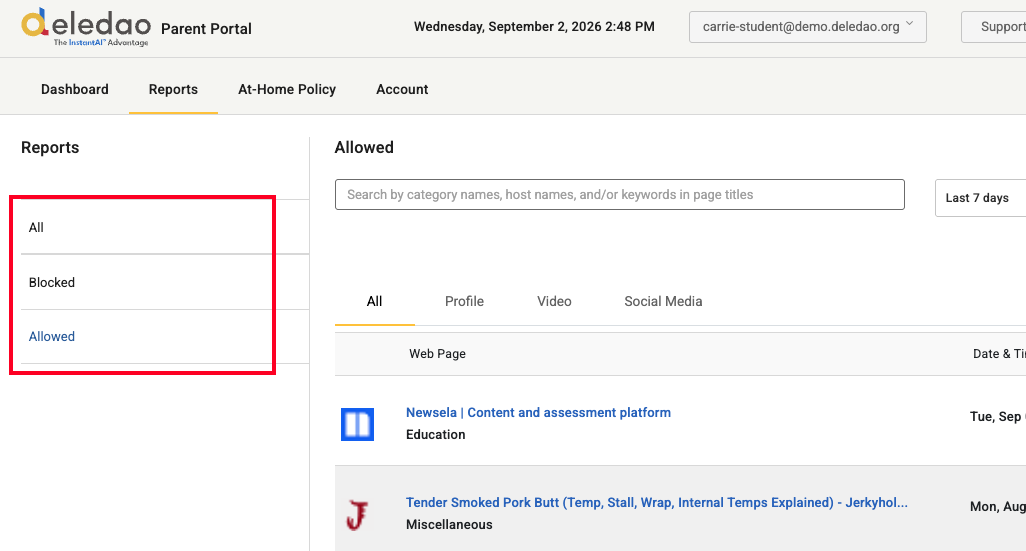
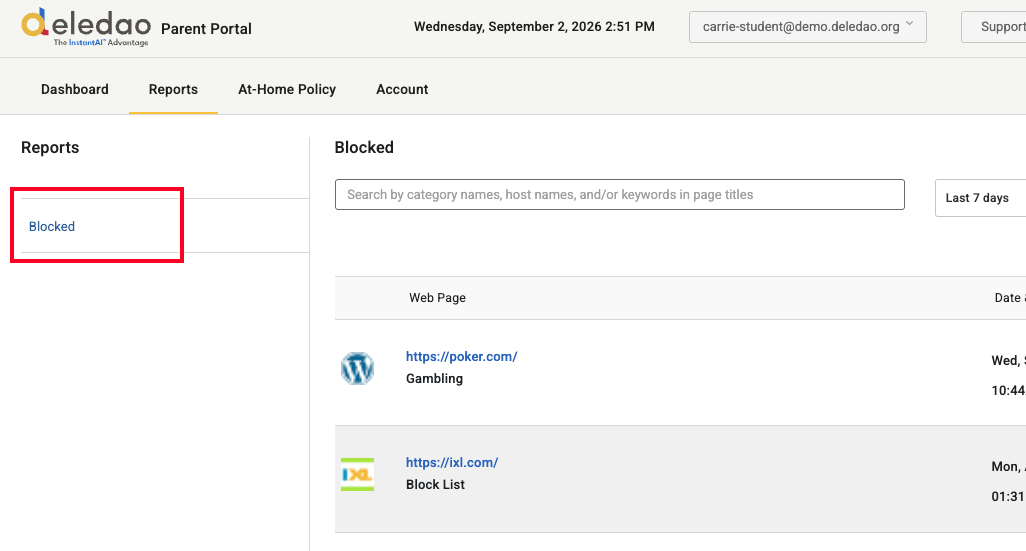
Show Only Blocked Activities
When enabled, guardians will only see websites and activities that were blocked by the filter.
This setting can help simplify reporting and draw attention to potential filtering concerns without displaying all browsing activity.
- Disabled: Guardian can review Blocked and Allowed activity.
- Enabled: Guardian can review Blocked activity only.
Remote Learning Settings
Override Parent Rules During Remote Learning Sessions
Normally, guardian-created rules are honored when a student uses a school device at home.
However, some districts may want instructional access to take priority during remote learning periods.
When Override Parent Rules During Remote Learning Sessions is enabled:
- District policies take precedence during designated remote learning sessions.
- Parent-created restrictions are temporarily ignored.
- Students retain access to resources required for instruction.
This is particularly useful when parents have blocked websites or categories that may be required for classwork.
Recommended Configuration
Most districts use the following approach:
- Allow guardians to block additional categories.
- Allow guardians to block additional websites.
- Enable Show Only Off-Campus Activities if parent visibility should be focused on at-home use.
- Enable Show Only Blocked Activities if simplified reporting is preferred.
- Enable Override Parent Rules During Remote Learning Sessions to ensure instructional resources remain accessible during remote learning.
Carefully evaluate whether to enable Allow Guardians to Allow Additional Websites, as this may permit access that differs from district filtering preferences.
Important Considerations
Parent Portal controls are intended to complement district filtering policies, not replace them.
District-level policies always remain in effect, and guardians cannot remove restrictions that have been enforced by the school or district.
Before inviting guardians to the Parent Portal, review these settings carefully to ensure they align with your district's technology policies, instructional requirements, and desired level of parent involvement.
© Deledao Education