
Table of Contents
- What is a SiteBank?
- Create a Block SiteBank
- Create an Allow SiteBank
- Optional Settings
- Remove Websites
- Delete a SiteBank
- Applying a SiteBank
- Best Practices
Audience: Teachers
SiteBanks allow teachers to quickly manage website access during ActiveInstruct™ classroom sessions. A SiteBank can contain allowed or blocked websites, control how websites are presented to students, and be applied to one or more classrooms.
Only one SiteBank can be active in a classroom at a time.
What is a SiteBank?
A SiteBank is a collection of website access settings that can be applied to a classroom.
Using a SiteBank, teachers can:
- Allow specific websites
- Block specific websites
- Create a walled-garden environment where only approved websites can be accessed
- Limit the number of browser tabs students can open
- Control whether websites automatically open for students
- Quickly switch between different instructional website sets
A single SiteBank can be used across multiple classrooms.
Create a Block SiteBank
A Block SiteBank can be used to restrict students from going to websites that would otherwise be allowed by the Deledao Administrator. There could be times that teachers would still like to restrict students from going to those sites, eliminating the potential distraction.
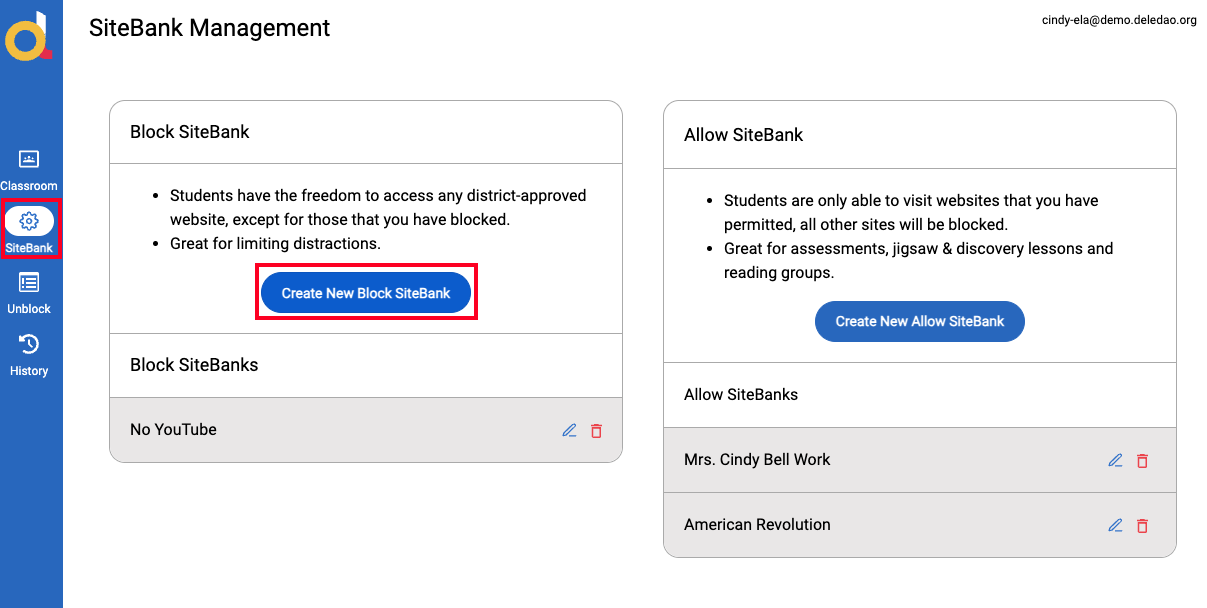
To create a new Block SiteBank, sign into the Deledao Teacher Portal, then:
- Navigate to SiteBank in the left navigation bar.
- Choose Create New Block SiteBank.
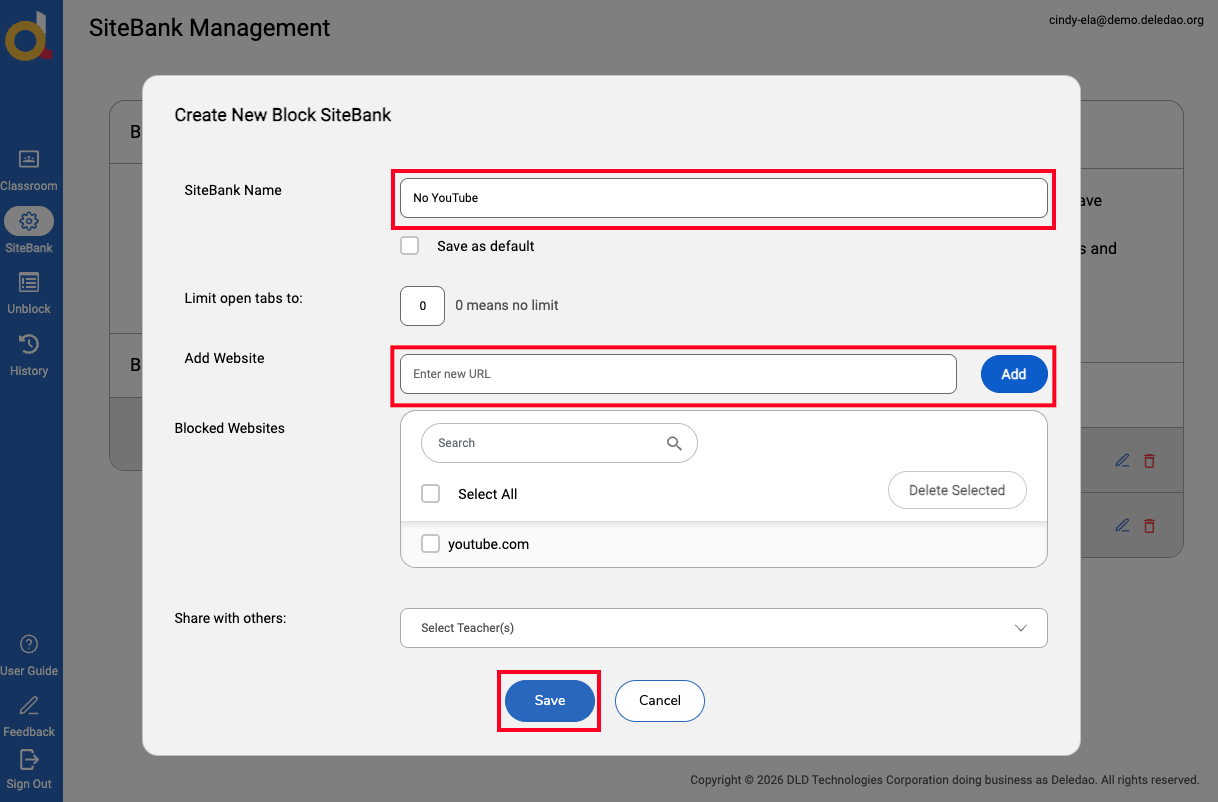
- Enter a SiteBank Name.
- Limit open tabs, if applicable.
- Individually Add new URL's to block.
- Share with others, if applicable.
- Save new Block SiteBank.
Create an Allow SiteBank
An Allow SiteBank can be used to guide instruction, informing students of the websites you would like them to access during that ActiveInstruct class.
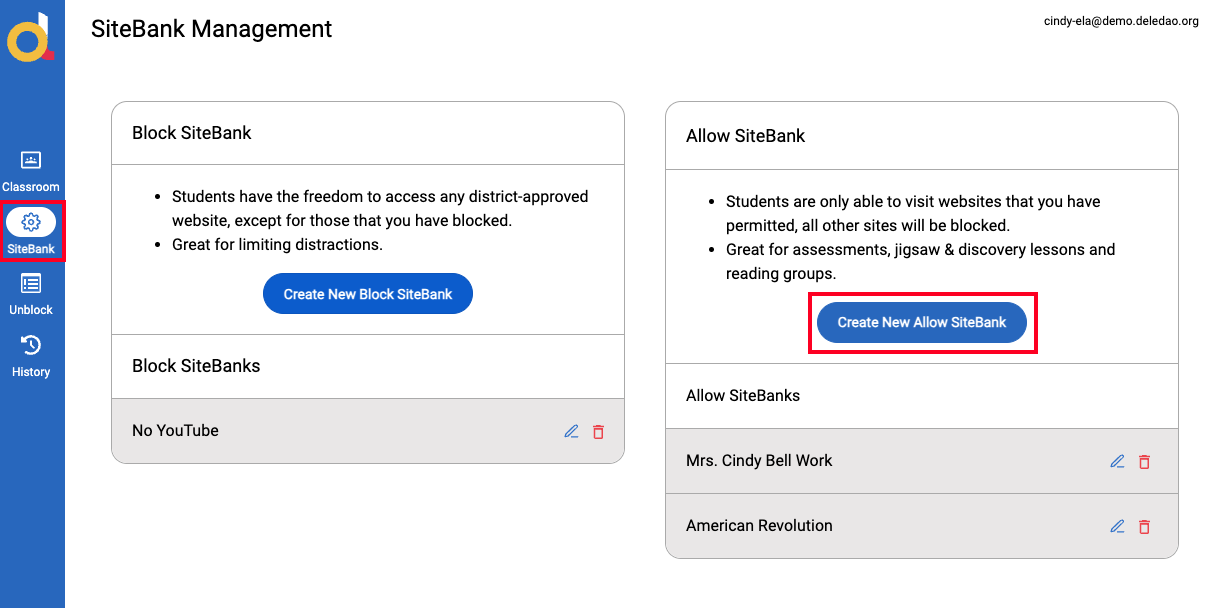
To create a new Allow SiteBank, sign into the Deledao Teacher Portal, then:
- Navigate to SiteBank in the left navigation bar.
- Choose Create New Allow SiteBank.
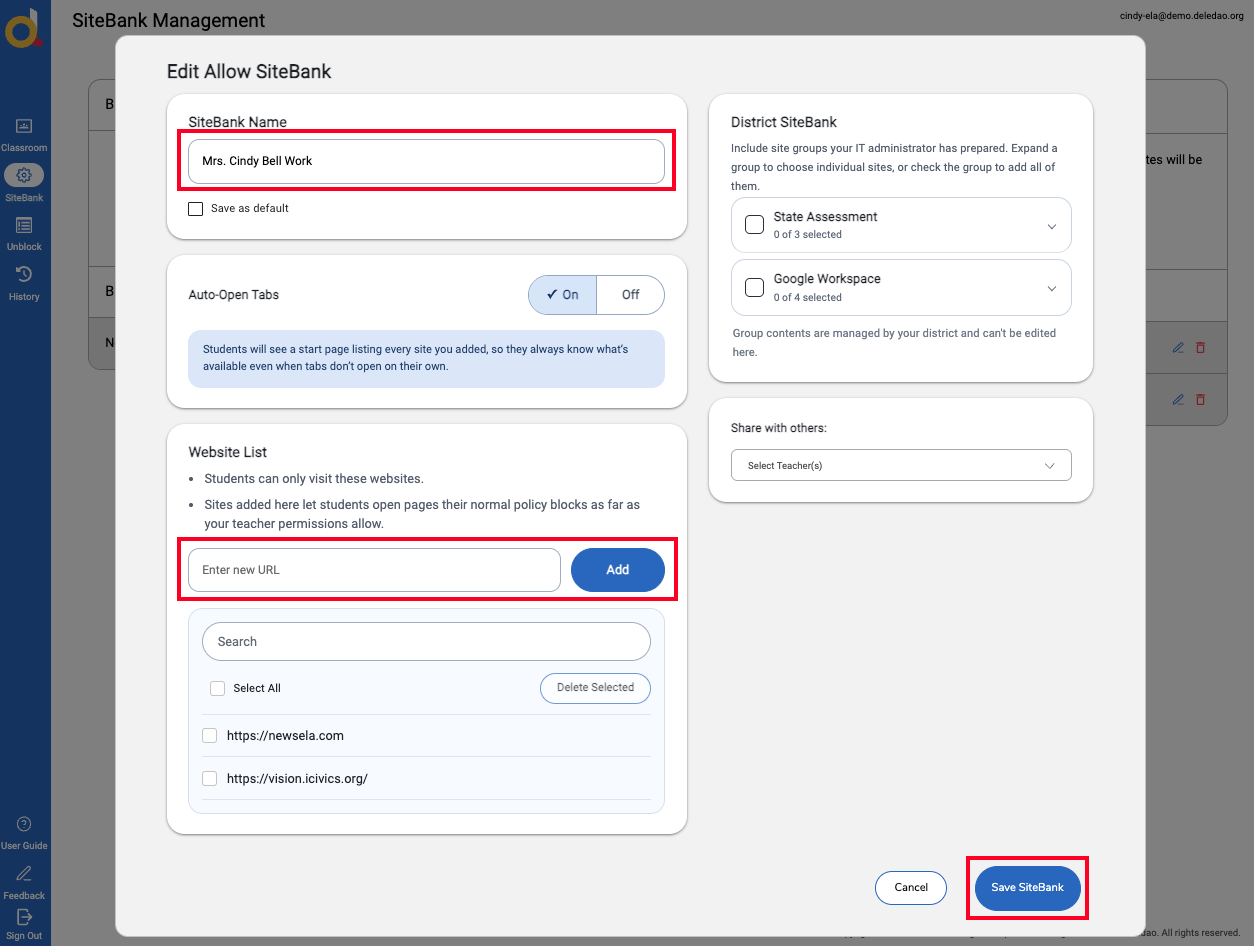
- Enter a SiteBank Name.
- Select Auto-Open Tabs choice.
- Individually Add new URL's to allow.
- Select District SiteBank, if applicable.
- Share with others, if applicable.
- Save new Allow SiteBank.
Optional Settings
Save as Default
Enable Save as Default if you would like this SiteBank to automatically apply for future ActiveInstruct classroom sessions that has this SiteBank selected.
Limit Open Browser Tabs
Teachers can limit the number of browser tabs students are allowed to open. This setting can help reduce distractions and keep students focused on classroom activities.
Select the maximum number of tabs you would like the students to open when configuring the SiteBank.
District SiteBanks
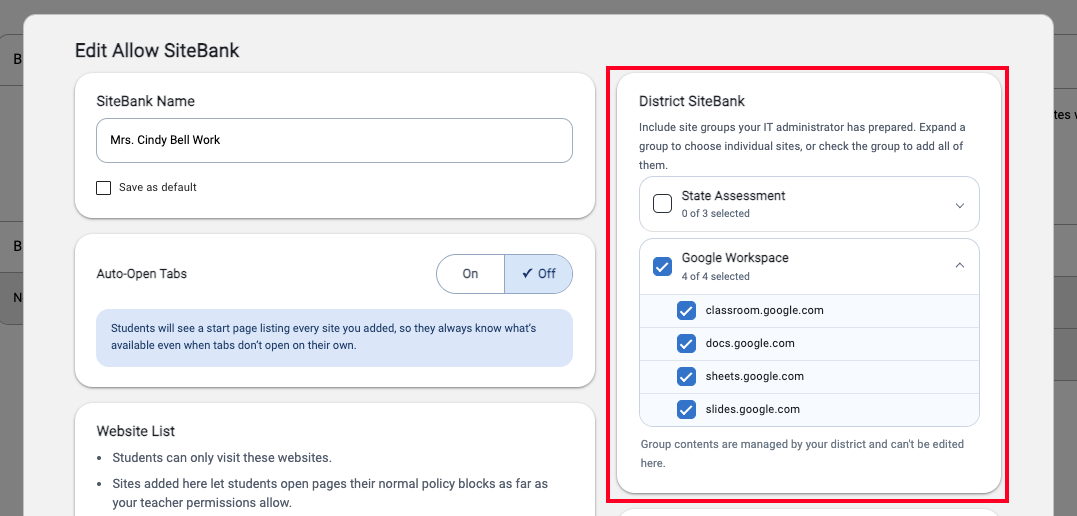
In addition to their own Allow SiteBanks, teachers may see one or more District SiteBanks. District SiteBanks are optional and are created by district administrators.
What are District SiteBanks?
District SiteBanks allow administrators to provide commonly used district-approved websites that teachers can easily incorporate into classroom instruction.
Examples include:
- Curriculum platforms
- Online textbooks
- Assessment tools
- Research databases
- Learning management systems
- District-purchased software subscriptions
Example
A district may create a SiteBank called: District Subscriptions
This SiteBank could include:
- Lexia
- BrainPOP
- Discovery Education
- Newsela
- Other district-licensed resources
Instead of requiring teachers to know and enter each URL, teachers can simply select the District SiteBank and use the approved resources immediately.
Benefits
District SiteBanks help:
- Reduce setup time for teachers
- Ensure consistent access to district-approved resources
- Eliminate the need to manually enter URLs
Note: District SiteBanks are managed by district administrators. Teachers can select and use them but may not be able to modify their contents.
Auto-Open Tabs
When configuring an Allowed SiteBank, teachers can choose whether websites automatically open for students.
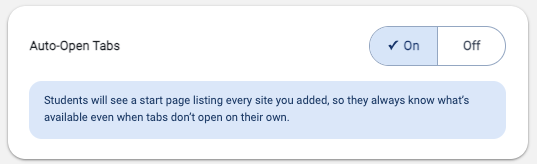
Auto-Open Tabs On
When Auto-Open Tabs is on:
- Allowed websites automatically open on student devices when the SiteBank is applied.
This option is useful when teachers want all students to begin working on the same resource immediately.
Auto-Open Tabs Off
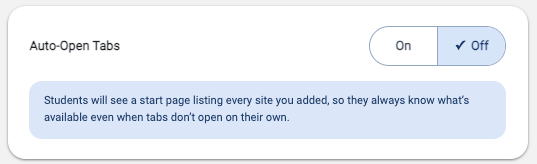
When Auto-Open Tabs is off:
- Websites do not automatically launch for students.
- Instead, students are presented with a webpage that displays the list of approved websites available through the SiteBank.
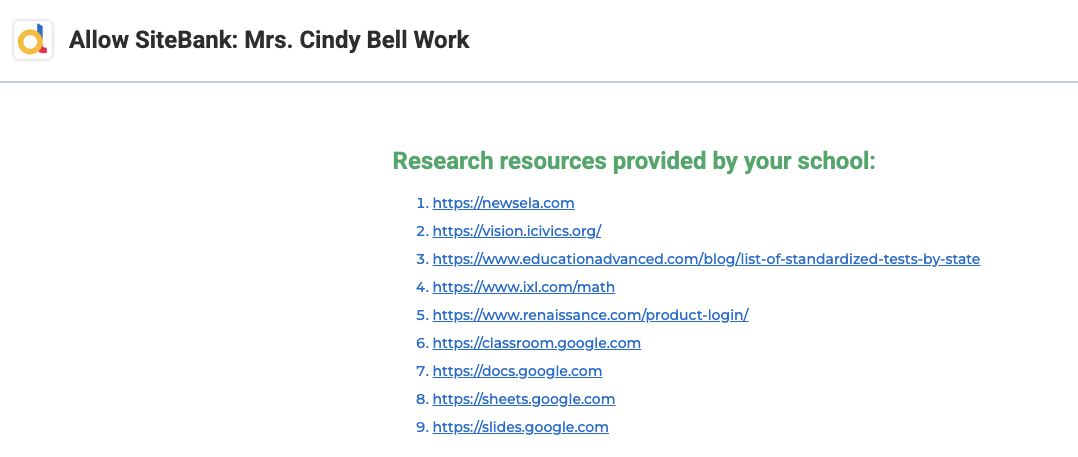
- Students can select and open the websites when they are ready.
This option provides students with more flexibility while still limiting access to only the approved resources contained within the SiteBank.
Remove Websites
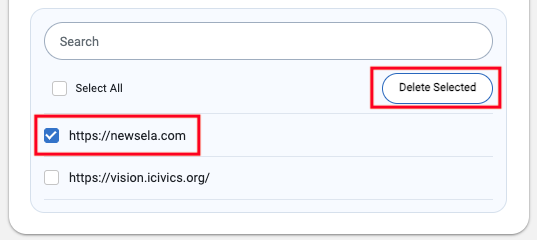
To remove a website from a SiteBank:
- Select the checkbox next to the website.
- Click Delete Selected.
The website will be removed from the SiteBank.
Delete a SiteBank
To delete a SiteBank:
- Click the Trash Can icon next to the SiteBank.
- Click Delete in the confirmation window.
The SiteBank will be permanently removed.
Note: Deleting a personal SiteBank does not affect any District SiteBanks created by an administrator.
Applying a SiteBank
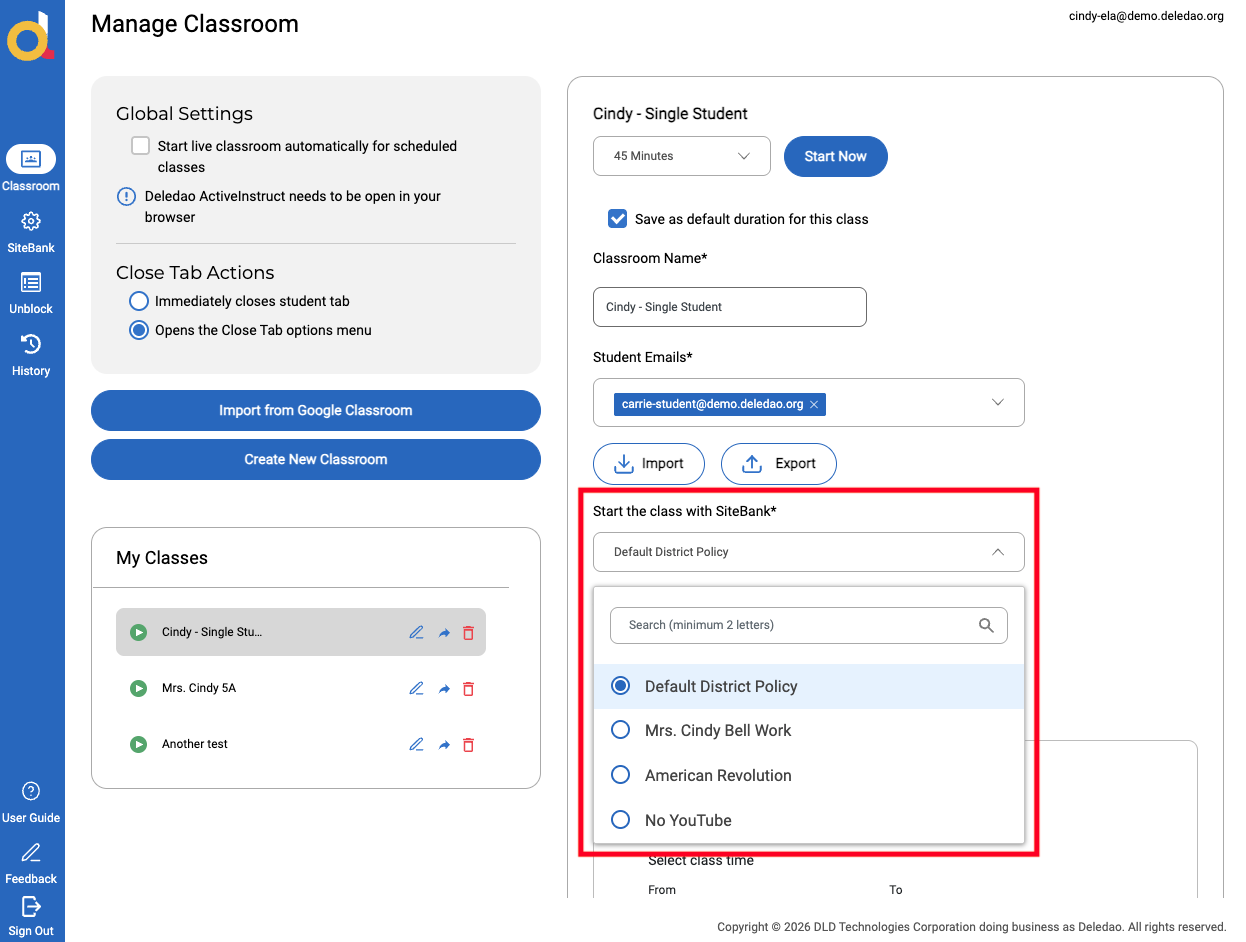
To apply a SiteBank to an ActiveInstruct Class, there are 2 options:
- Select Start the class with a SiteBank when creating or editing your ActiveInstruct Class.
- Select the SiteBank from an active ActiveInstruct Class.
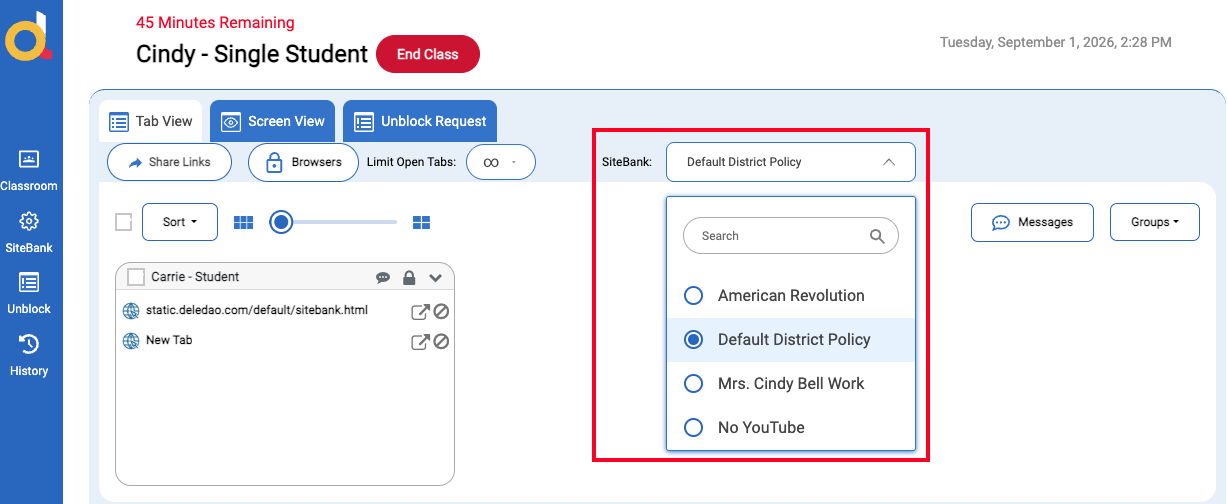
Note: Selecting Default District Policy removes the application of any SiteBanks that have been applied.
Best Practices
- Create separate SiteBanks for different subjects, units, or activities.
- Use Block All Websites by Default when students should only access specific instructional resources.
- Leverage District SiteBanks whenever available to quickly access district-approved resources.
- Enable Auto-Open Tabs when all students should begin on the same website immediately.
- Disable Auto-Open Tabs when students may need to access resources at their own pace.
- Regularly review and remove outdated websites from SiteBanks.
- Limit the number of browser tabs when appropriate to help minimize distractions.
By using SiteBanks effectively, teachers can create a focused digital learning environment while maintaining flexibility for different instructional activities.
© Deledao Education