
Table of Contents
- Understanding Alert Recipients
- Understanding OUs and Groups
- Create an Alert Recipient
- What is an Escalation Procedure?
- Create an Escalation Procedure
- Assign an Escalation Procedure
- Example Configuration
- Things to Consider Prior to Configuration
- Best Practices
Audience: Administrators
Alert Recipients and Escalation Procedures determine who receives wellness alerts and how those alerts are routed throughout your organization.
Proper recipient configuration is critical to ensure the right people receive the right alerts for the right students.
Understanding Alert Recipients
Every wellness recipient is made up of three components:
Who Receives the Alert
A recipient can be:
- A single user
- Multiple users
- An escalation procedure
What Risk Level
Recipients can be assigned to:
- High Risk
- Medium Risk
- Low Risk
Which Students
Students are assigned through:
- Organizational Units (Google Workspace)
- Groups (Microsoft 365)
Every recipient is a combination of Who + Risk Level + Student Population.
Understanding OUs and Groups
ActivePulse does not understand:
- Schools
- Campuses
- Grade levels
- Classrooms
Instead, ActivePulse uses:
- OUs in Google Workspace
- Groups in Microsoft 365
Because of this, districts should ensure their OU or Group structure reflects how they want alerts routed.
Create an Alert Recipient
To create a recipient, navigate to Student Wellness > Alert Recipients.
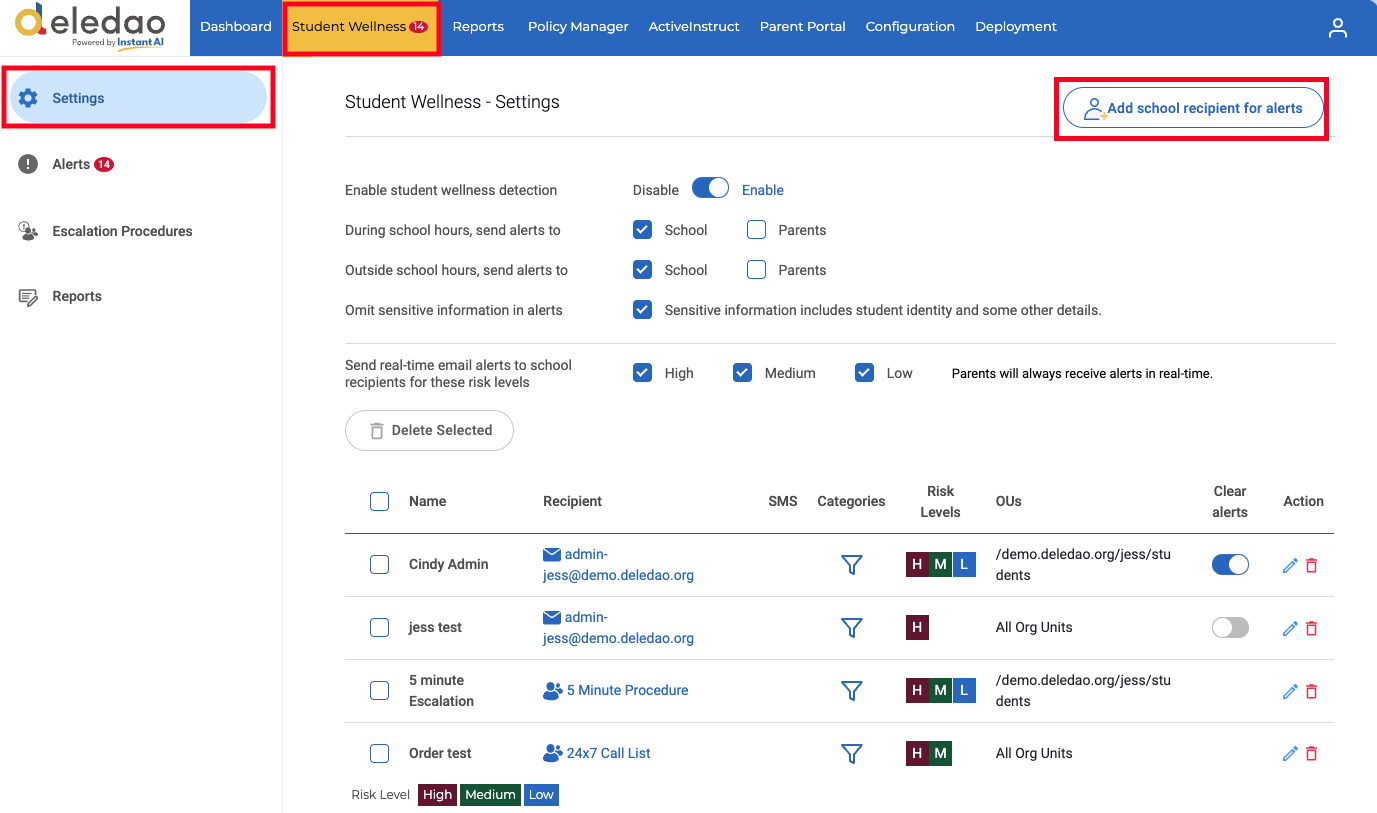
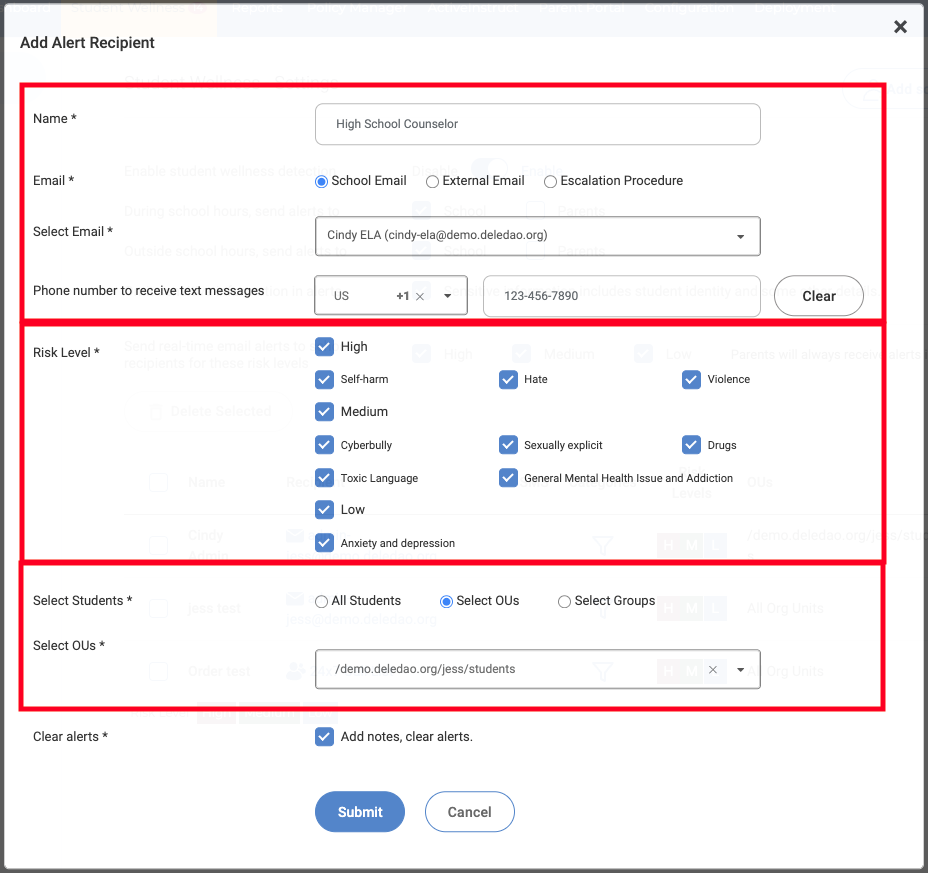
- Select who receives the alert.
- Assign what risk levels.
- Assign which students by selecting OUs or Groups.
- Decide if this recipient can add notes and clear alerts.
- Submit.
What is an Escalation Procedure?
An Escalation Procedure allows alerts to move from one person to another during a set amount of time if action is not taken in the form of marking the alert as investigated. Rather than notifying multiple people simultaneously, alerts follow a defined sequence.
For example: Counselor > Mental Health Coordinator > Director of Student Services
Create an Escalation Procedure
To create an Escalation Procedure:
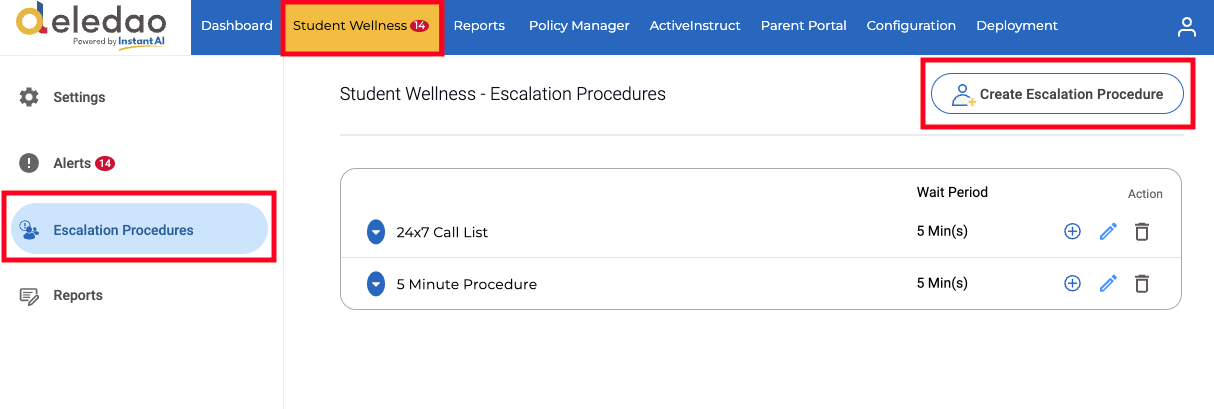
Navigate to Student Wellness > Escalation Procedures
- Select Create Escalation Procedure.
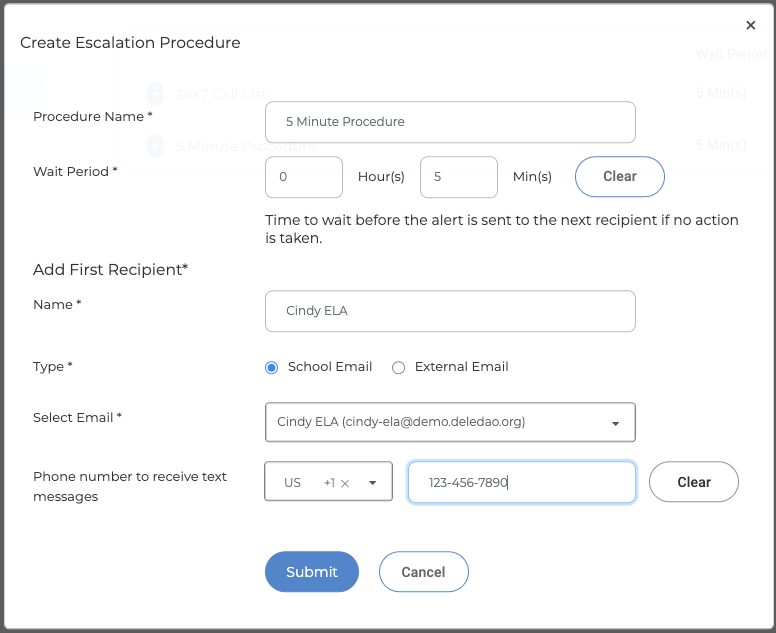
- Enter a Procedure Name.
- Enter the Wait Period, setting the time between alerts.
- Add First Recipient Name, Type, and Email.
- Add First Recipent Phone number (optional).
- Submit.
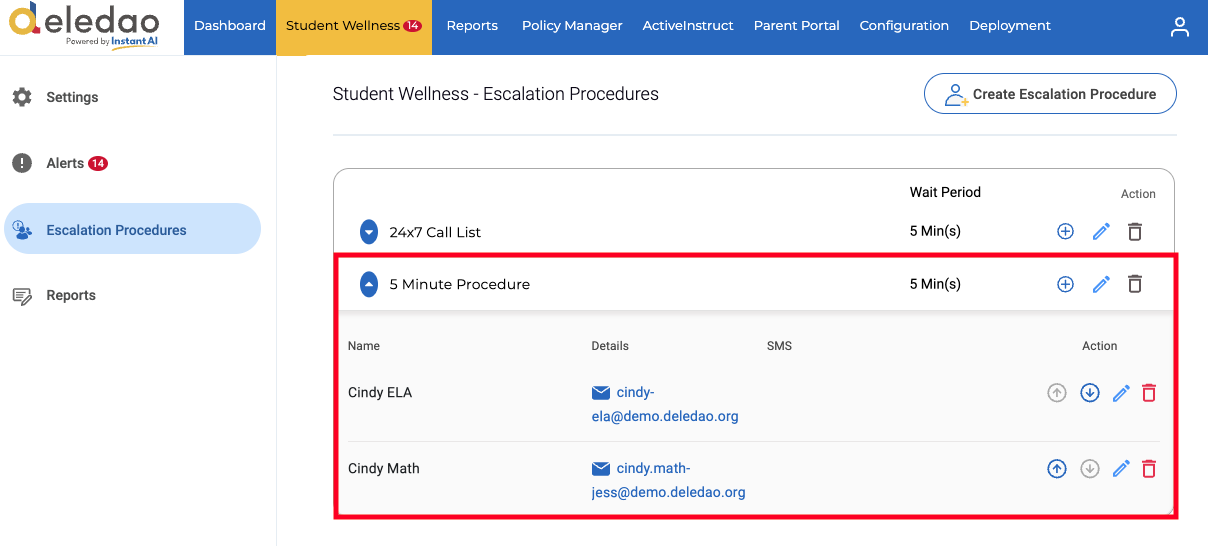
Add additional recipients to existing Escalation Procedure.
- Click plus sign (+) to the right of the existing Escalation Procedure.
- Add next recipients Name, Type, and Email address.
- Add next recipients Phone number (optional).
Repeat process for as many recipients as needed in this Escalation Procedure. Additional contacts can be re-ordered by clicking the up and down arrows to rearrange them in order of contact preference.
Assign an Escalation Procedure
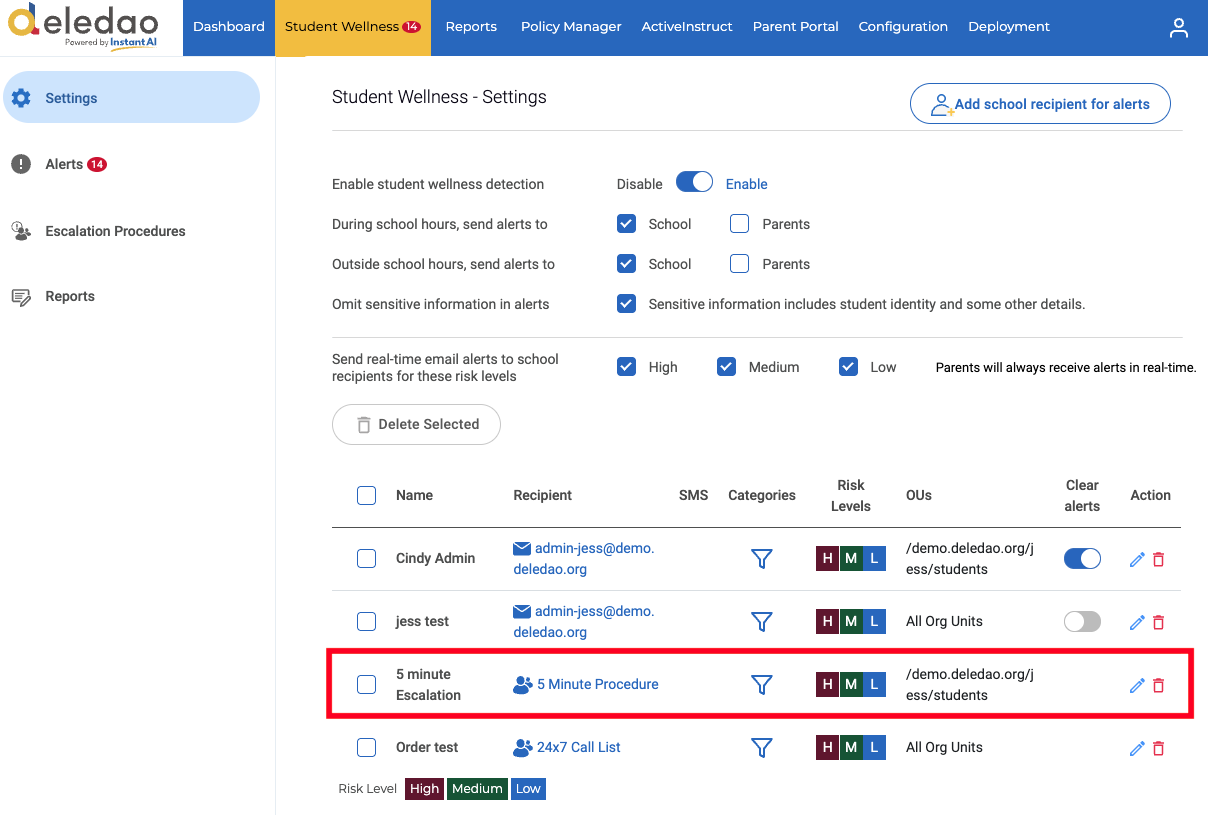
Creating the Escalation Procedure just establishes the order of contact and contact information. After creating the procedure must be also added as an Alert Recipient in order to receive alerts.
- Navigate to Student Wellness > Settings.
- Click Add school recipient for alerts.
- Assign:
- Name to be displayed
- Email as Escalation Procedure
- Existing Escalation Procedure
- Risk Level
- OU or Group
- Submit.
The procedure will now be used whenever matching alerts are generated.
Example Configuration
A district wants:
- Hoover Elementary alerts routed to the Hoover counselor.
- Quincy Middle alerts routed to the Quincy counselor.
- High Risk alerts escalated to the district Mental Health Coordinator if the counselor does not respond.
Recipient 1
Recipient 2
Recipient 3
Recipient 4
This setup ensures that High Risk alerts receive additional attention while allowing counselors to manage routine wellness monitoring.
Things to Consider Prior to Configuration
When planning your setup, work through these questions:
How are students organized?
Do your OUs or Groups accurately represent the schools or populations you want to monitor?
Should High Risk alerts be handled differently?
Many districts route High Risk alerts differently than Medium and Low Risk alerts.
Who should receive each alert?
Should alerts go to:
- One person?
- Multiple people?
- An escalation procedure?
Each unique combination of answers becomes a recipient configuration.
Best Practices
- Ensure your OU or Group structure is configured correctly before adding recipients.
- Route High Risk alerts differently when appropriate.
- Use Escalation Procedures for critical alerts.
- Verify contact information regularly.
- Review recipient assignments at the beginning of each school year.
- Test notification workflows after setup.
Proper recipient configuration ensures that wellness alerts reach the right people when they matter most.
© Deledao Education