
Deledao Pre-Deployment Tasks
This article outlines tasks to be completed prior to the first Deledao Deployment call.
Step 1. Access the Deledao Admin Console
- Navigate to: https://admin.deledao.com
- Sign in using your provided credentials.
- Change password as prompted.
Step 2. Configure Global Settings
- Go to: Configuration > Global Settings
- Click Edit
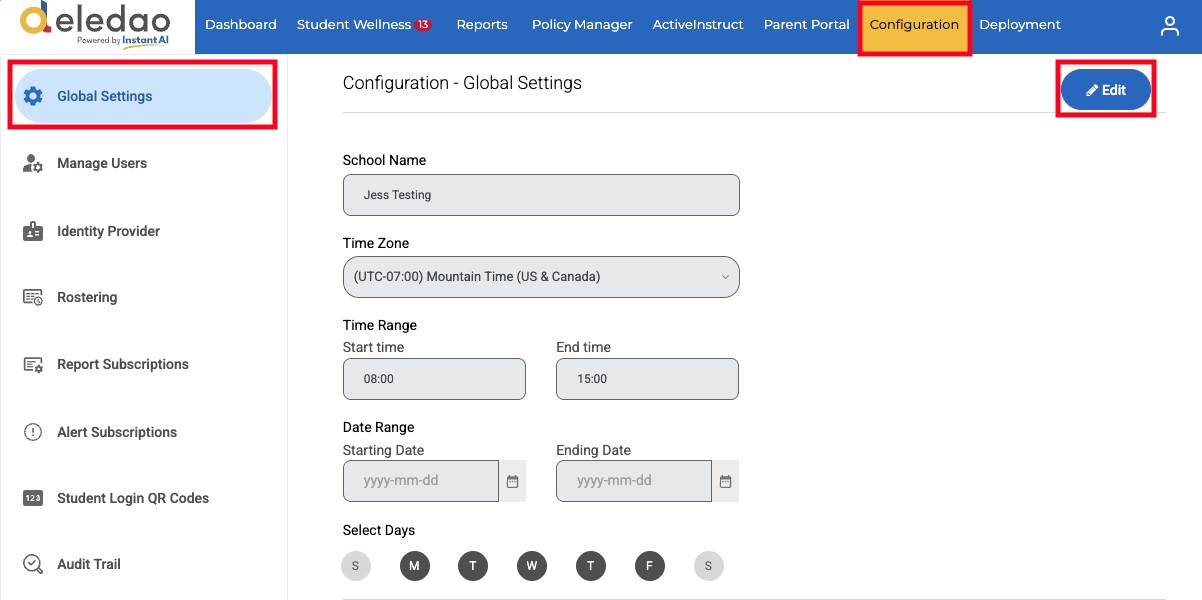
- Enter:
- District or School Name
- Time Zone
- Configure Time Range, Date Range, and Days
- By default, ActiveScan filtering operates 24 hours a day, 7 days a week, unless a Policy Rule specifies otherwise.
- For ActivePulse Wellness alerts and ActiveInstruct class settings, you can optionally configure a Time Range, Date Range, and specific Days to limit when these features are active, such as during school hours.
- Click Save
Step 3. Connect Identity Provider
- Navigate to: Configuration > Identity Provider
- Select the Identitiy Provider used to extract users
- Google Workspace - Chrome OS
- Google Workspace or Office 365 - Windows OS or Mac OS
- Sign in using an Admin or Service account
Important Notes:
- Deledao requires read-only access to Groups, Organizational Units (OUs), and Users. If a service account is created for this purpose, please ensure it is assigned the appropriate read-only permissions for these resources.
- Stay on the page until the sync completes (this may take a few minutes depending on your domain size). Leaving the page early will restart the sync.
Google Workspace ONLY - If You Encounter Sign-In Errors:
Ensure Deledao is set as a trusted app in Google Admin Console:
- Go to:
- Security > Access and Data Control > API Controls > Manage App Access
- Click Configure New App
- Search for Deledao
- Select the top result → Set to Trusted
- Click Finish and Confirm
- Return to Deledao and retry the Identity Provider sync
Step 4. Configure Directory Sync Settings
- After initial sync completes:
- Change Automatically re-sync directory from Never to Daily
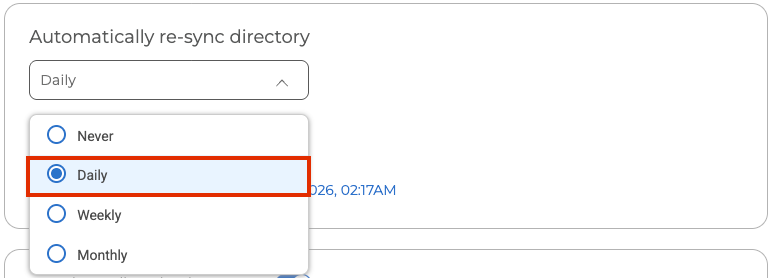
- Change Automatically re-sync directory from Never to Daily
- Overnight syncing will keep Organizational Units and user data updated
Note:
- To manually sync during the day, use Resync Directory Info
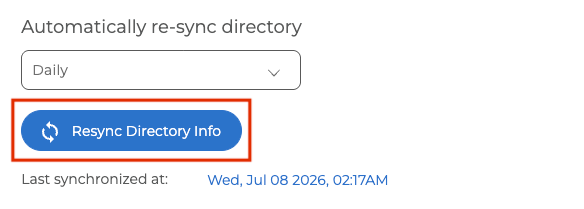
(Settings are saved automatically)
Optional but Recommended
- Add deledao.com and deledao.net to your web filter and firewall allow list to prevent network traffic interruptions.
Google Workspace ONLY
- If you plan to use Deledao ActiveScan and ActivePulse for monitoring Google Drive content:
Step 1: Enable Drive SDK
- Go to:
Apps > Google Workspace > Drive and Docs > Features and Applications
Ensure Drive SDK is ON
Step 2: Configure Domain-Wide Delegation
- Go to:
- Security > Access and Data Control > API Controls > Domain Wide Delegation
- Click Add New
- Enter:
Client ID: 102414137000641598412
OAuth Scopes:
https://www.googleapis.com/auth/drive.readonly
https://www.googleapis.com/auth/documents.readonly
Additional Optional Configurations
Report Subscriptions
To receive activity summaries via email:
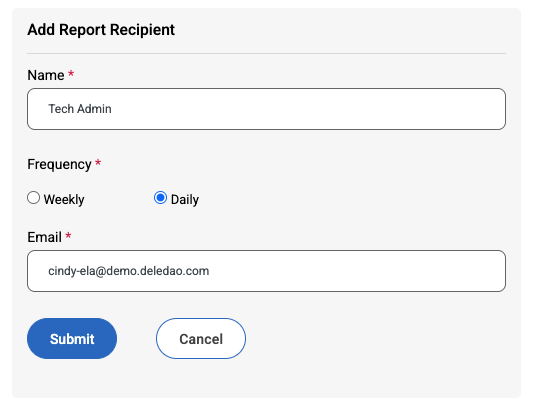
- Navigate to: Configuration > Report Subscriptions
- Select Add Report Recipient
- Choose Daily or Weekly reports
- Click Submit
Alert Subscriptions
To receive notifications when users are blocked:
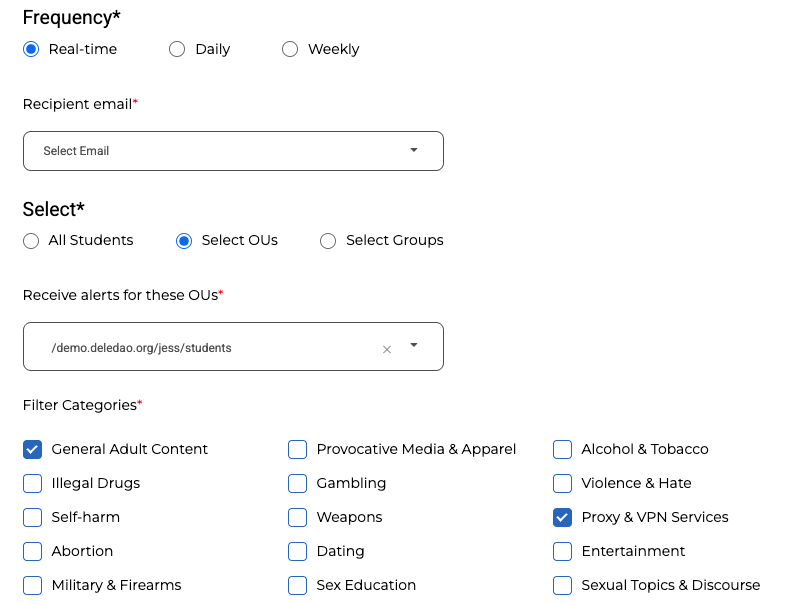
- Navigate to: Configuration > Alert Subscriptions
- Select Create Alert
- Choose Real-time, Daily, or Weekly alerts
- Select All Students, Select OUs, or Select Groups
- Select Filter Categories you want to receive blocked alerts
- Click Save
Note: Manually created users will only be selectable if they are listed as a user in User Management.
To configure Policy Rules after your initial configuration, please see the Policy Manager: Configuring Rules article.
© Deledao Education