
Table of Contents
ActiveInstruct gives teachers tools to manage and monitor student activity during class, guide students to appropriate online resources, respond to unblock requests, and review activity from previous classroom sessions.
This article will help you log in to ActiveInstruct, navigate the teacher portal, and become familiar with the tools available from your classroom dashboard.
Audience: Teachers
Log In to ActiveInstruct
To access the ActiveInstruct Teacher Portal:
- Go to deledao.com.
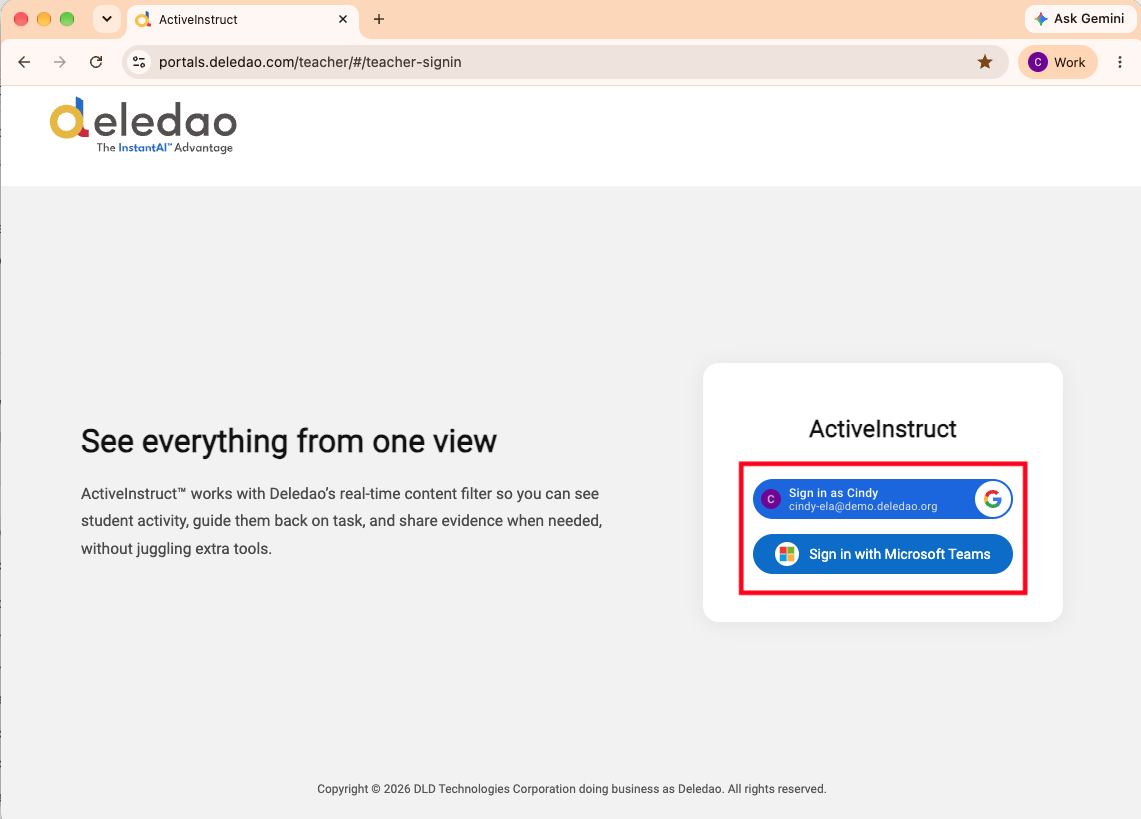
- Select Sign In > Teacher Sign In.
- Sign in with your school Google or Microsoft credentials.
- After signing in, you will arrive at the Manage Classroom dashboard.
First-Time Users
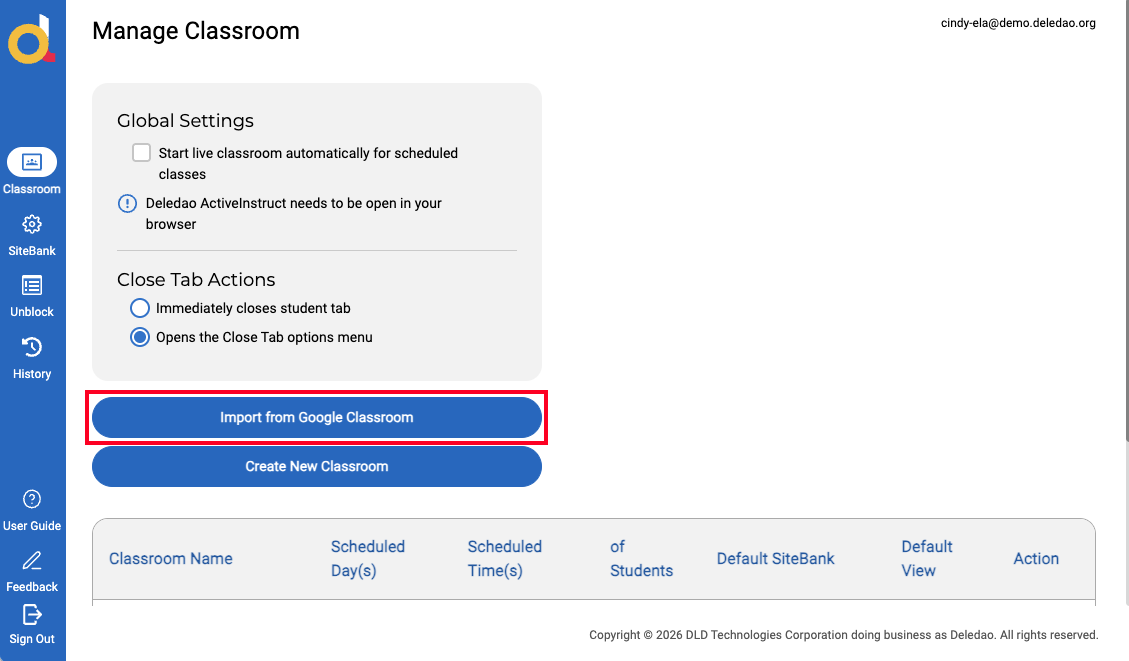
The first time you sign in, your classroom list will be empty. If your school uses Google Classroom, select Import from Google Classroom to import your classes and rosters. Other Rostering methods may be available for syncing Rostered classes.
Navigate ActiveInstruct
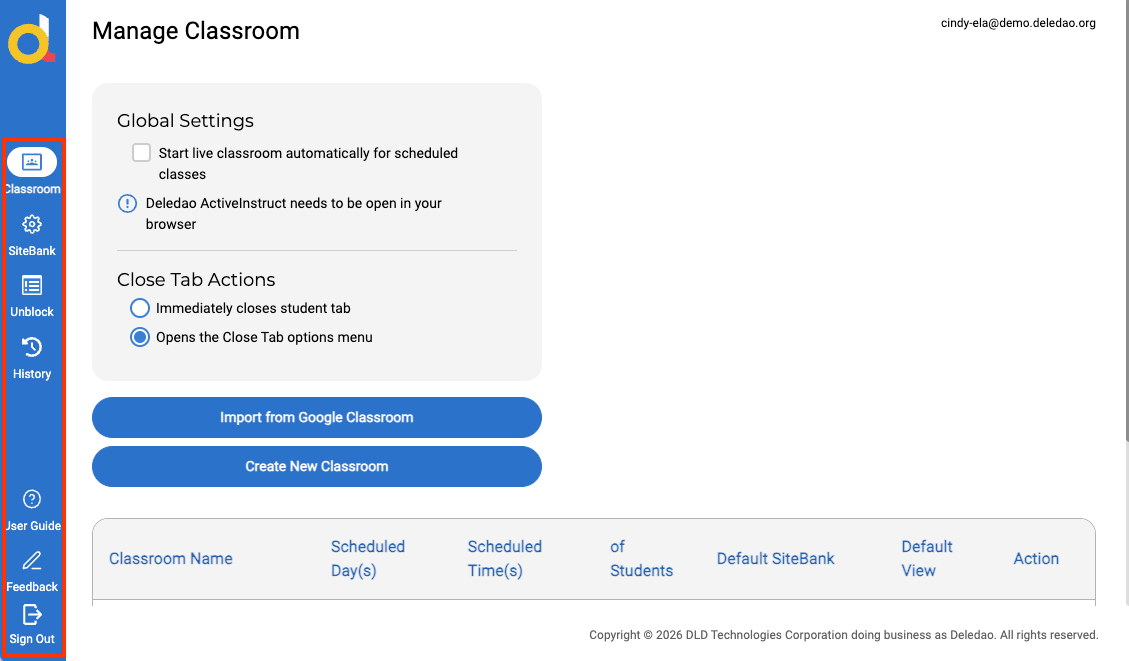
The Navigation Rail provides quick access to the main ActiveInstruct tools.
Classroom
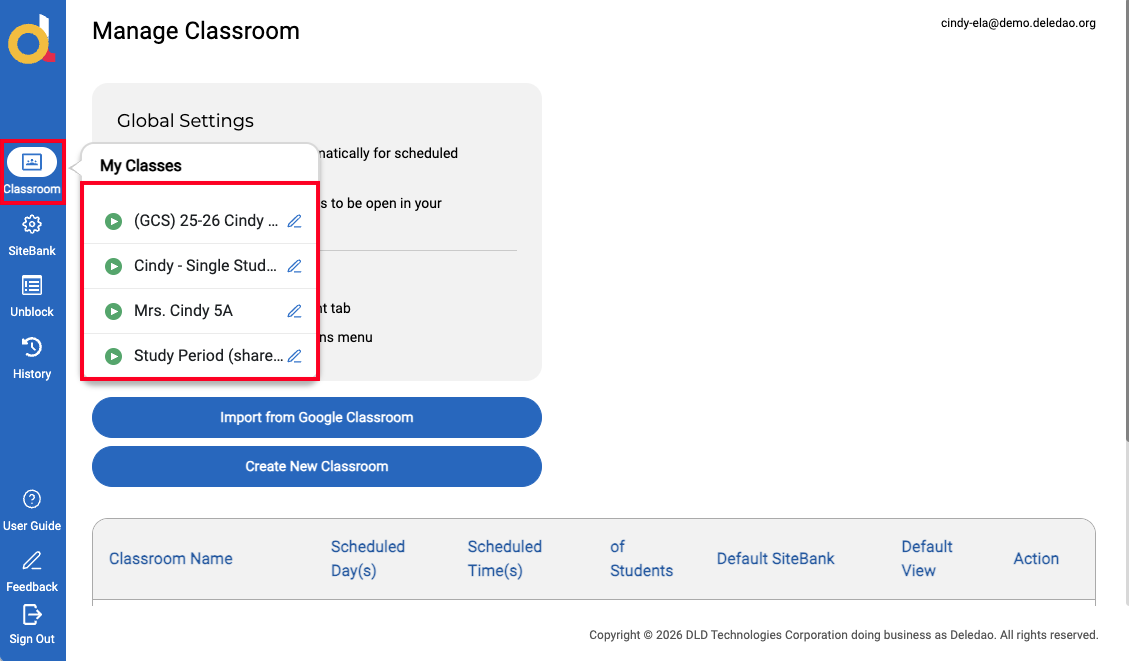
Select Classroom to open the Manage Classroom page and view your classes.
You can also hover over Classroom to quickly start, stop, or manage a class.
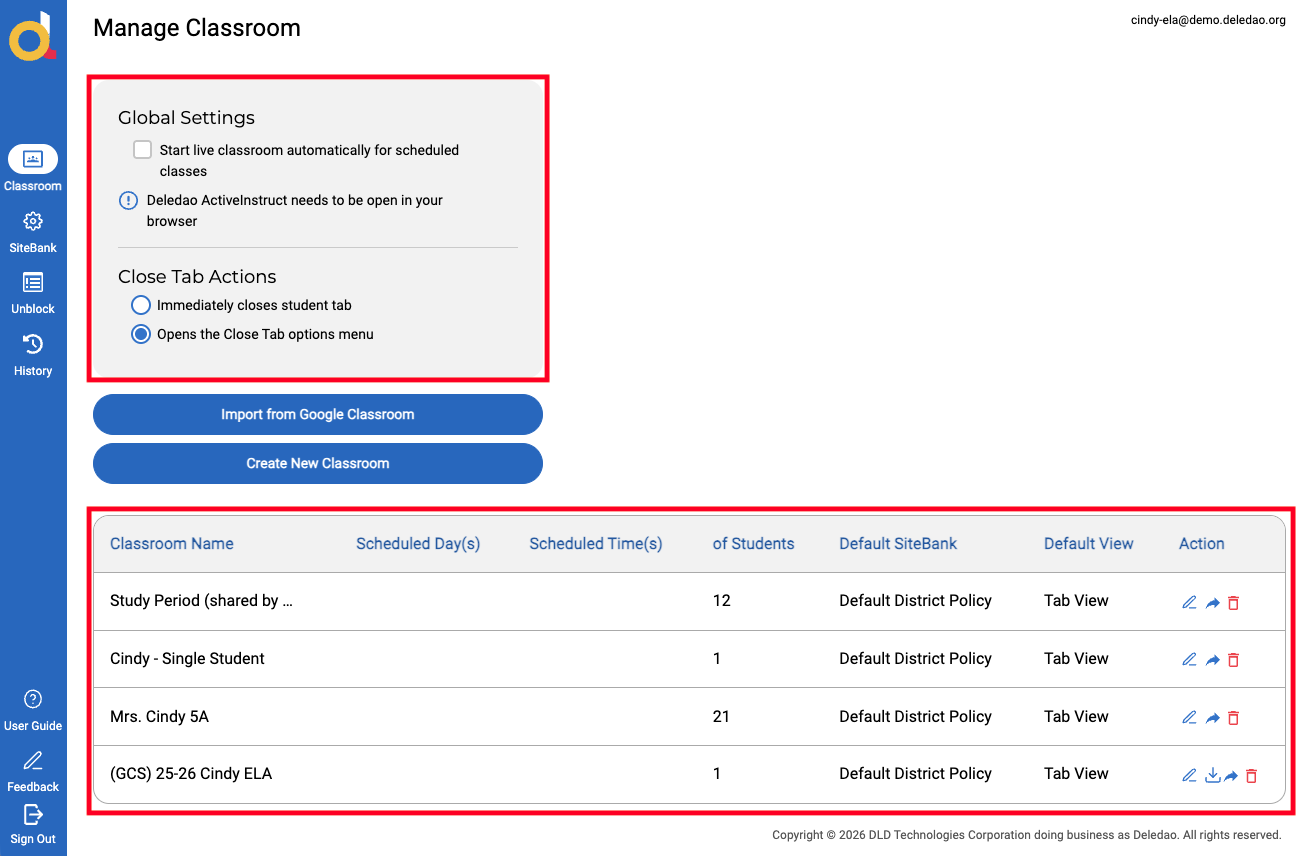
The Manage Classroom dashboard provides an overview of your ActiveInstruct classes and classroom settings.
From this page, you can:
- Access Global Settings.
- Import classes from Google Classroom or create a new class.
- View your ActiveInstruct classes.
- View scheduled class days and times.
- View the number of enrolled students for each class.
- See which SiteBank is configured for a class.
- See whether a class is configured to begin in Tab View or Screen View.
- Edit, share, or delete a class.
For instructions on setting up and managing these options, see Creating and Organizing Classrooms.
SiteBank
Select SiteBank to create and manage Allow SiteBanks and Block SiteBanks for classroom-level management of student web access. SiteBanks are designed to help you tailor the online experience for your class.
For more information, see Manage Allow and Block SiteBanks.
Unblock Requests
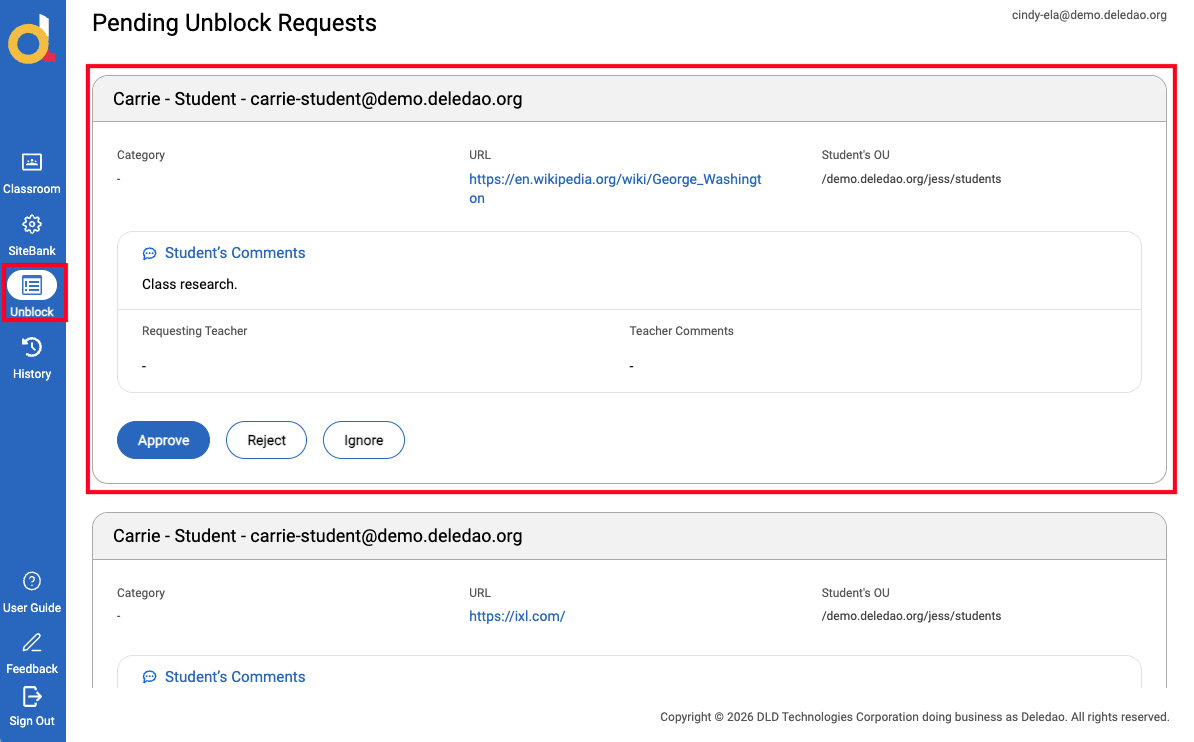
Select Unblock Requests to review pending student requests to access webpages blocked by your school's content filter.
Students requesting access provide a justification and select a teacher to receive the request. As the teacher, you can approve, reject, or ignore a request. Pending requests remain available under Unblock Requests until you take action.
For complete instructions, see Approve and Manage Website Unblock Requests.
History
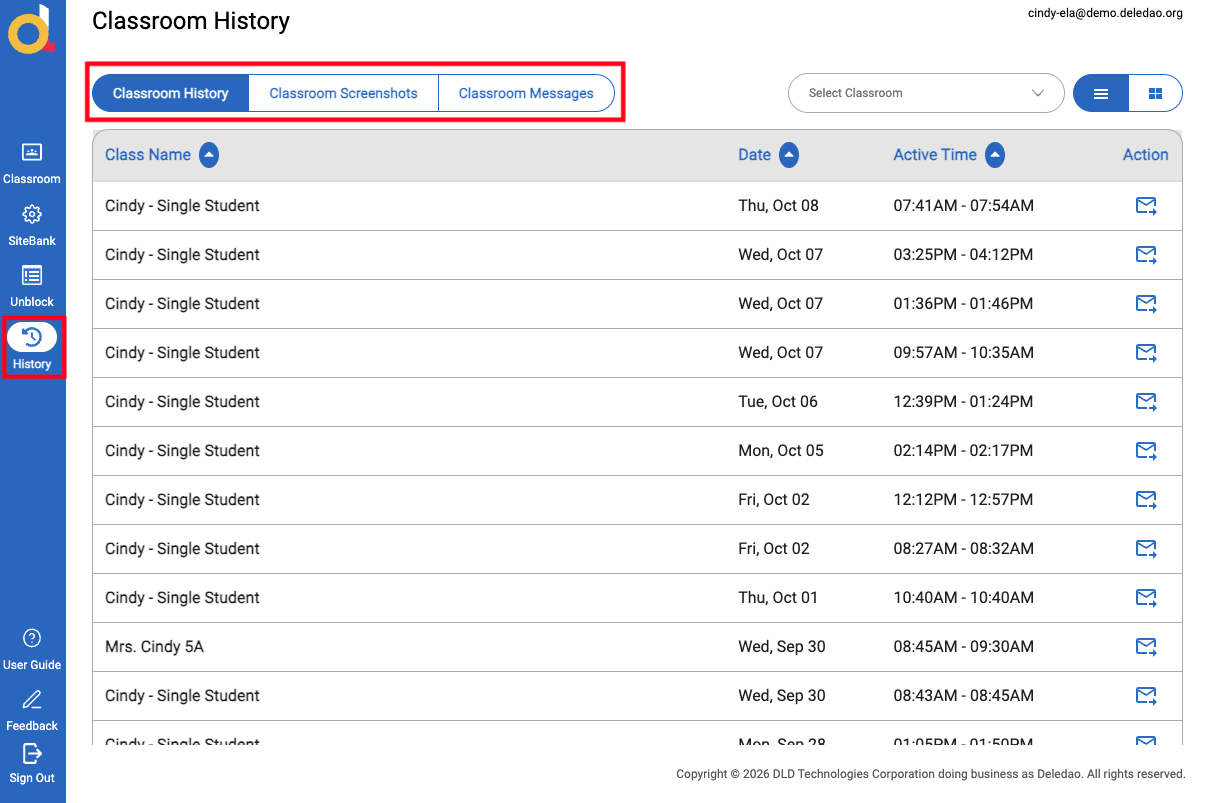
Select History to access information captured from previous Live Classroom sessions.
From History, you can access:
- Classroom session summary reports
- Screenshots taken during classroom sessions
- Messages and announcements sent to students
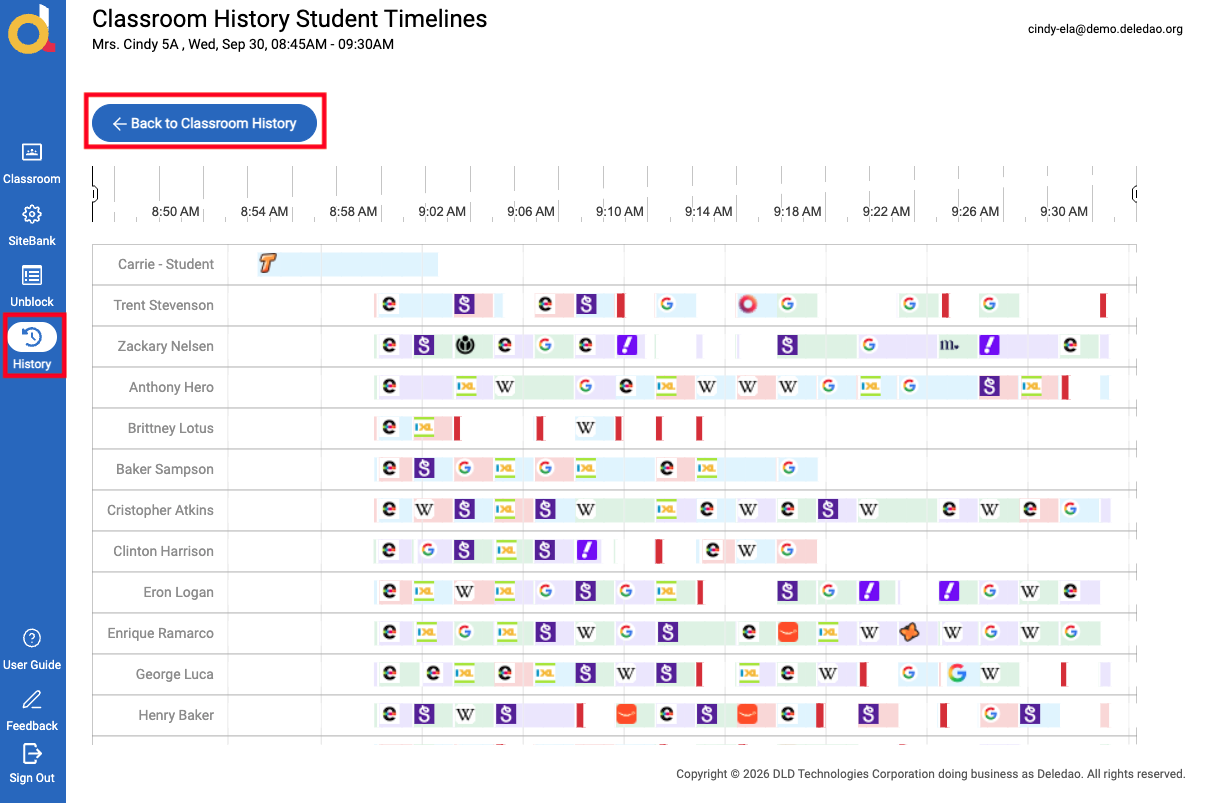
- Student browsing activity from previous sessions
Each classroom session creates a summary report. Reports can be accessed from History, and teachers can also configure their classes to have summary reports emailed automatically.
Detailed reporting instructions will be covered in Classroom History and Activity Reports.
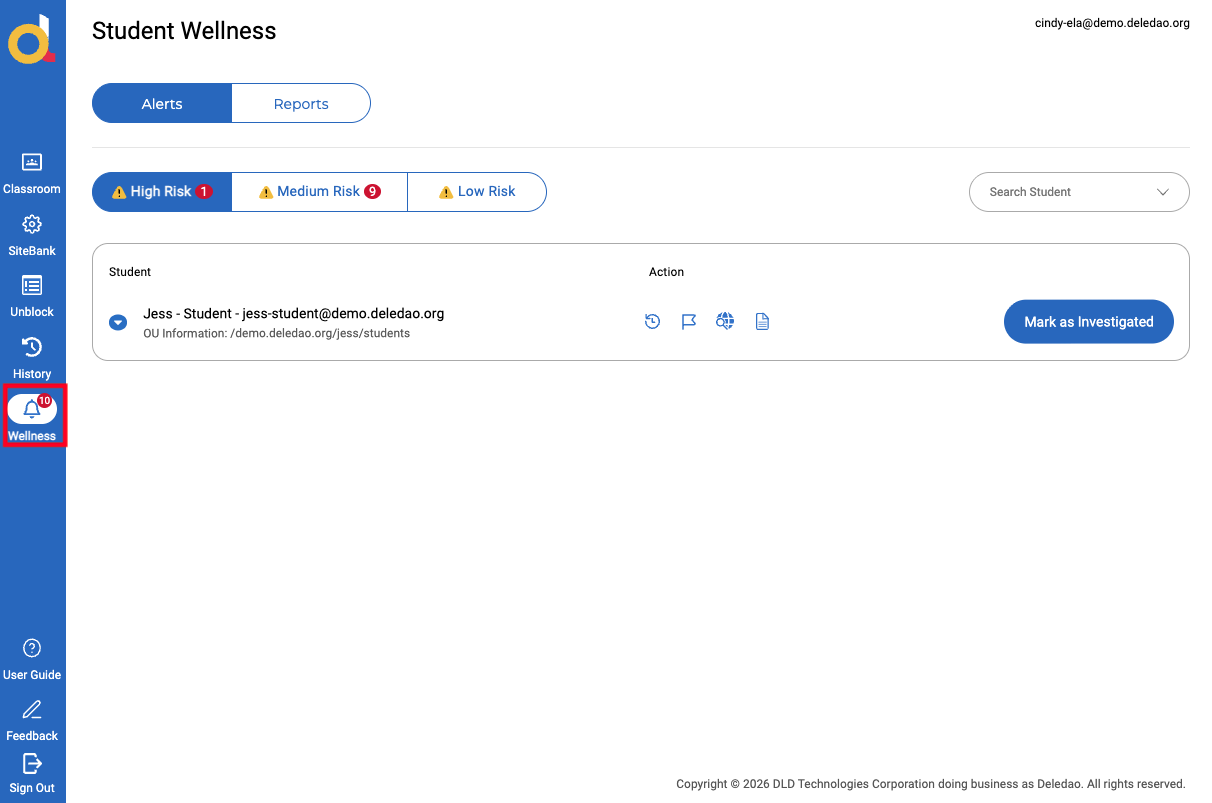
Wellness
Wellness is available to staff who have access to receive wellness alerts. These alerts identify potentially harmful online behavior to support student safety and crisis response.
User Guide
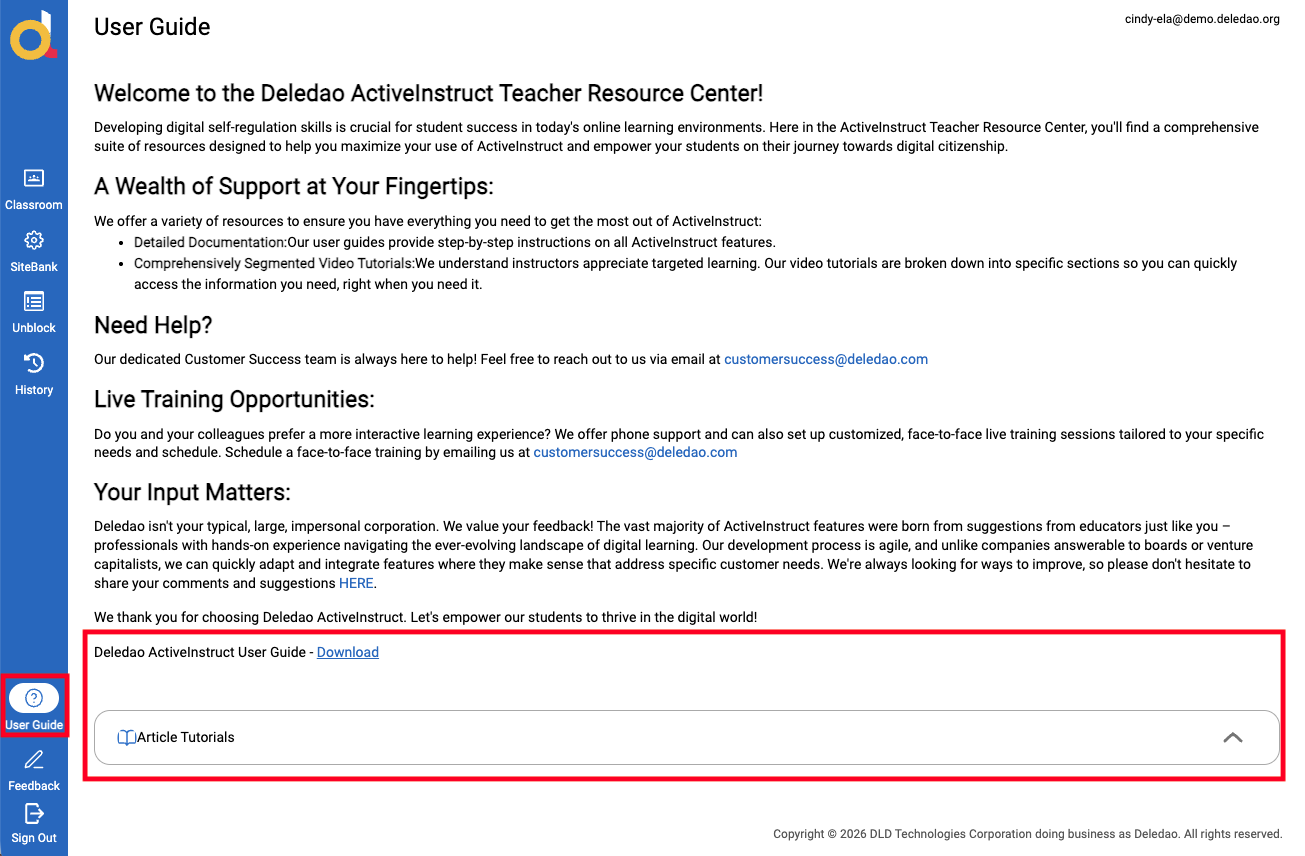
Select User Guide when you need additional help using ActiveInstruct.
The User Guide provides resources you can return to as you become familiar with ActiveInstruct, including:
- The downloadable ActiveInstruct User Guide
- Knowledge base articles
- Short video tutorials covering ActiveInstruct features and setup
Tip: The User Guide is a helpful place to return to when you need a refresher on a feature.
Submit Feedback
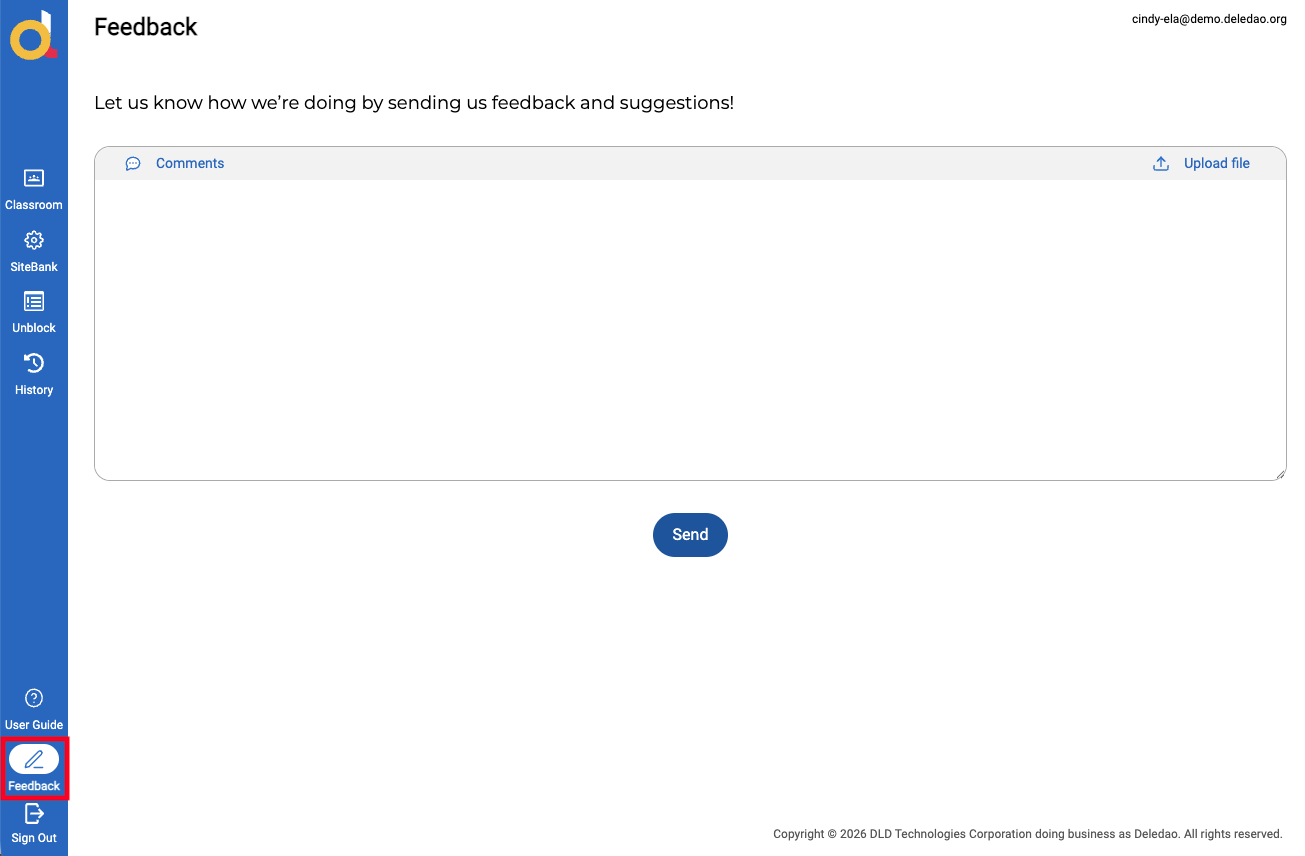
ActiveInstruct includes a Feedback option so you can share your experience with the product team.
Use Feedback to provide information about:
- Features that are or are not working as expected
- Enhancements you would find helpful
- Ideas or suggestions for ActiveInstruct
- Questions that come up while using the product
Feedback submitted through ActiveInstruct helps inform ongoing product development.
Next Steps
Now that you're familiar with the ActiveInstruct Teacher Portal, continue to Creating and Organizing Classrooms to learn how to import, create, and configure your classes.
© Deledao Education