
Table of Contents
- What Are Groups?
- Create a Group
- Create Random Groups
- Create Manual Groups
- Apply a Group During a Live Classroom Session
- Use SiteBanks with Groups
- Lock Browsers for a Group
- Teaching Use Cases
- Manage and Remove Groups
- Best Practices
- What's Next?
ActiveInstruct Groups allows teachers to organize students into smaller learning groups during a Live Classroom session. Groups can be used to support differentiated instruction, collaborative projects, intervention activities, station rotations, and independent learning.
Teachers can create groups manually or automatically and apply different classroom controls to each group without affecting the rest of the class.
Audience: Teachers
What Are Groups?
Groups allow teachers to divide students into smaller instructional units within a Live Classroom session.
Unlike creating separate classrooms, Groups allow all students to remain in the same classroom while receiving different resources, instructions, and learning experiences.
Groups are particularly useful for:
- Differentiated instruction
- Collaborative projects
- Small-group learning
- Station rotations
- Intervention activities
- Makeup work
- Enrichment opportunities
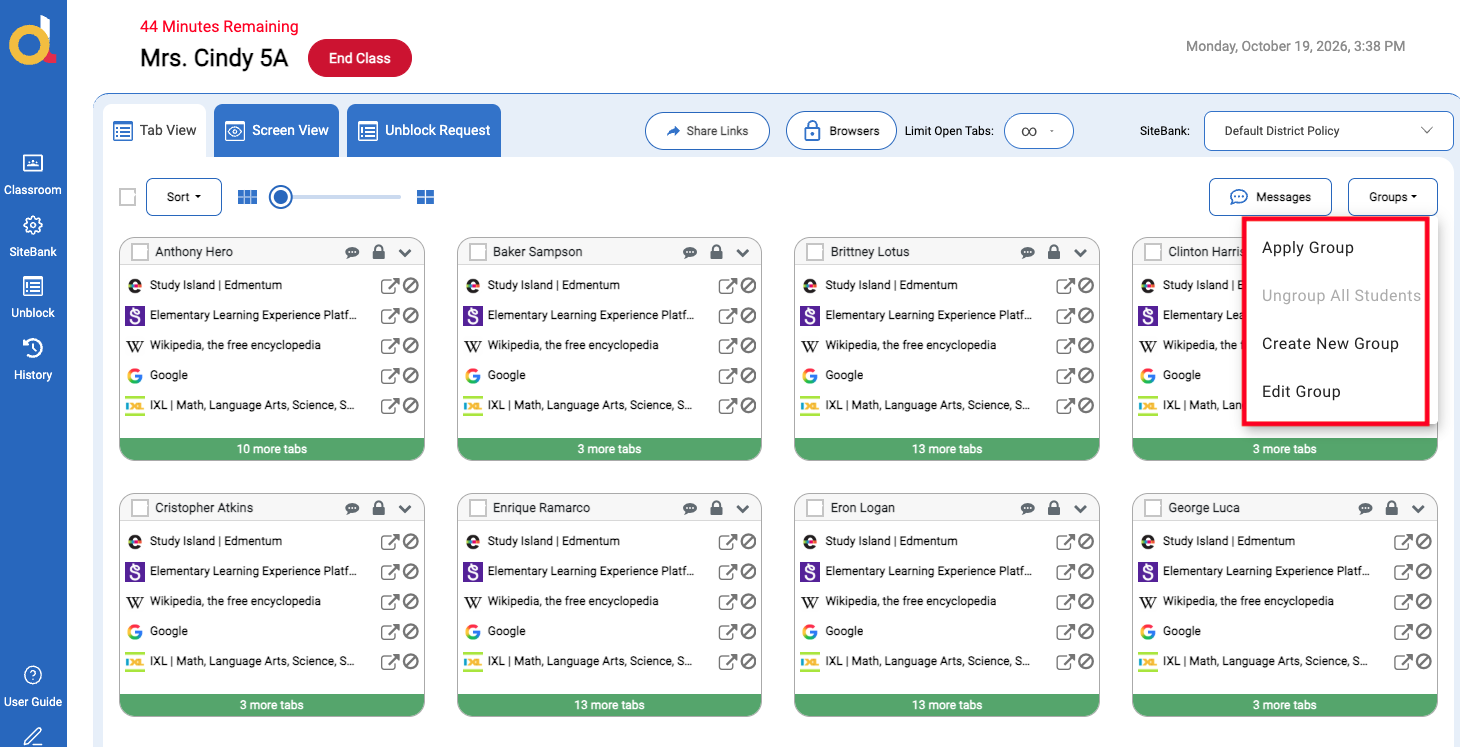
Create a Group
Groups are created during a Live Classroom session.
To create a group:
- Start a Live Classroom session.
- Open the Groups feature.
- Choose whether to create groups manually or automatically.
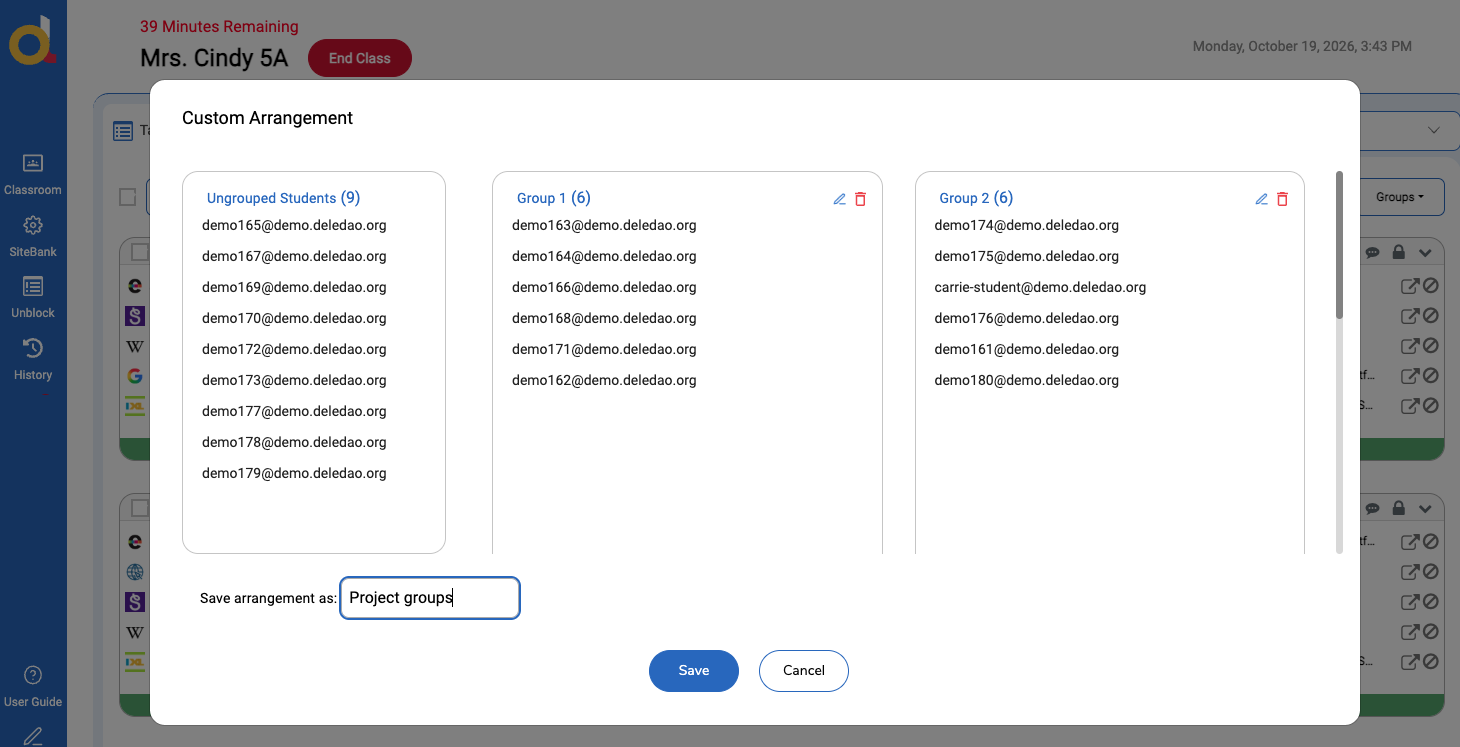
- Assign students to groups.
- Give each group a meaningful name.
- Save the group configuration.
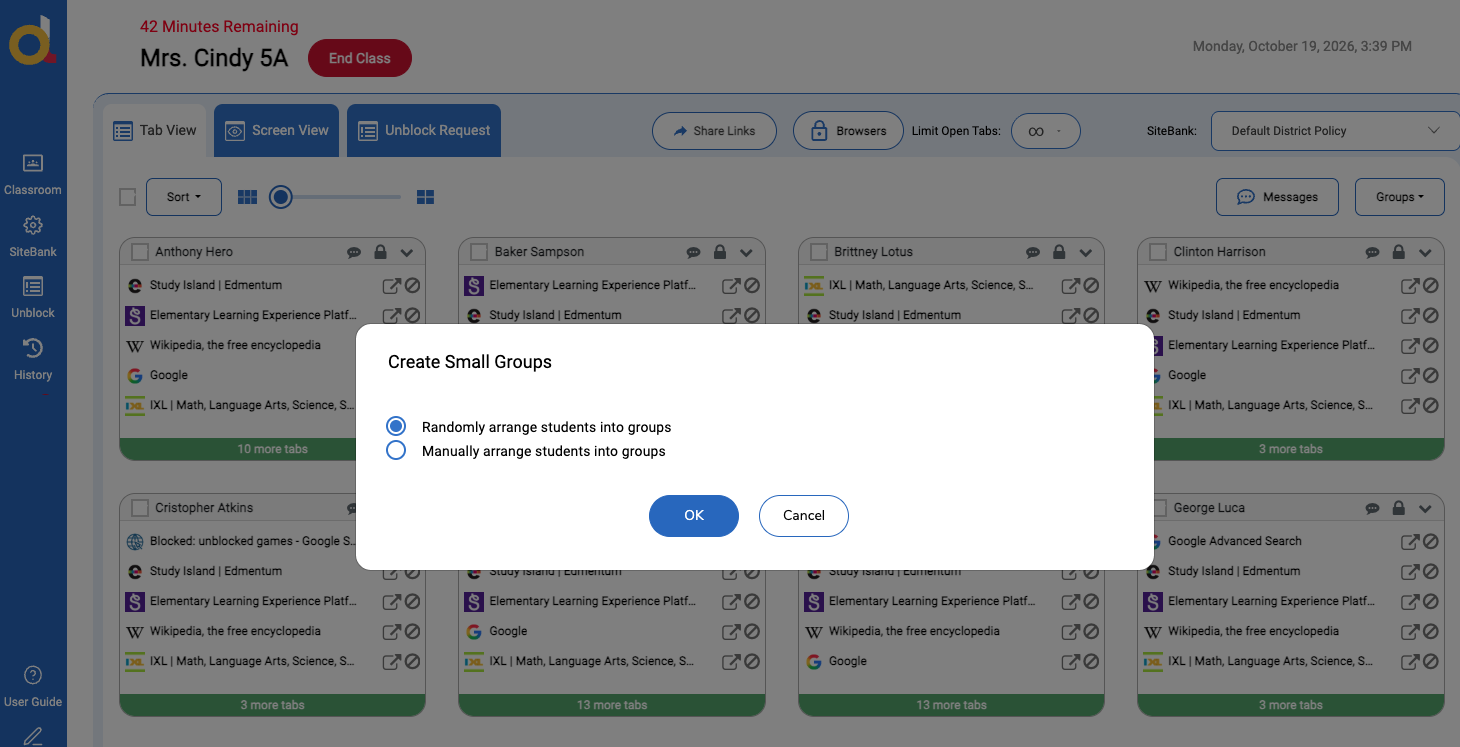
Create Random Groups
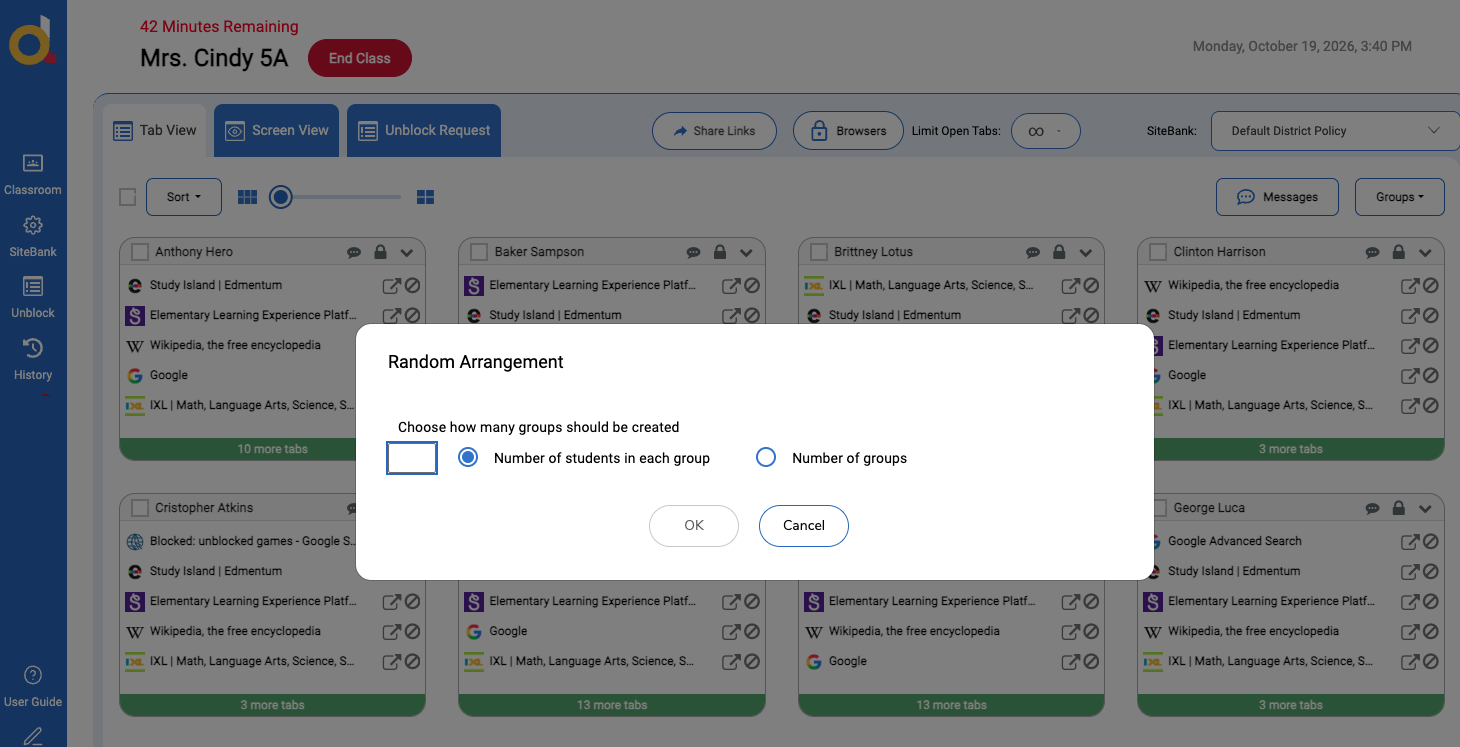
Random grouping allows ActiveInstruct to automatically distribute students into groups.
Teachers can specify:
- The number of groups
- The number of students per group
After groups are generated, students can still be moved between groups manually.
Example
A teacher wants six groups with four students each for a classroom discussion activity.
Instead of manually assigning every student, the teacher creates random groups and then makes adjustments as needed.
Create Manual Groups
Manual grouping gives teachers complete control over group membership.
This option is useful when:
- Students are working on specific projects
- Group members have assigned roles
- Students require intervention support
- Teachers want balanced learning groups
Students can be dragged or assigned into groups based on instructional goals.
Apply a Group During a Live Classroom Session
Once groups have been created, they can be applied during a Live Classroom session.
After applying a group:
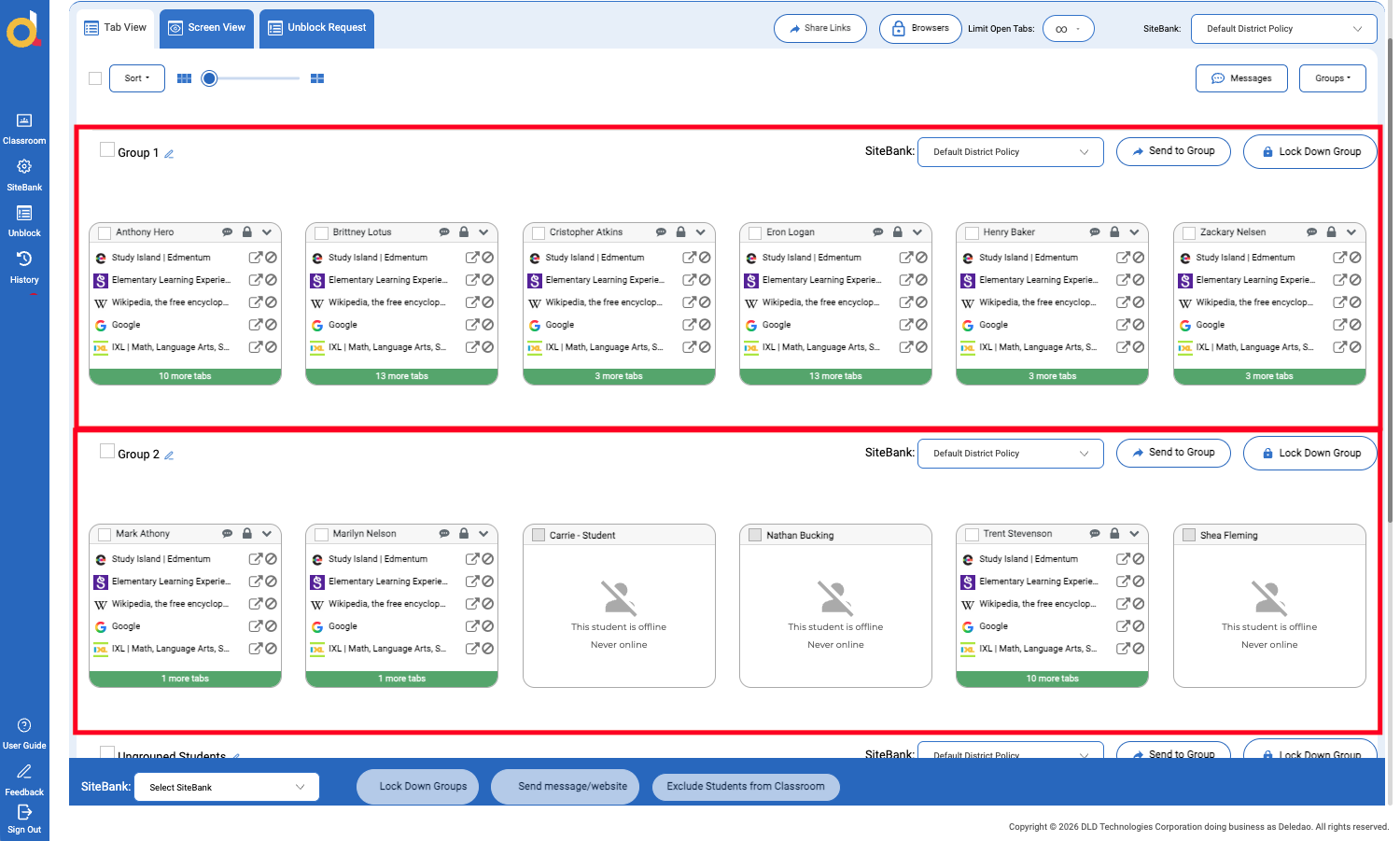
- Students are organized by group
- Group-specific controls become available
- Teachers can manage instructional activities more efficiently
Groups remain active until they are removed or replaced.
Use SiteBanks with Groups
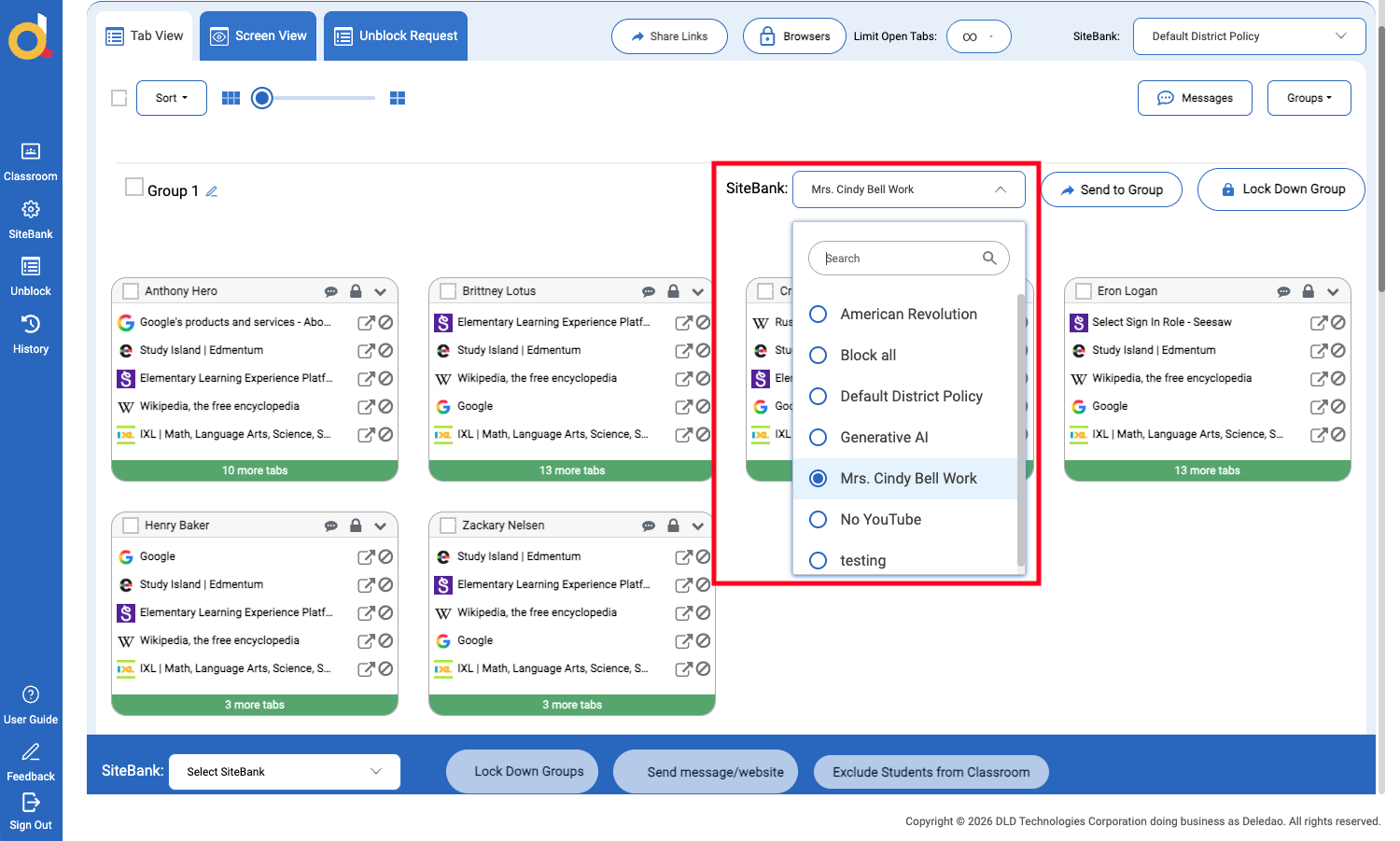
One of the most powerful uses of Groups is applying different SiteBanks to different groups.
This allows multiple learning activities to occur simultaneously within the same classroom.
Example: Research Project
Group 1 is researching historical events.
Group 2 is researching scientific discoveries.
Group 3 is researching current events.
Each group can receive a different SiteBank containing only the resources relevant to their project.
Example: Differentiated Instruction
Students who need additional support can receive a SiteBank with intervention resources, while advanced learners receive enrichment materials.
This allows teachers to tailor learning experiences without creating separate classes.
Lock Browsers for a Group
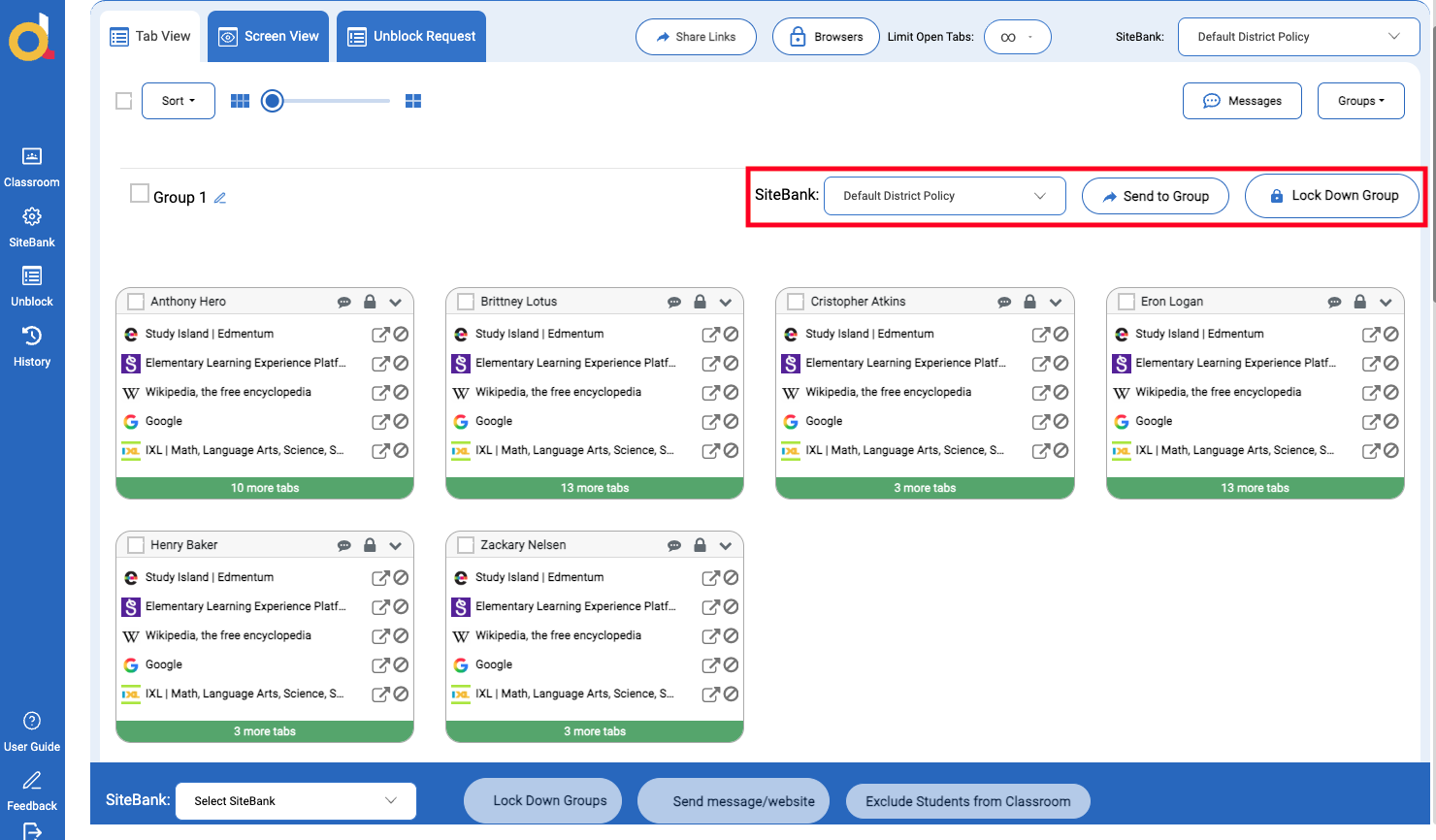
Browser controls can also be applied at the group level.
For example:
- One group may be conducting online research.
- Another group may be participating in an oral presentation.
- A third group may be taking a quiz.
Teachers can lock browsers for one group while allowing other groups to continue working online.
This flexibility helps support a variety of instructional activities within a single classroom session.
Teaching Use Cases
Small-Group Learning
Create groups for guided reading, intervention instruction, or focused skill practice.
Each group can work on different activities while remaining in the same Live Classroom session.
Station Rotation
Groups can rotate between learning stations throughout class.
For example:
- Research station
- Independent practice station
- Teacher-led instruction station
- Collaborative activity station
Different SiteBanks can be applied as groups move through each station.
Group Projects
Assign students to project teams and provide resources specific to each project.
Examples include:
- Science fair projects
- Research assignments
- Collaborative presentations
- Problem-based learning activities
Differentiated Instruction
Groups allow teachers to provide different learning experiences based on student needs.
Examples include:
- Intervention groups
- Grade-level instruction
- Enrichment activities
- Accessibility accommodations
Makeup Work
Students completing missed assignments can be placed in a separate group and assigned a different SiteBank while the rest of the class continues with current instruction.
This allows teachers to support absent students without disrupting classroom learning.
Manage and Remove Groups
Groups can be modified at any time during a Live Classroom session.
Teachers can:
- Move students between groups
- Rename groups
- Apply different SiteBanks
- Change browser controls
When group activities are complete:
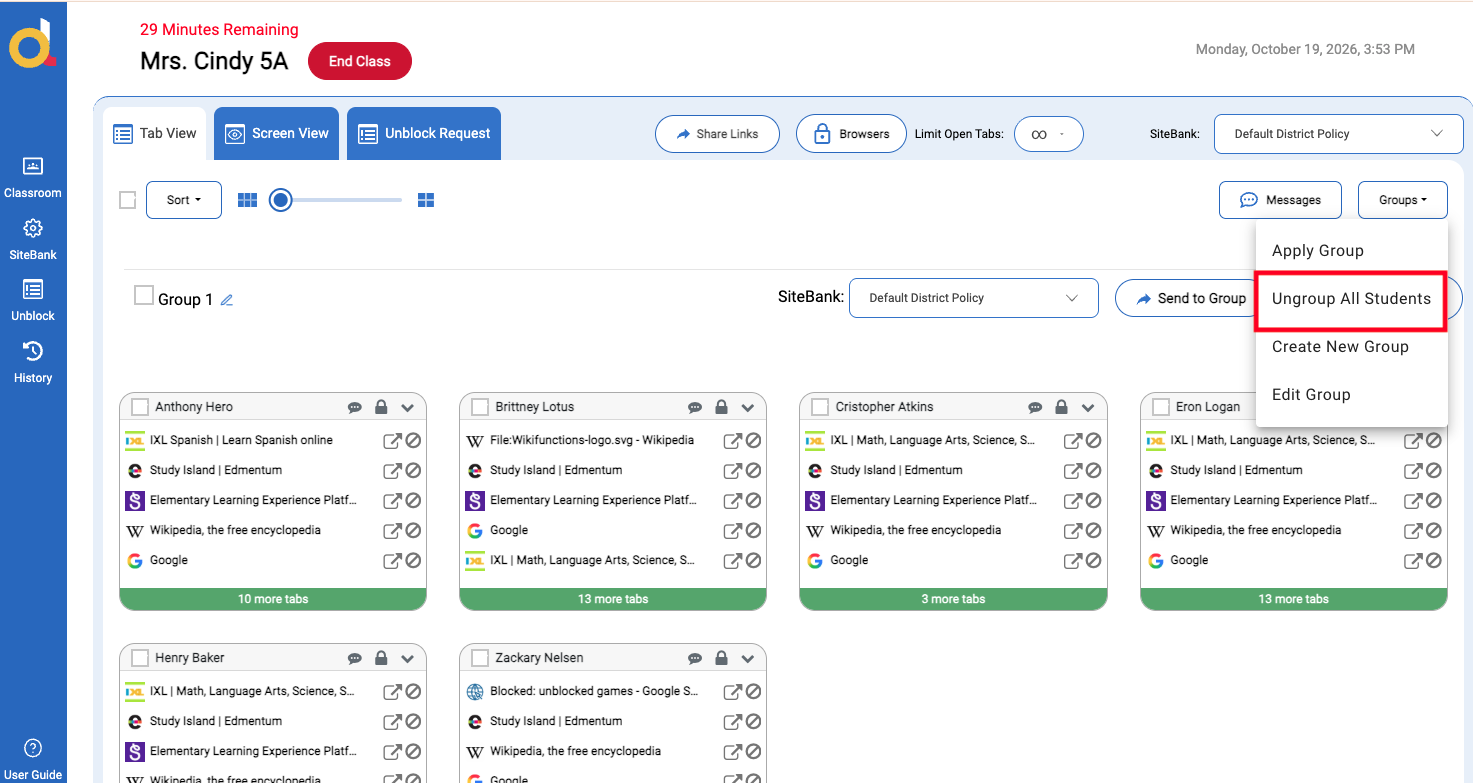
- Open the Groups menu.
- Select Ungroup All Students or remove the group configuration.
- Return students to the standard classroom view.
Best Practices
- Use meaningful group names that reflect the activity or objective.
- Apply SiteBanks to focus students on the resources they need.
- Use groups to support differentiated instruction instead of creating multiple classrooms.
- Combine groups with browser controls to manage different learning activities simultaneously.
- Reuse group structures for recurring classroom activities.
What's Next?
After learning how to use Groups, continue to:
- Using SiteBanks to Guide Learning to learn how to create instructional website collections.
- Co-Teaching and Shared Classrooms to collaborate with counselors, interventionists, paraprofessionals, and co-teachers.
- Classroom History and Activity Reports to review classroom activity after instruction.
© Deledao Education