
Table of Contents
- What Is a Shared Classroom?
- Share a Classroom
- Who Can Benefit from Shared Classrooms?
- Access a Shared Classroom
- Understanding Control Mode and View Mode
- Understanding Student Transfers
- One Student, One Active Classroom
- Common Shared Classroom Scenarios
- Best Practices
- Frequently Asked Questions
- What's Next?
Audience: Teachers
ActiveInstruct supports collaboration between multiple educators through Shared Classrooms.
Teachers can share classrooms with counselors, special education staff, paraprofessionals, interventionists, and other educators who need visibility into student activity during instructional time.
This article explains how classroom sharing works, how students move between active classrooms, and how multiple educators can support the same students.
What Is a Shared Classroom?
Shared Classrooms allow multiple educators to monitor and support students within the same ActiveInstruct classroom.
Rather than creating separate classrooms for each educator, the classroom owner can share access with other authorized staff members.
Shared classrooms provide visibility into student activity while supporting collaboration among educators.
Examples include:
- General education teachers
- Special education teachers
- Paraprofessionals
- Counselors
- Interventionists
- Instructional coaches
Important: Shared classrooms allow multiple teachers to access the same classroom roster, but only one teacher can control a student's ActiveInstruct session at a time. Multiple teachers are not able to simultaneously control the same students at the same time.
Share a Classroom
To share a classroom:
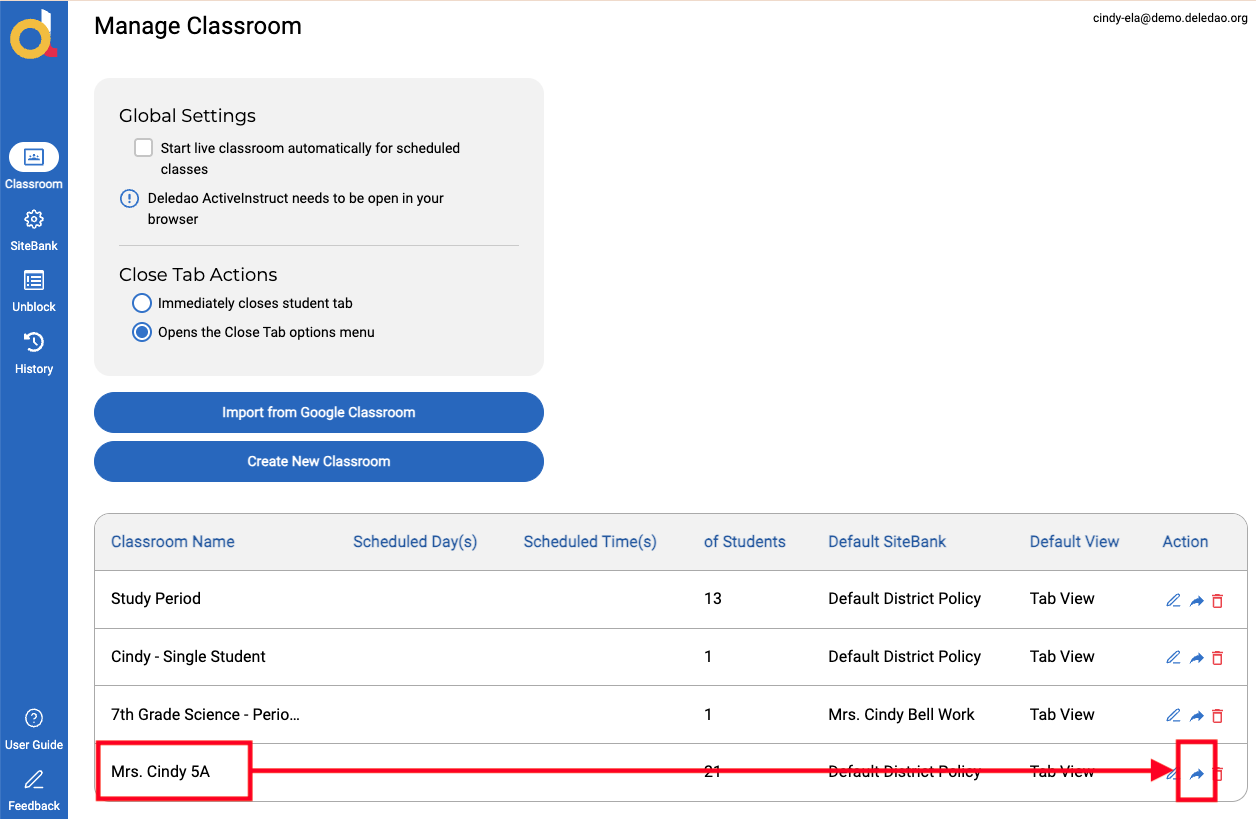
- Navigate to Classroom.
- Locate the classroom you want to share.
- Select Share Class.
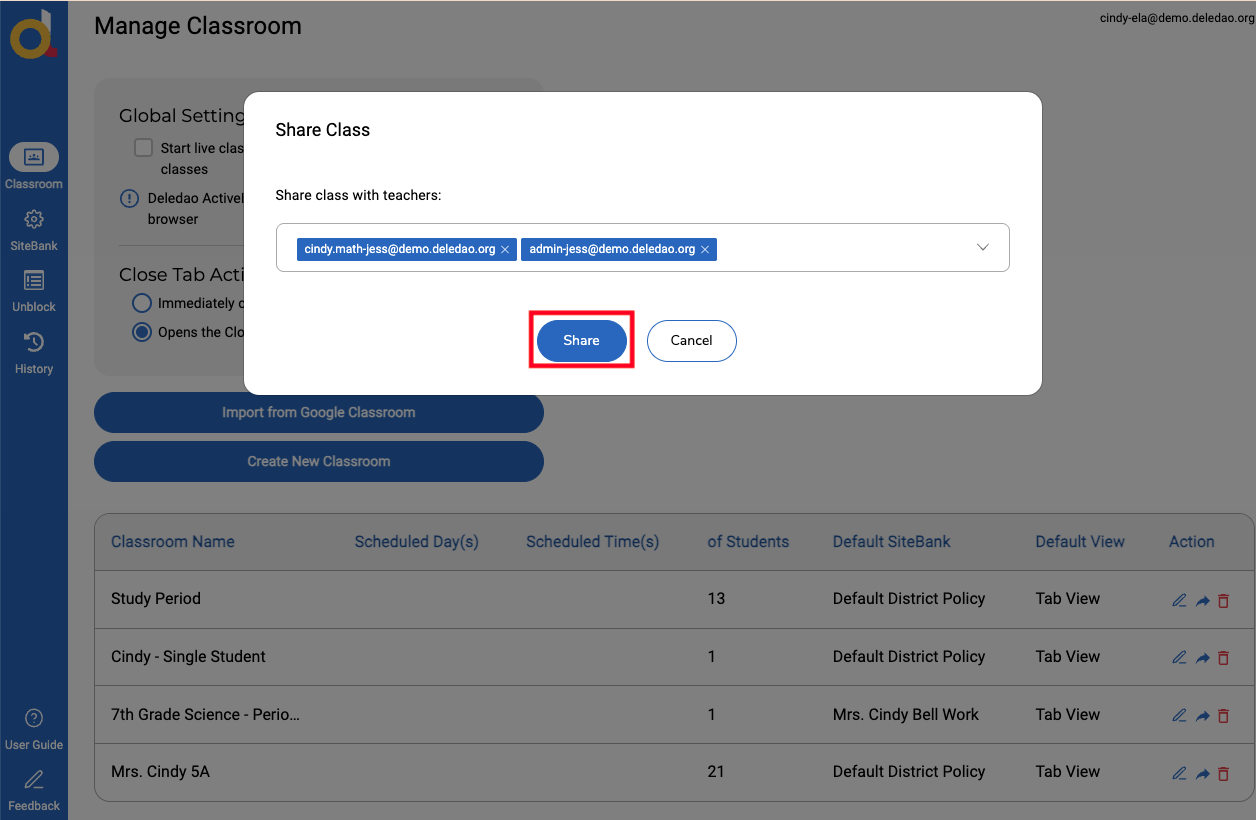
- Choose the educator(s) who should receive access.
- Click Share to apply selection.
Once shared, the classroom becomes available to the selected educator.
Who Can Benefit from Shared Classrooms?
Shared classrooms allow classroom information and student rosters to be shared between teachers. This enables multiple staff members to access the same students while maintaining a single active controller for each student.
- Counselors may need visibility into student activity while working with students individually or monitoring student engagement.
- Special Education Teachers can support students receiving accommodations while collaborating with classroom teachers.
- Paraprofessionals can assist students during instruction while sharing visibility with the classroom teacher.
- Intervention staff can monitor and support students receiving targeted instructional services.
- Additional Classroom Teachers can actively support the same classroom and students without creating duplicate classroom environments.
Access a Shared Classroom
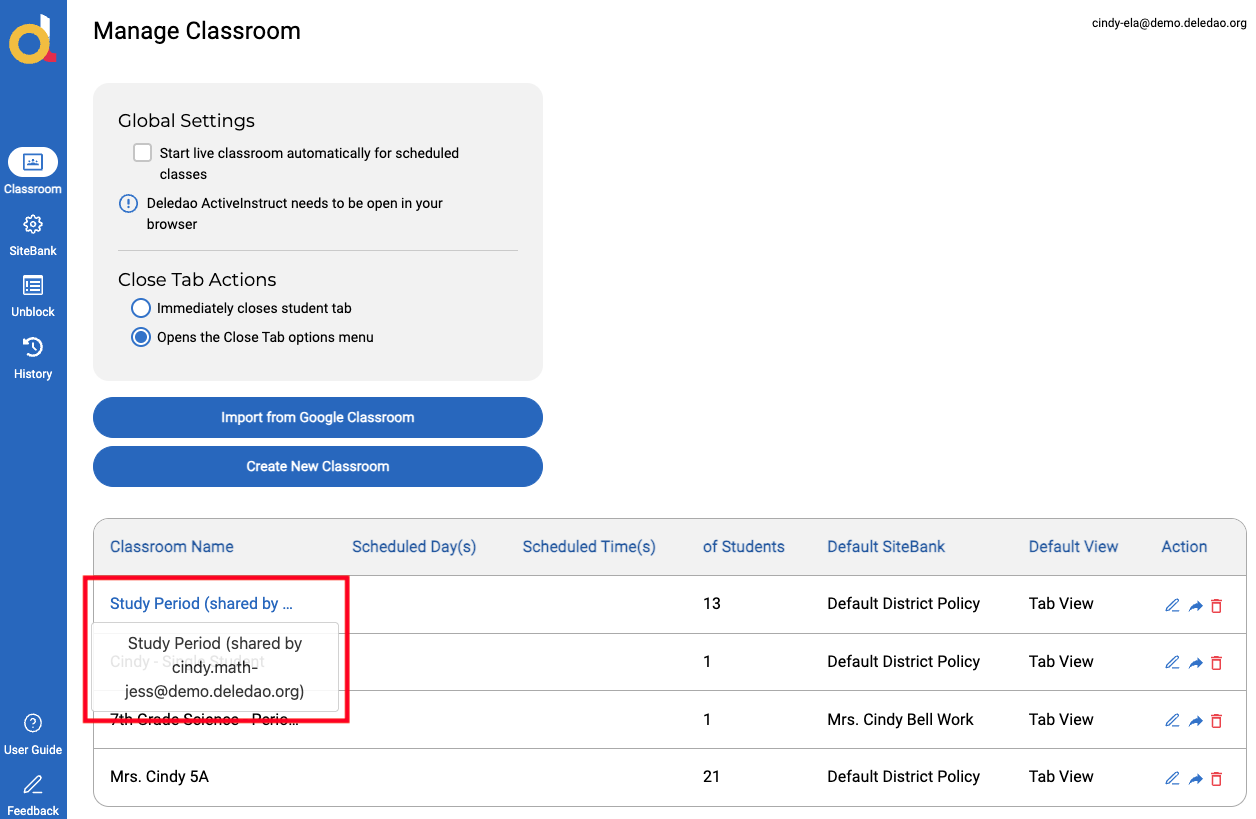
When a classroom has been shared with you, it appears in your classroom list.
Shared classrooms are identified as classrooms owned by another educator but available for collaboration.
From a shared classroom, educators can:
- Monitor student activity
- View and close student tabs
- View student screens
- Lock browsers
- Support instruction
The classroom owner maintains ownership of the classroom configuration.
Understanding Control Mode and View Mode
When multiple teachers access the same shared classroom:
- The first teacher who connects to a student becomes the teacher in Control Mode.
- The teacher in Control Mode has their SiteBank applied to that student.
- Additional teachers are placed in View Mode.
- Teachers in View Mode can still monitor student activity and perform classroom management actions such as closing tabs and locking browsers.
- Only one teacher can have full control of a student at a time.
Understanding Student Transfers
Students are sometimes enrolled in multiple classrooms.
For example:
- A student may be enrolled in both English and Math.
- A student may receive SPED services while participating in a general education classroom.
- A student may work with an interventionist during the school day.
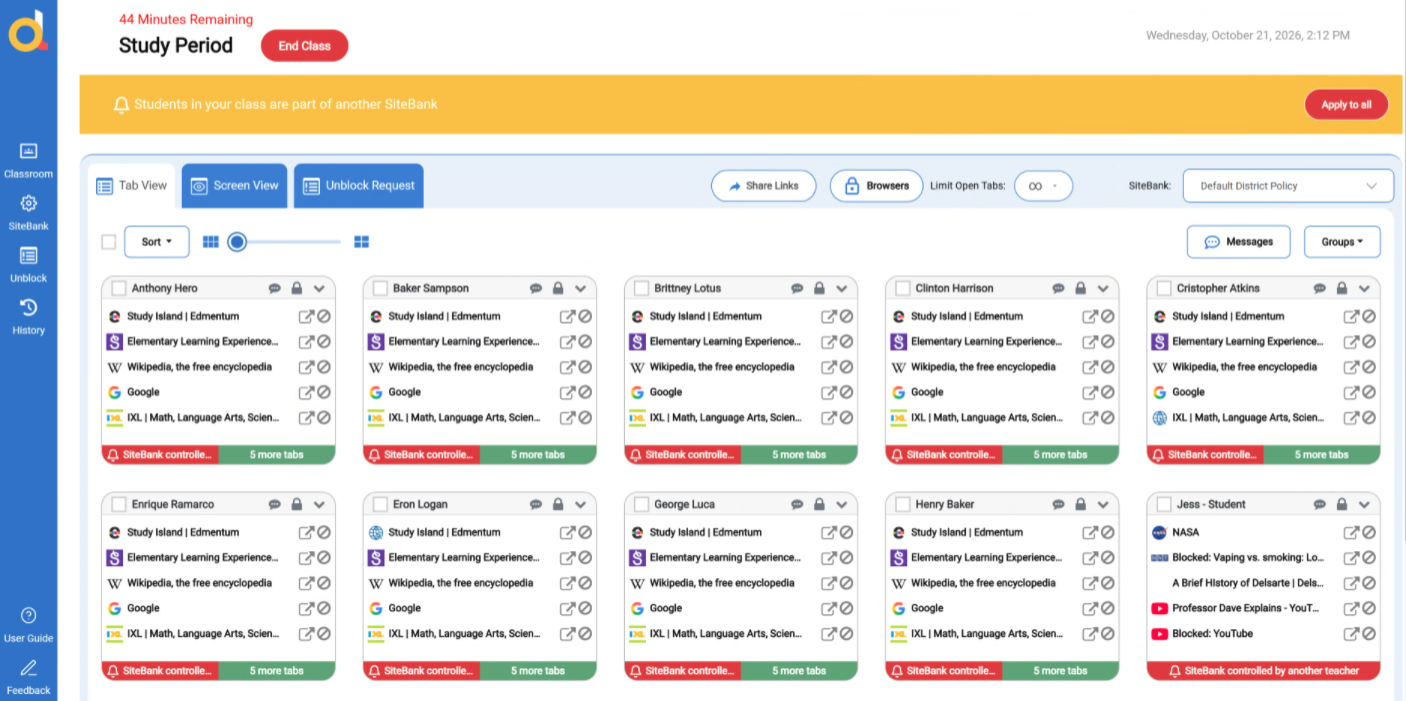
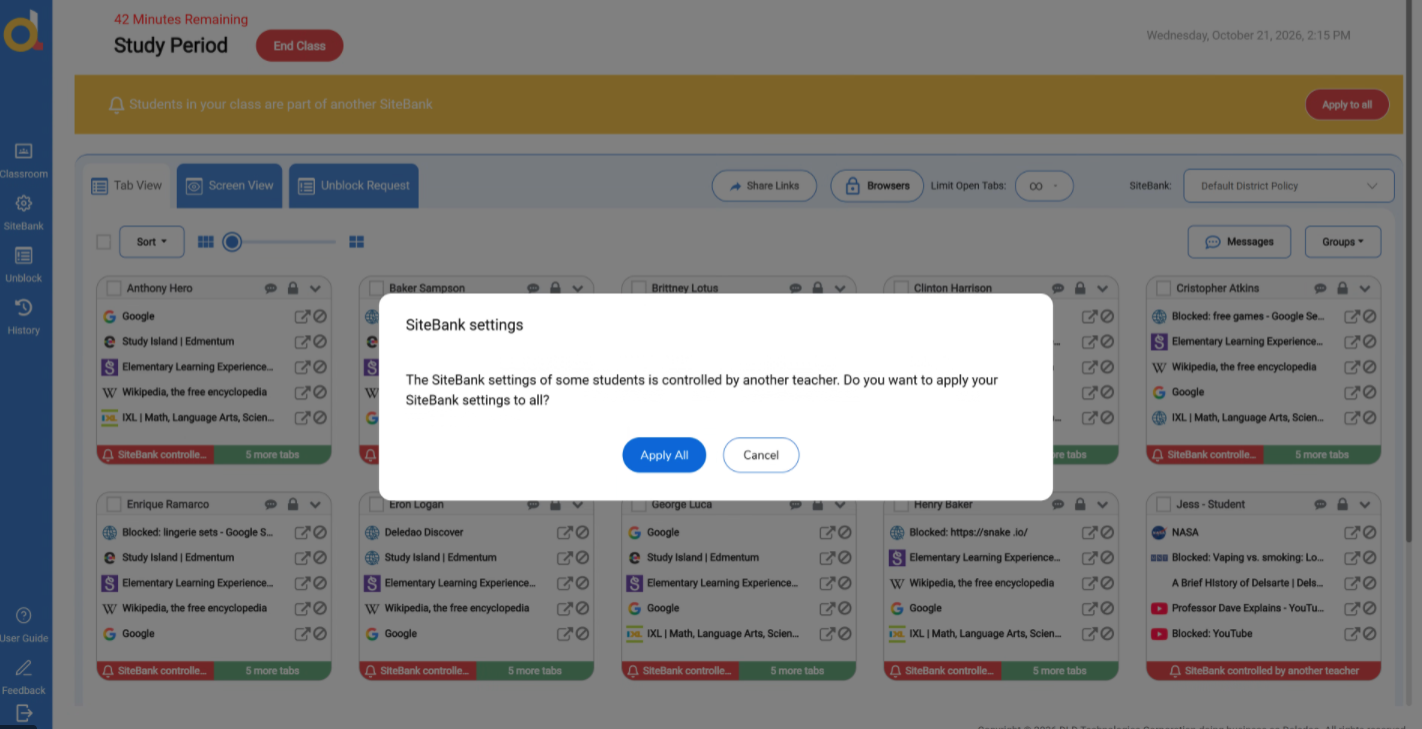
When multiple educators start classrooms that contain the same student, ActiveInstruct displays a notification banner indicating Students in your class are part of another SiteBank (View Mode). Each student card also displays a message SiteBank controlled by another teacher (View Mode).
One Student, One Active Classroom
A student can only participate in one active Live Classroom session at a time.
If a student is already participating in another active classroom:
- The second educator will receive a notification.
- The educator can transfer the student into the new classroom session.
- The student will move from the original session into the new session.
Example
- A Math teacher starts a classroom session.
- The student joins the Math classroom.
- An English teacher starts a classroom session containing the same student.
- ActiveInstruct notifies the English teacher that the student is already participating in another active classroom.
- The English teacher can transfer the student into the English classroom session.
Common Shared Classroom Scenarios
Classroom Teacher and SPED Teacher
A classroom teacher shares access with a SPED teacher. Both educators can monitor student activity and support instruction during the same class period.
Teacher and Paraprofessional
A paraprofessional receives access to the classroom and can help monitor students who require additional support.
Counselor Support
A counselor can join a shared classroom and provide support without requiring a separate classroom setup.
Intervention Groups
An interventionist can collaborate with the classroom teacher while monitoring students receiving additional services.
Temporary Student Support
Students may move between instructional settings throughout the day. Shared classrooms help ensure educators maintain visibility and support as students transition between services.
Best Practices
Share Classrooms Instead of Creating Duplicate Classes
When multiple educators need to work with the same students, classroom sharing is typically easier to manage than creating separate classrooms.
Use Meaningful Classroom Names
Clear classroom names make it easier for shared users to identify the correct classroom.
End Classroom Sessions Promptly
Since students can only participate in one active classroom at a time, ending classroom sessions when instruction concludes helps prevent unnecessary transfer prompts.
Communicate with Other Educators
When students regularly move between classrooms, communication among educators can reduce confusion and improve the student experience.
Frequently Asked Questions
Can multiple educators monitor the same classroom?
Yes. Shared classrooms allow multiple educators to collaborate and support students within the same classroom environment.
Can a student be in two Live Classrooms at the same time?
No. A student can only participate in one active Live Classroom session at a time.
What happens if two teachers start classes containing the same student?
ActiveInstruct displays a notification and allows the student to be transferred into the appropriate classroom session. The first teacher will be in Control Mode and the second teacher will be in View Mode until student has been transferred to the second teachers session.
Can the teacher in View Mode apply a SiteBank to a Shared Classroom?
- No, only one teacher's SiteBank can be applied to a student at any given time.
- The teacher currently in Control Mode determines which SiteBank is active.
- If another teacher wants to apply their own SiteBank, they must take control of the student.
What's Next?
After learning how to collaborate with other educators, continue to:
- Using Groups for Differentiated Instruction
- Using SiteBanks to Guide Learning
- Classroom History and Activity Reports
These features can be combined with shared classrooms to support differentiated instruction, intervention services, and collaborative teaching models.
© Deledao Education