
Table of Contents
- Overview
- Prerequisites
- Firewall Requirements
- Google Workspace Requirements
- Microsoft Districts Using Deledao Local Proxy
- Enable Classroom Management
- Configure Off-Campus and After-Hours Access
- Configure Chat Settings
- Configure Teacher Approval for Student Unblock Requests
- ActiveInstruct Diagnostics
Audience: Administrators
Overview
ActiveInstruct™ Classroom Management enables teachers to monitor student activity, communicate with students, guide online learning, manage classroom sessions, and review classroom activity history.
Before teachers can use ActiveInstruct, administrators must configure rostering, teacher assignments, network requirements, browser settings, and classroom management options within the Deledao Admin Console.
Prerequisites
Before enabling ActiveInstruct Classroom Management, verify the following requirements have been completed.
Rostering
Teachers and students must be imported through your configured rostering source.
- Navigate to Configuration > Rostering.
- Confirm teachers and students are importing successfully.
- Verify classes are importing correctly.
For additional information, see Rostering.
Student-Teacher Mapping
Students must be associated with teachers through either automated rostering or manual assignment.
To review or create mappings:
- Navigate to ActiveInstruct > Directory Management.
- Review existing mappings.
- Create manual mappings when necessary.
For additional information, see Directory Management: Student-Teacher Mapping (Assign Students to Teachers).
Teacher Access
Teachers must be rostered as teachers or manually mapped within Directory Management before they can access ActiveInstruct.
Firewall Requirements
For classroom messaging, live screen monitoring, screenshots, and other real-time classroom management features to function correctly, firewall rules must allow communication with Deledao services.
Required Access
Allow TCP and UDP access to:
Additional Required Access
Allow full TCP and UDP access to:
- pub.deledao.com
- All subdomains of pub.deledao.com
Alternative Firewall Configuration
If full access to pub.deledao.com and its subdomains cannot be granted, allow outbound TCP and UDP traffic on:
- Port 3478
- Port 5349
- Port Range 49152-65535
Note: Blocking these services may prevent classroom communication, screen monitoring, screenshots, and other ActiveInstruct features from functioning properly.
Google Workspace Requirements
The following settings are recommended for Google Workspace environments using ChromeOS devices.
Because Google periodically changes the Google Admin Console interface, menu locations and setting names may vary.
Enable Teacher-to-Student Pop-up Messages
To allow teachers to send pop-up notifications to students:
- Open the Google Admin Console.
- Navigate to Devices > Chrome > Settings.
- Locate the Notifications settings.
- Change the setting from:
- Allow these sites to show notifications to:
- Do not allow sites to show desktop notifications
- Add the Deledao Chrome Extension as an allowed notification source.
Enter:
chrome-extension://[Deledao Chrome Extension ID]
The extension ID is the same value used when deploying the Deledao Chrome Extension.
If you do not know your district's extension ID, contact support@deledao.com.
Enable Live Screens and Screenshots
To allow teachers to view live student screens and capture screenshots:
- Open the Google Admin Console.
- Navigate to Devices > Chrome > Settings.
Configure the following settings:
Screenshot Settings
- Enable: Allow users to take screenshots and video recordings
Screen Sharing Settings
- Enable: Allow sites to prompt the user to share a video stream of their screen
These settings are required for Live Screen View and Screenshot functionality.
Microsoft Districts Using Deledao Local Proxy
Districts using the Deledao Local Proxy on Microsoft-managed devices can provide students with in-browser communication features through the Deledao extension in Microsoft Edge.
Available features include:
- Teacher messaging
- Student messaging
- Hand raising
Enable Classroom Management
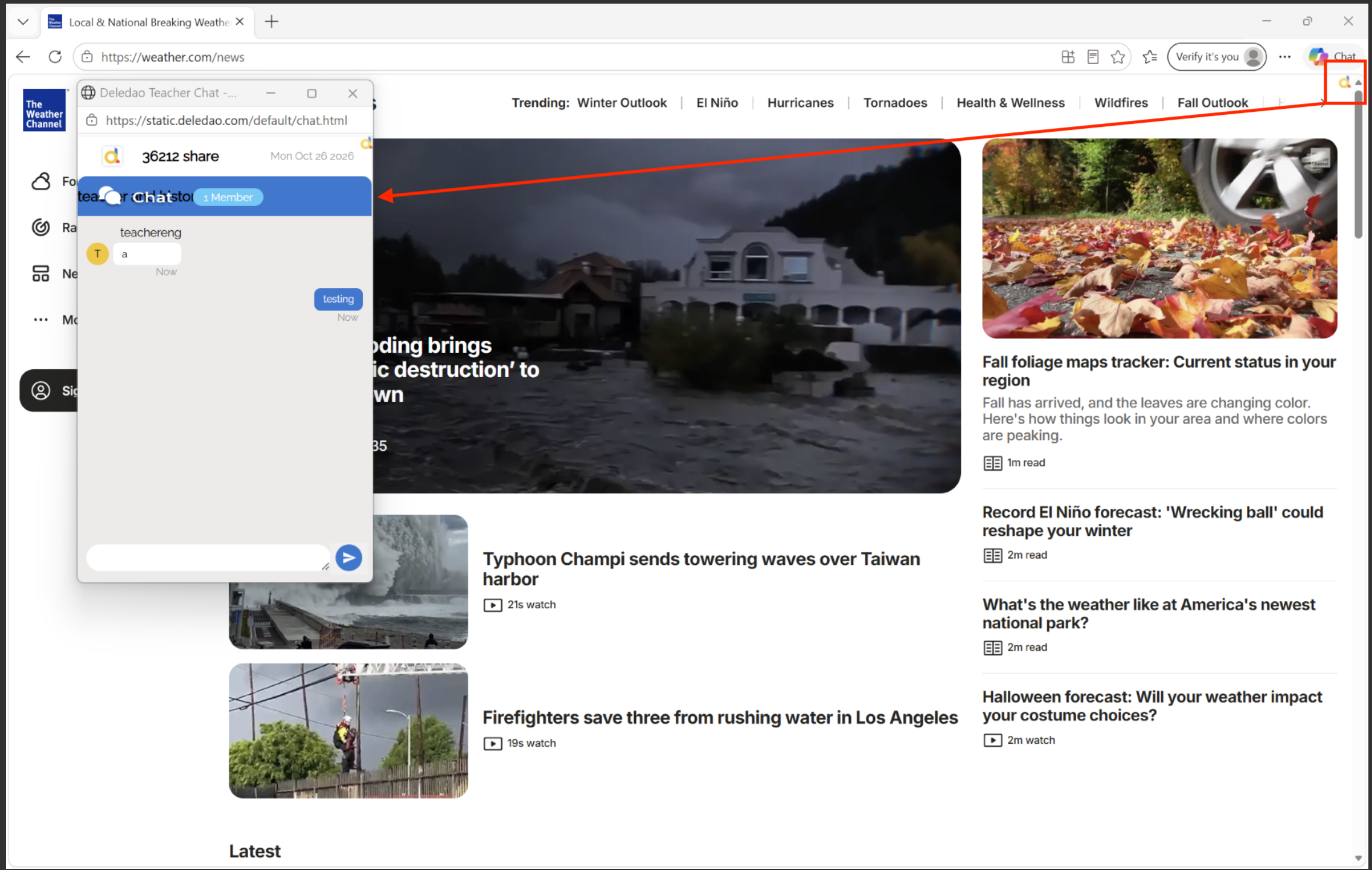
To enable ActiveInstruct Classroom Management:
- Navigate to ActiveInstruct.
- Locate Enable Classroom Management with ActiveInstruct.
- Set the option to Yes.
Additional configuration settings become available after enabling this option.
Configure Off-Campus and After-Hours Access
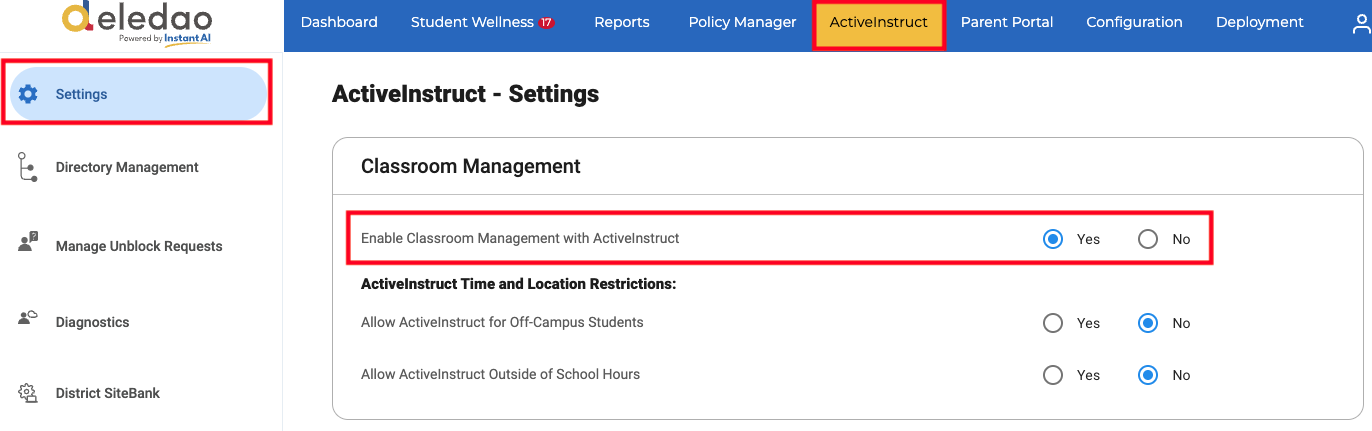
Allow ActiveInstruct for Off-Campus Students
This setting determines whether teachers can manage students who are not connected to the school's network.
Recommended Setting: No
As a student privacy best practice, Deledao recommends leaving this setting disabled unless there is a specific instructional need.
Deledao determines whether a device is on campus by comparing the device's public IP address with the public IP addresses registered with Deledao.
To review registered IP addresses:
- Navigate to Deployment > Guest Devices Protection.
- Review the public IP address information displayed.
If no IP address is listed or the information is incorrect, contact support@deledao.com.
Allow ActiveInstruct Outside of School Hours
This setting determines whether classroom management features remain available outside the instructional day.
Recommended Setting: No
As a student privacy best practice, Deledao recommends leaving this setting disabled.
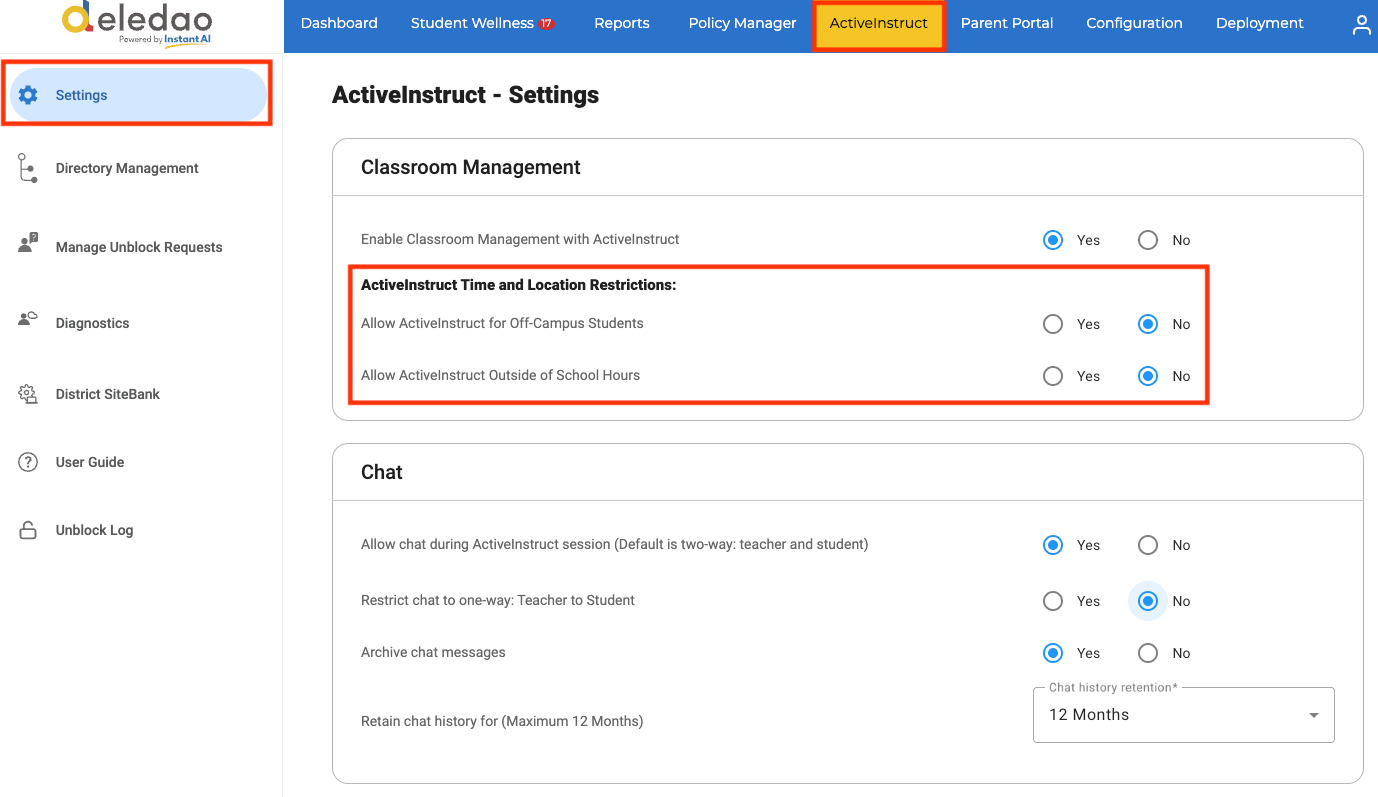
School days and instructional hours are configured under:
Configuration > Global Settings
These settings determine what ActiveInstruct considers to be outside normal school hours.
Remote Learning and Emergency Closures
Schools may occasionally operate remotely due to weather events or emergency closures.
During these situations, administrators may temporarily enable:
- Allow ActiveInstruct for Off-Campus Students
- Allow ActiveInstruct Outside of School Hours
Once normal operations resume, Deledao recommends returning these settings to their standard configuration.
Configure Chat Settings
The Chat section controls communication between teachers and students.
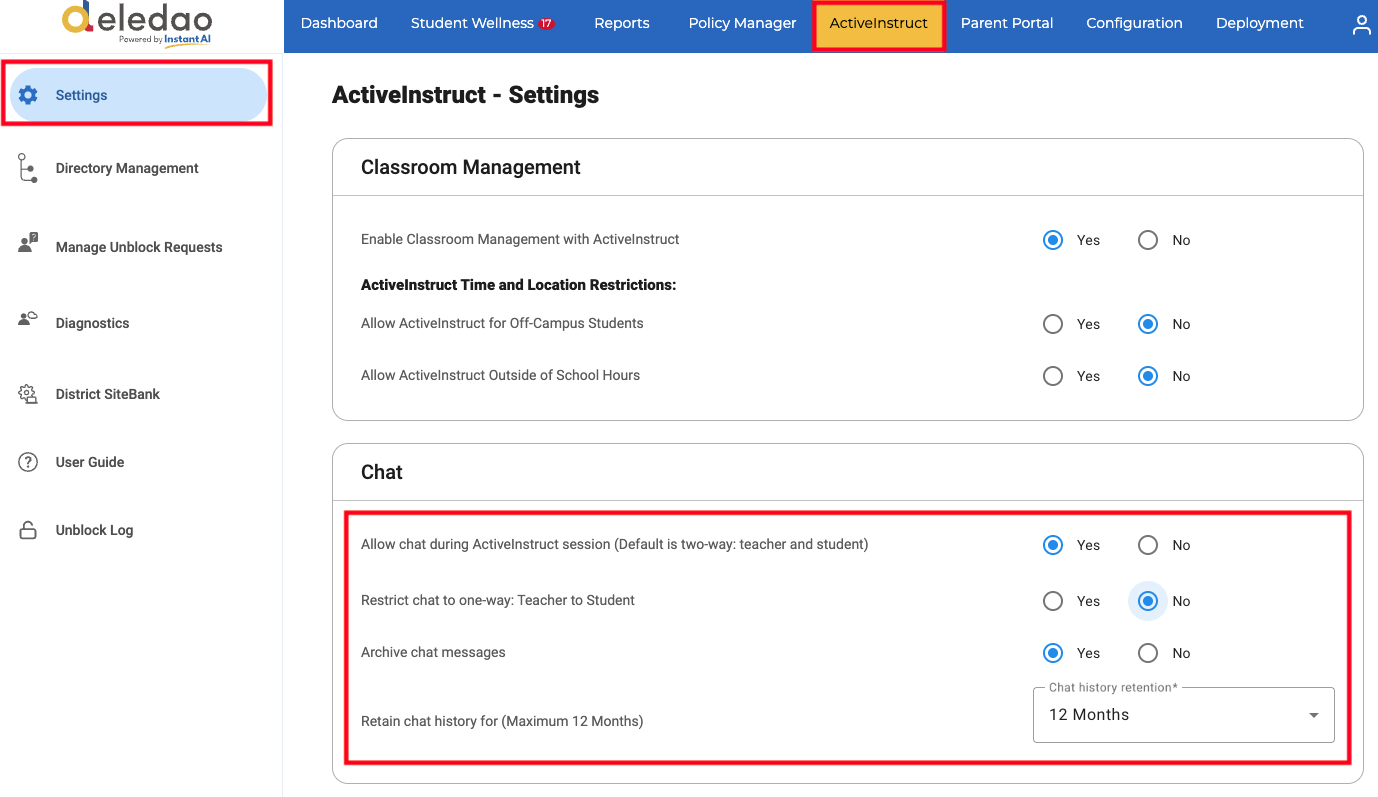
Enable Chat
When enabled, teachers and students can exchange messages during classroom sessions.
Restrict Chat to One-Way Communication
To allow teachers to send announcements while preventing student replies:
- Set Enable Chat to Yes.
- Set Restrict Chat to One-Way: Teacher to Student to Yes.
Archive Chat Messages
Deledao recommends enabling chat archiving.
Set Archive Chat Messages to Yes to retain classroom chat history for up to 12 months.
Archived messages can assist with:
- Classroom reviews
- Parent inquiries
- Administrative investigations
- Compliance requirements
Note: ActiveInstruct does not support student-to-student chat. Communication is limited to teacher-to-student and student-to-teacher interactions.
Configure Teacher Approval for Student Unblock Requests
The remaining settings on the ActiveInstruct configuration page control student website unblock requests.
Administrators can configure whether requests:
- Go directly to administrators
- Require teacher review
- Follow a teacher approval workflow
For complete configuration instructions, see Configure Teacher Approval for Student Unblock Requests.
ActiveInstruct Diagnostics
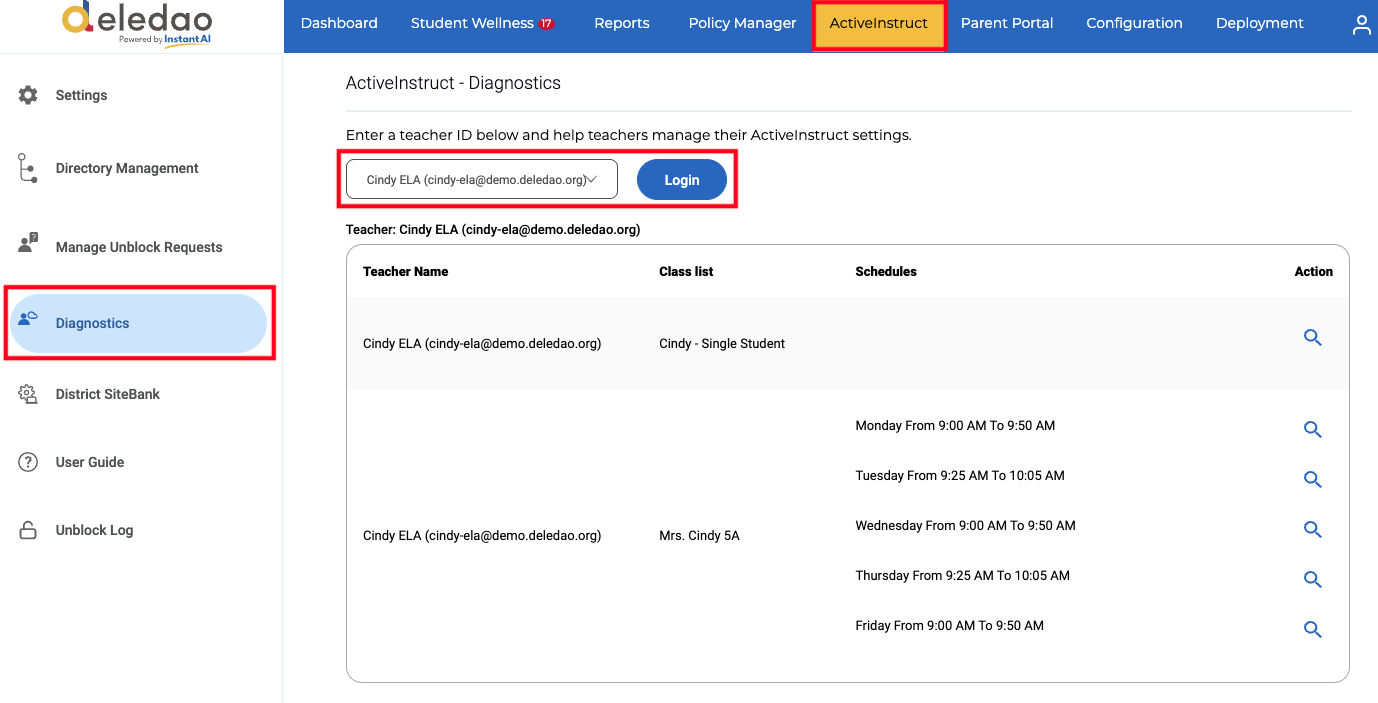
The Diagnostics tool allows administrators to review teacher classroom configurations and troubleshoot ActiveInstruct issues.
To access Diagnostics:
- Navigate to ActiveInstruct > Diagnostics.
- Select a teacher.
Administrators can review:
- Rostered classes
- Manually created classes
- Shared classes
- Co-teachers
- Class schedules
Login as a Teacher
Administrators can click the magnifying glass icon to review information or select Login to launch ActiveInstruct as the selected teacher.
To use teacher impersonation, the teacher must:
- Be rostered as a teacher, or
- Be manually mapped through ActiveInstruct > Directory Management
If the message Invalid Token appears, the selected user is not currently recognized as an ActiveInstruct teacher.
Common Uses
Teacher impersonation is useful for:
- Troubleshooting login issues
- Verifying roster problems
- Reviewing classroom schedules
- Confirming classroom visibility
- Reproducing reported issues
When Login is successful, administrators can perform all functions available to the teacher.
This feature is also useful when a teacher is unexpectedly absent. An administrator can launch the teacher's classroom, manage the session, or share the classroom with another teacher covering instruction.
© Deledao Education